.avif)
TL;DR:
You can delete LinkedIn connections through your mobile app, desktop connections list, or their profile directly - but only the first two methods keep it private.
LinkedIn doesn't offer bulk deletion, but third-party tools like LeadDelta can help manage large networks more efficiently.
Do you have a big LinkedIn network?
If you answered yes, then your network too, might be filled with irrelevant connections and messages.
And if that's the case, trust me, your LinkedIn is better off without those connections.
But are you thinking of unfollowing people?
Hold up.
Before we dive in, let me clear something up...
Can you delete LinkedIn contacts in bulk?
Short answer: Not directly on LinkedIn, but there are workarounds!
Does LinkedIn notify when you remove contacts?
Sometimes, but I'll show you how to do it stealthily. 😉
What's the difference between removing vs. unfollowing?
Big difference. I'll explain!
Stick around, I've got you covered...

Let's first talk about:
Your LinkedIn network..
If you have 500+ connections on LinkedIn, you already have decent reach and visibility on the platform.
Let's increase that to 5000 connections, and you can easily grow substantially without putting in a lot of effort.
But the truth is: you cannot keep increasing your connections indefinitely.
LinkedIn has a limit of 30,000 connections per profile.
(which is a lot)
And anyday, quality > quantity.
So, Should I remove connections on LinkedIn?
No matter what you believe, the truth is, if you have a super large LinkedIn network, you have quite a lot of irrelevant connections.
And removing some of them would be the smart choice.
So if:
👀They spam you or bother you a lot.
👀They don't add any value to your network.
👀You've hit the 30,000 connection limit.
👀They don't engage with your content, lowering your reach.
👀They asked you for money.
It makes sense to remove them from your network.
Other than these reasons, it's your call.

"But Saurav, why can't I simply unfollow them?"
I never said you couldn't..
But there's a difference between unfollowing someone (like on instagram) and removing someone from your connections...
Unfollowing on Instagram.. disconnects two people, but the same doesn't happen on LinkedIn.
Unfollow vs. Remove connection on LinkedIn
When you UNFOLLOW someone, you're simply covering up a window, and you'll no longer get their updates.
But you guys can still contact each other and view profiles, if any one of you wants to.
You guys just won't 'see' each other's updates.
And when you REMOVE a connection, you're removing the window altogether.
You will not see any updates and won't be able to send any messages either.
It's the final goodbye.
There's also a third option: muting. This hides messages in your LinkedIn chat or group conversations without unfollowing or removing them. You can mute someone by tapping the three dots in your message thread or group chat and selecting 'Mute'.
So if you're ready to do that, here's..
How to Delete LinkedIn Contacts (3 Methods)
This is how you delete contacts in LinkedIn:
Option 1: Remove contacts using the LinkedIn app
📌Open the LinkedIn app on your phone.
📌Tap on your pretty profile picture.

📌 Go to your account.
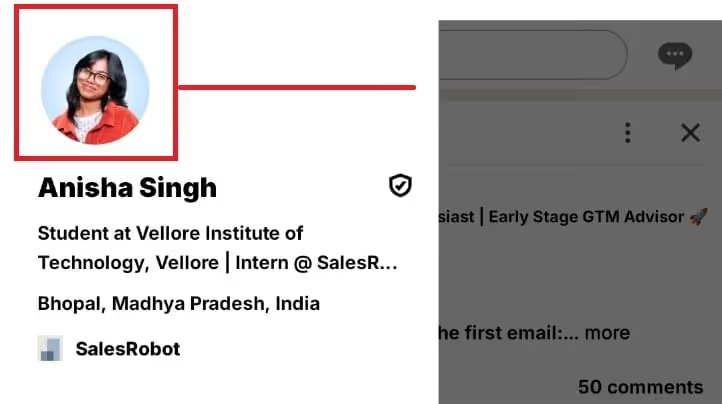
📌Click where the number of connections is displayed.
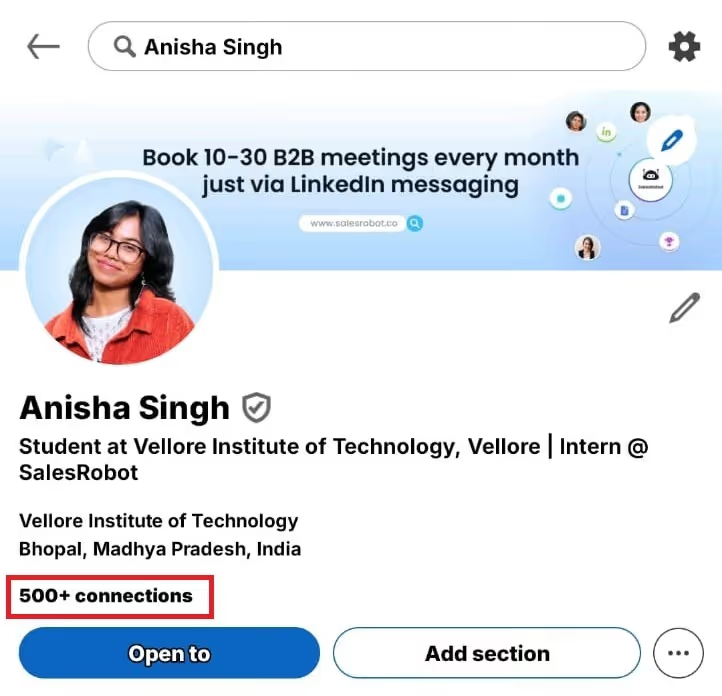
📌And there you have it, your entire connection list.

Click on those three dots and keep or remove anyone you want.
The mobile app offers faster navigation and fewer accidental clicks. You can even long-press on connection names for quick menu access on some devices.
Having trouble with mobile?
The desktop version might be your best friend, keep reading!
Option 2: Remove contacts using the LinkedIn website
📌Go to LinkedIn.com.
📌Click on 'My network.'
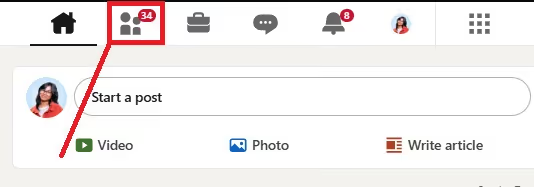
📌From the left, you'll see 'Manage my network.' Click Connections
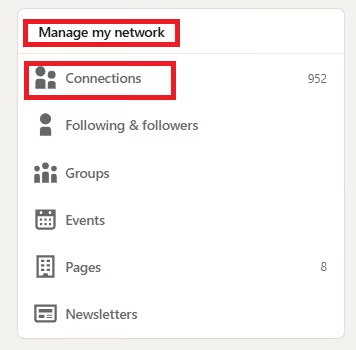
📌Click 'Connections.'
📌And by clicking on the three dots, remove people who are bothering you.

Option 3: Remove contacts by looking them up
And in case you can remember the names of people you want to remove, and you don't care if LinkedIn notifies them, feel free to do the following:
📌Search them up using their name.
📌Click on their profile.
📌Click on 'More' and hit 'Remove connection.'

Btw, this works for the app and website both!😉
How to delete LinkedIn contacts in bulk?
Well, right now, you can't.
LinkedIn doesn't provide any default tools to help you delete contacts in bulk.
But you can take help from third-party tools and apps like LeadDelta, Linked Helper, or PhantomBuster for bulk connection cleanup. LinkedIn only supports bulk removal for imported contacts natively.
Does LinkedIn notify when you remove a connection?
Yes and no.
☝🏼They'll never know unless you let them.
✌🏼You'll lose everything once you remove them and will have to start over again.
Now, answering your question:
If you remove them from YOUR connections list, aka using options 1 and 2, LinkedIn will never let them know.
But if you search them up, open their profile and remove them, using the 3rd option, LinkedIn will notify them anonymously or explicitly, depending on your privacy settings.
To handle your LinkedIn connections more privately, begin by tweaking your privacy settings. You can change your connections list visibility to 'Only you', which keeps your network hidden from others.
How do you know if someone deleted you on LinkedIn?
This one is a bit tricky.
The thing is:
When someone searched you up on LinkedIn, opened your profile and then removed you from their connections list..
And they haven't tweaked their privacy settings..
You might know.
Otherwise..

So.. that's how you remove a contact on LinkedIn without them knowing.
(lessons to learn ;))
Is it better to block or remove someone on LinkedIn?
When you remove a connection, LinkedIn notifies them or not depending on your privacy settings and which method you use.
Then you may still be visible in their 'People you may know' section and vice versa.
But once you block them, there's no going back.
They won't be notified either (unless you guys shared a LinkedIn recruiter account.)
So, it's serious serious.
They cannot even search you up.
Ready for it?
Here's how you block someone on LinkedIn:
- Login and go to the profile of the person you want to block.
- Click on this 'More' option.
- From the drop down menu, click on 'Report/Block.'
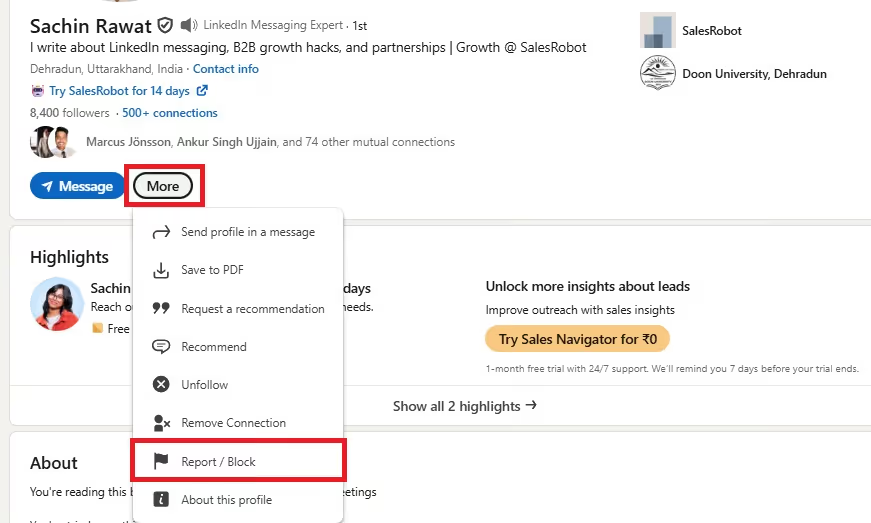
- Select 'Report' if you think they're fraud and spamming you and 'Block' if they're bothering you.
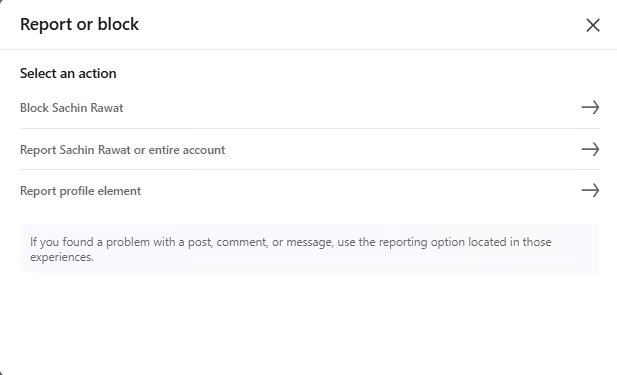
Confirm and that's it, you're done!
How to download LinkedIn contacts to excel
If you need to export your LinkedIn connections before cleaning up your network, you can download your LinkedIn contacts to Excel. Go to Settings & Privacy, then Privacy, and select "Get a copy of your data." Choose "Connections" and LinkedIn will email you a CSV file that opens in Excel with all your contact information.
Conclusion
Now you know how to clean up your LinkedIn.
And.. it's important, and it's not.
It really is up to you to decide if you want and need to.. or not.
Once you're done cleaning up your LinkedIn connections, it's time to rebuild your network - but this time, smarter.
That's where SalesRobot comes in.
It's an all-in-one LinkedIn automation tool that connects, messages, and follows up automatically, without risking your account.
The latest version comes with some cool upgrades:
- AI Inbox Manager that replies to leads in your voice, qualifies them, and even books meetings straight to your calendar.
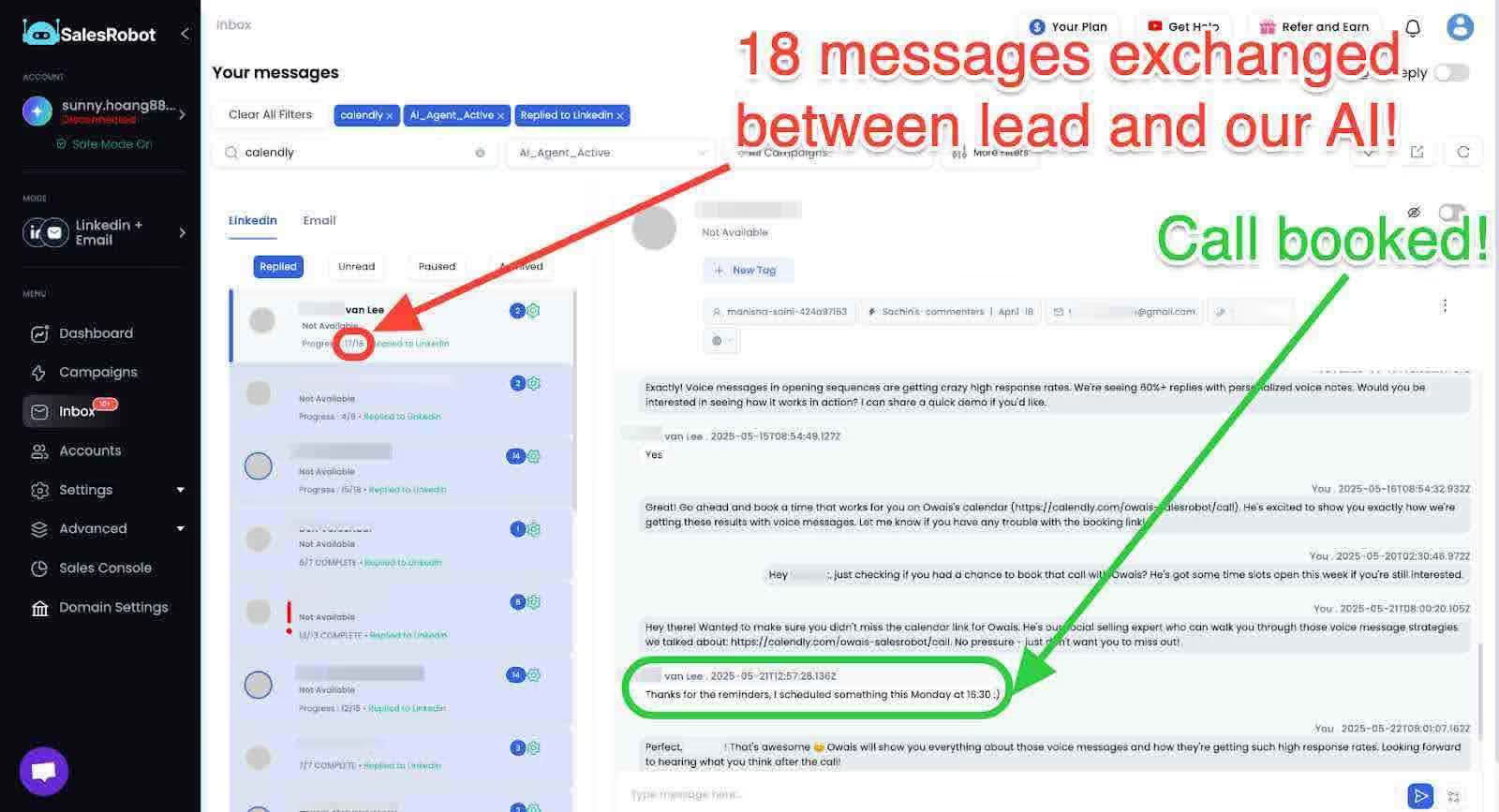
- Voice notes and video messages that make your outreach sound human, not robotic, because hearing your tone builds instant trust.

- AI Variables that personalize every message beyond just "Hi [Name]." It adapts to your prospect's profile and context.
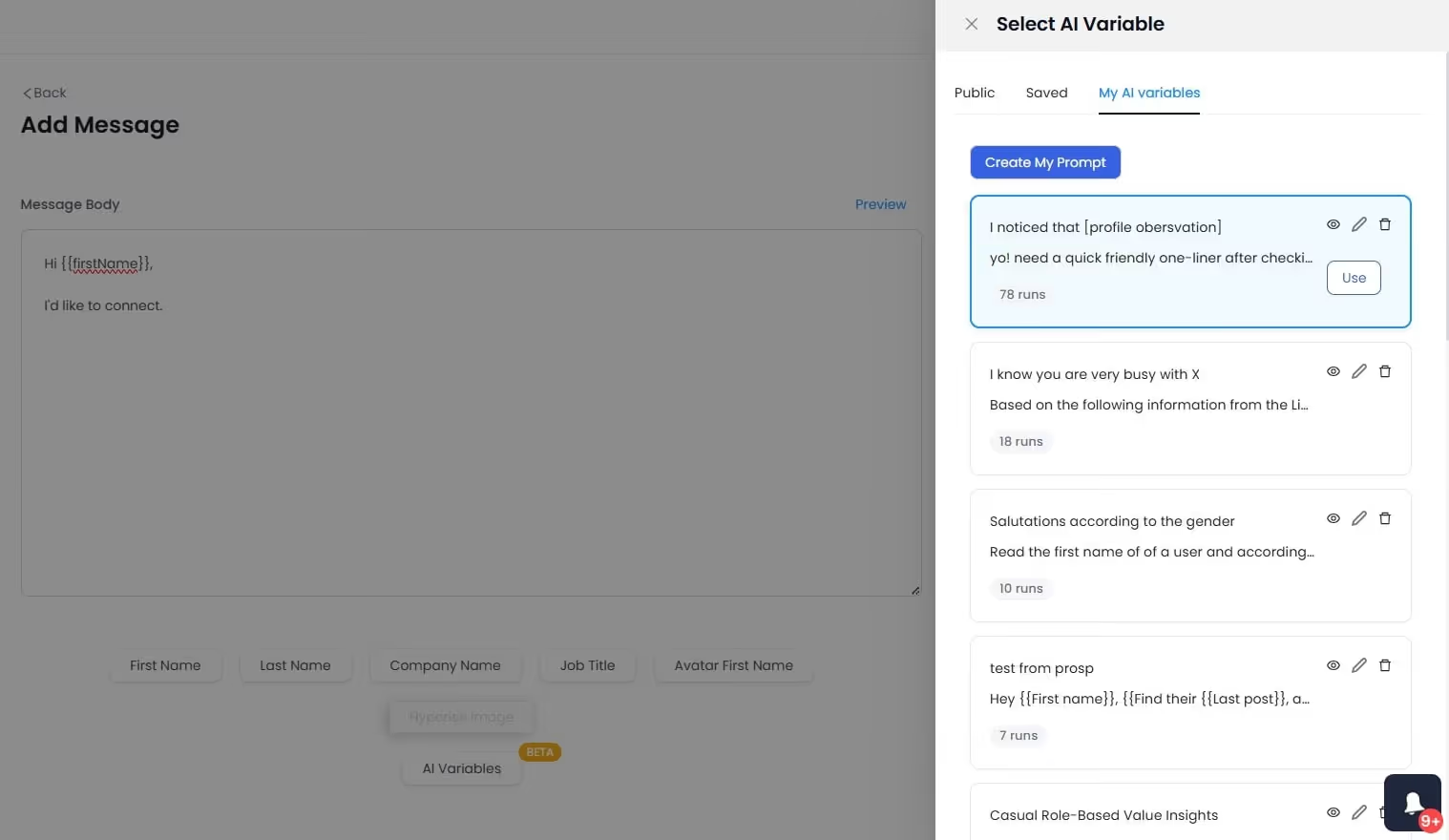
Do not worry, we won't ask you for money (or credit card details) for 14 days, you can test all you want😉
Frequently Asked Questions About Deleting LinkedIn Contacts
Can I recover deleted LinkedIn connections?
Nope, it's final. Once you remove someone, their endorsements, messages, and recommendations disappear.
How many connections can I delete at once?
No official limit, but keep it under 20 per day to avoid flags.
Will removed contacts show up in "People You May Know"?
Yes, they might. Removing doesn't block them.
Can I delete imported contacts from my phone?
Yes! Go to Settings → Privacy → Data Export → Manage Synced Contacts.
What happens to shared connections when I remove someone?
Nothing changes for your mutuals, it only affects your direct connection.
Can you delete a LinkedIn message?
Yes, you can delete LinkedIn messages from your side of the conversation, but this doesn't delete them from the other person's inbox unless you delete the entire conversation.
Does deleting LinkedIn conversation delete both sides?
No, deleting a LinkedIn conversation only removes it from your inbox. The other person will still see the conversation and all messages in their inbox.
How to delete LinkedIn message after 60 minutes?
You can delete any LinkedIn message at any time from your side by clicking the three dots next to the message and selecting delete. There's no 60-minute limit, but it only removes the message from your view.
When you delete a message on LinkedIn does the other person know?
No, LinkedIn doesn't notify the other person when you delete a message or conversation from your side. They'll still see everything in their inbox.

Wow your leads by cloning yourself and sending personalized videos and voice notes to each lead on LinkedIn.
If you don't reply to leads within 5 mins, your chances of converting them fall by 50%. Our AI replies on your behalf instantly! (and yes, you can train it)

Don't shoot in the dark. Get detailed analytics on what's working
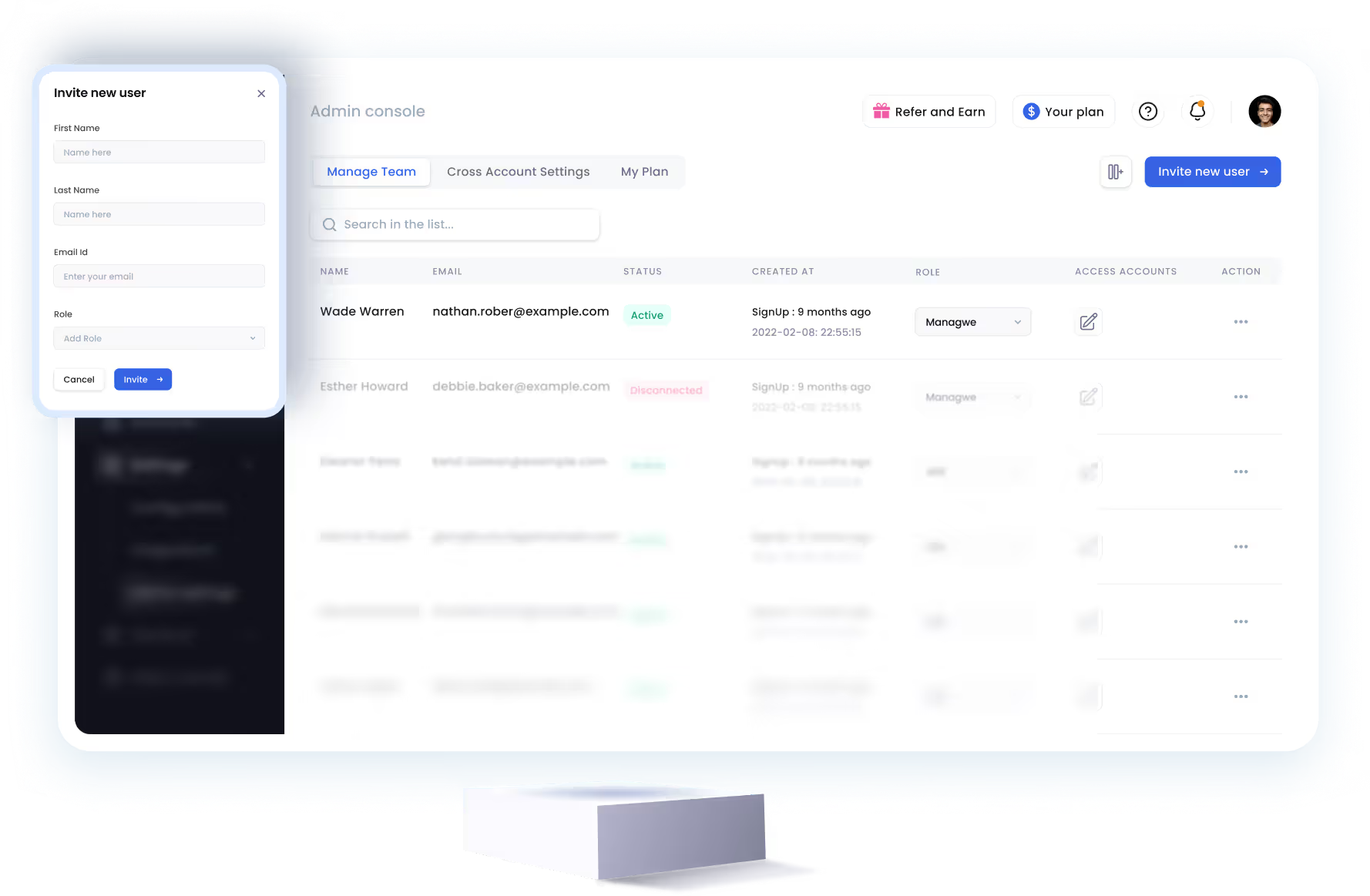
SalesRobot allows you to invite other team members, so that they can add their LinkedIn Account, run outreach campaigns and get amazing results just like you.
.avif)


Trusted by 4100+ innovative B2B sales teams and lead gen agencies

.avif)

.avif)




.avif)


Heading 1
Heading 2
Heading 3
Heading 4
Heading 5
Heading 6
Lorem ipsum dolor sit amet, consectetur adipiscing elit, sed do eiusmod tempor incididunt ut labore et dolore magna aliqua. Ut enim ad minim veniam, quis nostrud exercitation ullamco laboris nisi ut aliquip ex ea commodo consequat. Duis aute irure dolor in reprehenderit in voluptate velit esse cillum dolore eu fugiat nulla pariatur.
Block quote
Ordered list
- Item 1
- Item 2
- Item 3
Unordered list
- Item A
- Item B
- Item C
Bold text
Emphasis

Superscript
Subscript