.avif)
TL;DR: Sales Navigator Account Lists Guide
Why Use It?
- 1.2B+ LinkedIn profiles with enriched data
- Auto-updates on job changes/promotions
- Advanced filtering by industry, job role, location
- Team collaboration features
Upload Process:
- Prepare CSV (company names, websites, LinkedIn handles)
- Go to "Accounts" > "Upload Accounts"
- Upload CSV and map headers to LinkedIn fields
- Sales Navigator auto-processes accounts
- "CSV" tag appears when complete
Export & Message Leads:
Manual: Copy-paste to Excel, message individually (slow, risk of spam flags)
SalesRobot (Recommended):
- Copy Sales Navigator search URL
- Import to SalesRobot campaign
- AI personalizes messages from prospect profiles
- Auto-sends 30-50 daily (connections, messages, emails, voice/video)
- Safe Mode prevents account restrictions
Key Benefits:
- Precise targeting with advanced filters
- Real-time profile updates (no manual work)
- Centralized lead organization
Bonus Features:
- AI-recommended leads matching your criteria
- SmartLink: Track content engagement
- TeamLink: Leverage team connections for warm intros
This blog is for you…
If yes, you're in the right place.
One of the best tools you can use for lead organization is Sales Navigator.
Sales Navigator's strongest benefit is its ability to handle large account lists, particularly through CSV uploads.
And in this blog, we'll break down everything you need to know about uploading, managing, and leveraging account lists in Sales Navigator.
By the time you finish this article, you'll know:
👉 How to upload and manage your account list in Sales Navigator?
👉 How to share, export, and start messaging your leads?
👉 The benefits of uploading account lists to Sales Navigator
👉 Other advanced features that make Sales Navigator a game-changer
Let's begin.

Why Use Sales Navigator for Lead Management?
Sales Navigator makes finding and managing leads so much easier.
It provides you with all the important data of over 1.2 billion prospects in one place.
This data helps you send relevant messages that actually makes sense to them instead of generic, boring pitches.
Key Benefits of Using Sales Navigator:
1️⃣ Lead enrichment:
Upload and enrich lead data with their LinkedIn profile URLs and their info.
This helps segment leads by industry, job roles, or geography for better targeting.
2️⃣ Real-Time Updates:
Stay informed with automatic updates on job changes, promotions, or any professional moves tied to LinkedIn profiles.
3️⃣ Team Collaboration:
Share access with your team, enabling smooth coordination and a more efficient workflow.
By addressing the search intent upfront and then diving deeper, you ensure readers find exactly what they're looking for while providing additional value.
How To Upload Lead Lists To Sales Navigator
Important note: CSV uploads in Sales Navigator work for account lists only, not individual lead lists. The CSV upload feature for account lists is only available to Sales Navigator Advanced and Advanced Plus users.
It's quite simple, here is the step-by-step process:
- Prepare your CSV file with the necessary information, including company names, websites, and LinkedIn URLs.
- Open Sales Navigator, head over to "Accounts" > "Account lists" and "Upload Accounts".

- This will bring you to the Upload account list window.
Navigate and find the location of the CSV file on your system and upload it. Make sure you carefully read everything in the "Requirements" tab.

Don't miss out on any details. The more details you add (company name, website, LinkedIn URL), the more likely LinkedIn is to match your CSV with the right companies.
- Once that's done, make sure to map the headers of your CSV file to the LinkedIn accounts field.

- Sales Navigator will now proceed to automatically process and start adding accounts to your list.

Once this is done, you will see a "CSV" tag next to your list's name.

And done.
The number of account lists you can manage on Sales Navigator completely depends on the type of subscription you have.
How to Export Account Lists from Sales Navigator and Start Messaging Them
Uploaded your account list to Sales Navigator? Great!
Now your list looks complete.
Now, it's time to start engaging with these leads.
After uploading your account list, the next step is lead engagement.
Important: Sales Navigator currently doesn't offer the option to export account and lead information into CSV or XLS files. However, here are 2 ways how you can work around this:
Manual Copy-Paste Method
Yep, you can manually copy and paste each lead into an Excel file. Once it's all noted down, you can start texting them one by one.
But let's be real, that's tedious and eats up a ton of time. Plus, when it comes to messaging, sending the same message to too many people can get you flagged 🚩. Remember, the standard limit is 100 connection requests per week across all account types, and there's no official daily messaging cap, but you need to focus on proper pacing.
Sure, you could hire a team to handle it, but that can get pricey fast.
Using a Third-Party Application
There are plenty of third-party tools like SalesRobot, Evaboot, and PhantomBuster that let you export your lead list to a CSV file.
But here's the big question… "Which one's actually worth it?"
And this is where SalesRobot stands out.
With SalesRobot, you can not only export your leads into a CSV file but also set up automated messages and email sequences 😎.
That's like hitting two birds with one stone.
Oh, and it even handles follow-up messages for you because let's be honest, those can be a pain to keep track of.
Lemme show you how it works real quick so you know I'm not just hyping it up 💀.
Before you do anything, though, you gotta link your LinkedIn account to SalesRobot. I'll show you how. If you've already done it, then skip to Step 3.
Step 1: Click on "Accounts" and "Add LinkedIn account".


Step 2: Enter your LinkedIn Email ID and click on "Add account".
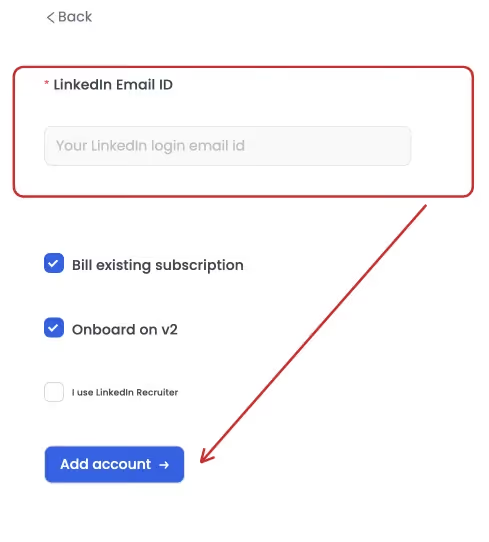
Make sure to onboard your account on V2.
Step 3: Open Sales Navigator, head over to the "Leads" section and select your lead list.

Step 4: Click on "View in search" to be able to access the search URL.

Step 5: Now copy the Sales Navigator URL.

Step 6: Head over to SalesRobot and create a campaign.

Step 7: Now, click on "Add from Sales Nav Search"

Step 8: Paste the link you had copied earlier and save it.

Step 9: Once that's done, click on configure settings.

(Here, you will find options to enrich emails and also target only premium accounts)
Step 10: You can choose from our pre-made templates or even start the message sequence from scratch.

Step 11: Let's get to the fun part!
If you create a sequence from scratch, you get two options here:
- If you go with "Basic Steps," you can automate sending a connection request, followed by a message, then emails and finally personalized video and voice notes.

- If you choose the "Advanced Steps" option, you can warm up your LinkedIn account before sending connection requests. This makes your account look more legit and less like a bot.
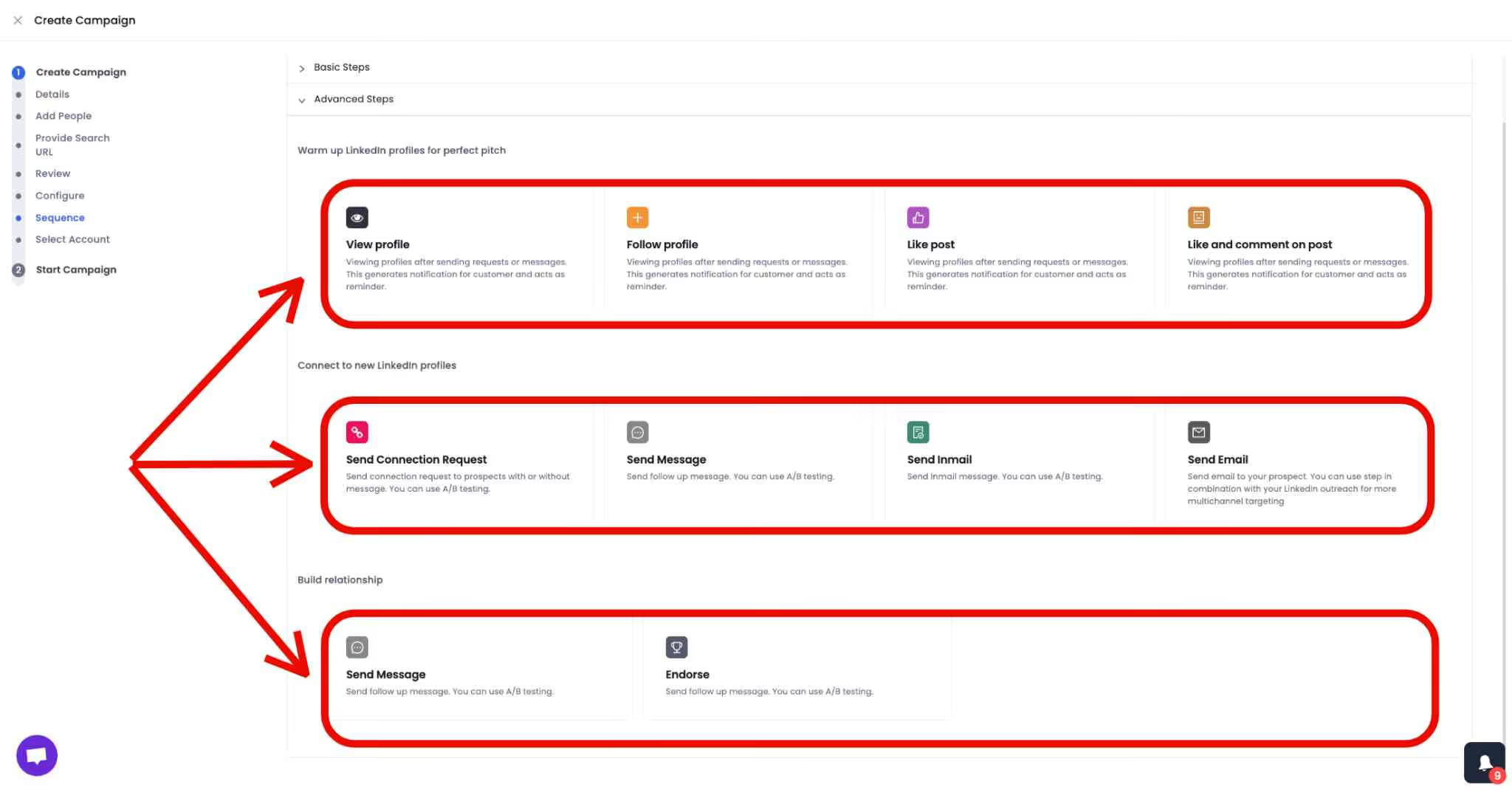
Pretty cool, right? 🤔
Step 12: Time to craft your message and email

If you're unsure about your message, SalesRobot has a built-in score system that shows how likely it is to get a response 🎯.
You know what's the best part? If you're not really sure about what message would actually grab your prospects' interest, you can just leave it to the AI.
The AI Variables feature does research on your prospect and sends personalized messages based on their profiles using some of the best sales pitches out there.

The AI is really dutiful too, because it sees to it that the conversation keeps going until the prospect books a meeting.
Now, if you want to give your prospect an extra push, just in case they don't respond to your AI-crafted messages, there's still hope!
Send them a Voice or Video message. You'd be shocked to know how many people find a video message way more convincing than plain old messages.

All you gotta do is record the video, and include it in the message sequence while creating your campaign, and you're good to go!
Worried about getting flagged? Just enable "Safe Mode," and you're all set.

No stress, no flags 🚦.
From there, SalesRobot will automatically reach out to 30-50 prospects daily from your lead list.
Easy peasy!
Now that we're talking about it, you should know this:
Sales Navigator doesn't allow you to export contact information directly.
That said, it still provides valuable insights from LinkedIn profiles that can guide your messaging strategy.
However, there are other ways you can enrich your lead lists with contact info and save some time and effort.
There are several reverse lookup tools, like Reverse Contact, that let you upload lists and enrich it with the data they can find from public sources.
The good thing is you can easily download the list, unlike Sales Nav, and run a campaign on SalesRobot with your CSV file.
Why SalesRobot Stands Out? 🤔
While Sales Navigator is a powerful tool for finding and engaging with leads, it's not a complete solution.
You're likely uploading a list of potential accounts to Sales Navigator to enrich their profiles and leverage LinkedIn's network for lead generation.
However, you might find that manually engaging with each lead through InMails and connection requests can be time-consuming and inefficient.
This is where SalesRobot can significantly enhance your efforts:
- SalesRobot's AI-powered lead generation can complement your Sales Navigator research.
By enriching contact information, SalesRobot can help you expand your reach beyond your initial account list and discover new, high-quality prospects.
- SalesRobot's automated messaging capabilities can streamline your engagement efforts.
Instead of manually sending countless InMails, SalesRobot can automate personalized messages, schedule meetings, and even follow up with leads, freeing up your time to focus on more strategic tasks.

- SalesRobot's analytics can provide valuable insights into the effectiveness of your messaging campaigns.
By tracking key metrics like open rates, response rates, and meeting schedules, you can identify which messages are resonating with your audience and refine your approach accordingly.

Essentially, SalesRobot can act as a powerful extension to your Sales Navigator workflow.
By automating repetitive tasks and leveraging AI-powered insights, you can improve the efficiency and effectiveness of your lead generation and messaging efforts, ultimately driving better results.
What Are the Benefits of Uploading Account Lists to Sales Navigator
Uploading your account list to Sales Navigator isn't just a time-saver, it's a game-changer.
With Sales Navigator filters, you can boost your lead generation and make your efforts more effective.
Here's a breakdown of why this matters:
1. Advanced Sales Navigator Filters and Targeting 🎯
Once your account list is uploaded, you can use LinkedIn Sales Navigator filters to refine your searches.
✅ Sort leads by company, job title, location, or even industry.
✅ Focus on your niche audience with precision.
This makes targeting the right people a breeze, saving you from wasting time on irrelevant leads.
2. Real-Time Data and Profile Updates 🔄
Since Sales Navigator is a part of LinkedIn, you get instant access to the most up-to-date information.
✅ Job changes? Promotions? New roles? You'll know about them automatically.
✅ No more manual data updates, LinkedIn keeps everything current for you.
This ensures your lead information is always accurate, giving you an edge in your messaging strategy.
3. Structured and Organized Data 📂
With all your accounts in one place, Sales Navigator helps you stay organized.
✅ Your team can easily access and manage accounts directly from LinkedIn.
✅ Workflows become more efficient, and collaboration improves.
No more digging through spreadsheets or scattered notes, everything is right where you need it.
By uploading your account list to Sales Navigator, you're not just managing your leads better, you're creating a streamlined system that enhances your team's productivity and results.
Other Advanced Features Sales Navigator Offers
If you're curious about what else Sales Navigator can do, don't worry, I've got you covered.
Aside from managing your account lists, here are a few powerful features you'll want to check out:
1. Recommended Lead Lists 🧑💻
Sales Navigator takes your preferences and previous searches to provide tailored lead recommendations.
✅Find potential leads that perfectly fit your niche.
✅Keep updating your lead preferences so Sales Navigator knows exactly what to suggest.
This feature ensures you're always discovering fresh, relevant leads with minimal effort.
2. SmartLink 📊
Want to share content and track engagement? That's where SmartLink shines.
✅Share your presentations or content through a trackable link.
✅See exactly who viewed your content, how long they spent on it, and which sections grabbed their attention.
It's like having insights into your prospects' interests without having to ask directly.
3. TeamLink 🤝
Collaboration just got easier with TeamLink.
✅See if anyone in your lead searches is directly connected to your teammates.
✅Get warm introductions through mutual connections, making lead generation more personal and effective.
This feature helps you tap into your team's network to build trust faster.
Why It Matters?
These advanced tools don't just make your workflow smoother; they help you work smarter.
Whether it's finding the right leads, tracking engagement, or leveraging your team's connections, Sales Navigator is packed with features to help you succeed.
So, go ahead and make the most of it.
Your lead generation game just leveled up!
LinkedIn Sales Navigator Core vs Advanced: Which Plan Should You Choose
The difference between Sales Navigator Core and Advanced is a common question for sales professionals looking to maximize their investment.
Sales Navigator Core is priced at $119.99 per month or $1,079.88 annually and includes basic search filters, lead recommendations, and InMail credits.
Sales Navigator Advanced includes all Core features plus CSV upload capabilities for account lists, TeamLink access, and enhanced CRM integrations. The Advanced plan is designed for teams and offers more collaboration features.
If you need to upload account lists via CSV (which is what this guide covers), you'll need at least the Advanced plan since CSV uploads aren't available in Core.
Does LinkedIn Sales Navigator Work for Lead Generation
LinkedIn Sales Navigator absolutely works for lead generation and is one of the most effective tools available for B2B sales professionals.
With access to over 1.2 billion LinkedIn profiles, advanced filtering capabilities, and real-time updates, Sales Navigator provides a comprehensive solution for finding and engaging with qualified prospects.
The platform's advanced search filters allow you to target prospects by industry, company size, job title, location, and dozens of other criteria. This precision targeting ensures you're reaching out to the most relevant prospects for your business.
Over 700,000 sales professionals use Sales Navigator to enhance their sales efforts, and users typically make 4x more connections to Director+ leaders compared to non-users. The tool's effectiveness comes from its ability to provide accurate, up-to-date prospect information and facilitate personalized messaging through InMail and connection requests.
Conclusion
Mastering Sales Navigator isn't just about uploading account lists; it's about transforming how you manage and engage with prospects.
With advanced features like SmartLink and TeamLink, coupled with tools like SalesRobot, you're equipped to turn raw data into actionable insights.
Take the time to optimize your CSVs, personalize your messaging, and leverage automation safely.
Success lies in consistent effort and thoughtful strategies.
Whether you're streamlining workflows or expanding your network, Sales Navigator and its complementary tools make the process seamless.
Now, if my yapping about SalesRobot has piqued your interest, we do have a 14-day free trial if you wanna test it out (no credit card required 😉) .
So, ready to supercharge your lead generation? Start today, explore the possibilities, and watch your lead generation strategy reach new heights.
Happy selling!
Frequently Asked Questions
Does LinkedIn Sales Navigator work for lead generation?
Yes, LinkedIn Sales Navigator is highly effective for lead generation. It provides access to over 950 million LinkedIn profiles with advanced filters for targeting by industry, job role, location, and more.
Over 700,000 sales professionals use Sales Navigator to enhance their sales efforts, and the average user makes 4x more connections to Director+ leaders compared to non-users.
What are the pros and cons of LinkedIn Sales Navigator?
Pros include advanced lead filtering, job change alerts, Boolean search capabilities, InMail access, and real-time profile updates.
Cons include pricing starting at $119.99/month, no built-in CSV export functionality, occasional message delivery issues, lack of native automation features, and limited CRM integration options.
How many InMail credits does LinkedIn Sales Navigator provide per month?
LinkedIn Sales Navigator Core provides 20 InMail credits per month, while Advanced and Advanced Plus plans include 50 InMail credits monthly. Unused credits roll over to the next month up to your plan's maximum limit.


Wow your leads by cloning yourself and sending personalized videos and voice notes to each lead on LinkedIn.
If you don't reply to leads within 5 mins, your chances of converting them fall by 50%. Our AI replies on your behalf instantly! (and yes, you can train it)

Don't shoot in the dark. Get detailed analytics on what's working
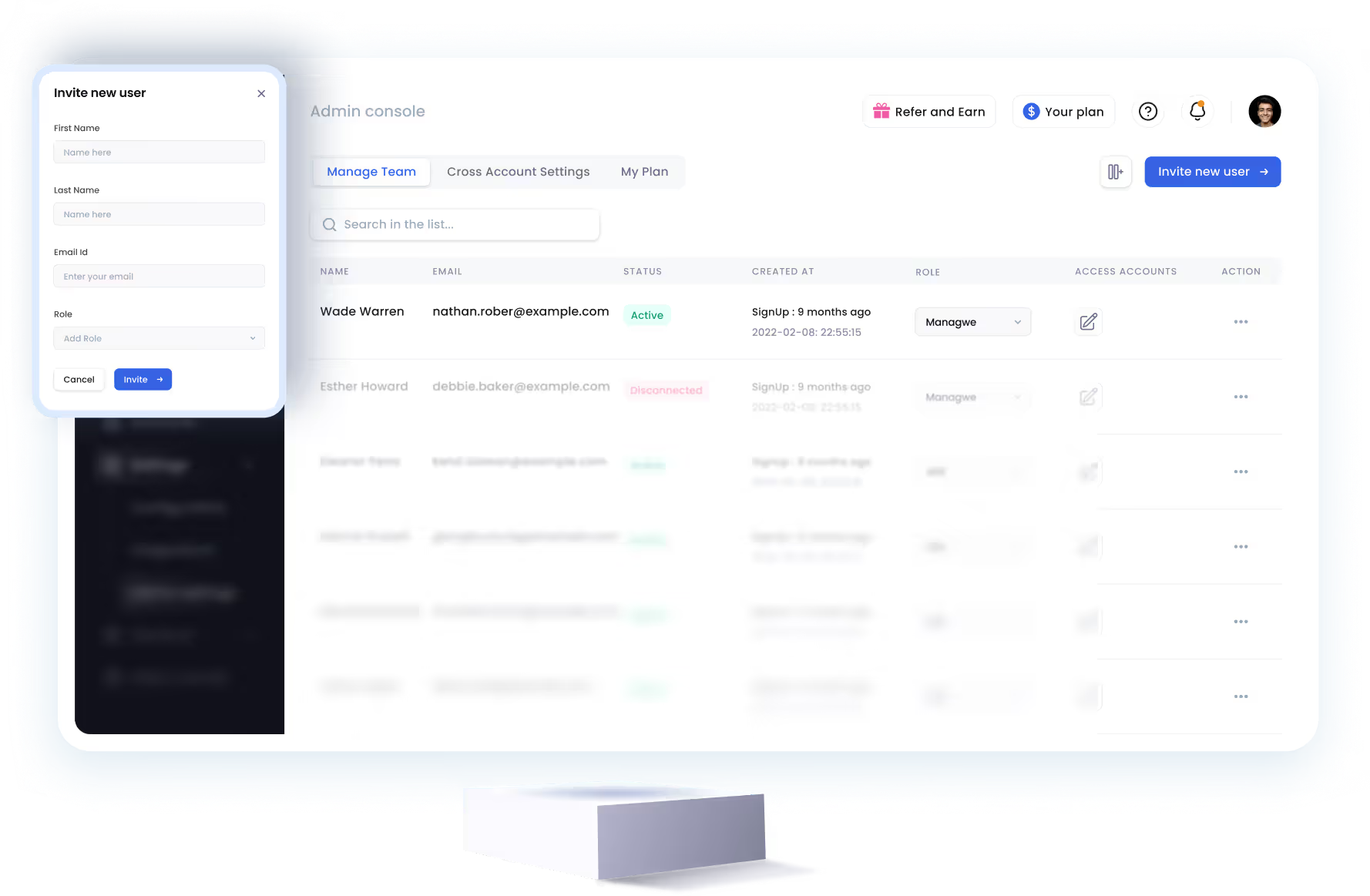
SalesRobot allows you to invite other team members, so that they can add their LinkedIn Account, run outreach campaigns and get amazing results just like you.
.avif)


Trusted by 4100+ innovative B2B sales teams and lead gen agencies

.avif)

.avif)




.avif)


Heading 1
Heading 2
Heading 3
Heading 4
Heading 5
Heading 6
Lorem ipsum dolor sit amet, consectetur adipiscing elit, sed do eiusmod tempor incididunt ut labore et dolore magna aliqua. Ut enim ad minim veniam, quis nostrud exercitation ullamco laboris nisi ut aliquip ex ea commodo consequat. Duis aute irure dolor in reprehenderit in voluptate velit esse cillum dolore eu fugiat nulla pariatur.
Block quote
Ordered list
- Item 1
- Item 2
- Item 3
Unordered list
- Item A
- Item B
- Item C
Bold text
Emphasis

Superscript
Subscript