.avif)
TL;DR
- LinkedIn InMail lets you message 2nd and 3rd-degree connections directly, without sending a connection request.
- You need LinkedIn Premium (Career, Business, Sales Navigator, or Recruiter) to send InMails. Free accounts can only receive them.
- Monthly InMail credits are limited
- — Premium Career: 5
- — Premium Business: 15
- — Recruiter Lite: 30
- — Sales Navigator Core: 50
- — Full Recruiter: 150
- Credits are refunded if the recipient replies, even with a no. Unused credits roll over but expire after 90 days.
- There is no official daily InMail limit. Your monthly credit count is the real constraint. However, LinkedIn Recruiter users can send up to 1,000 InMails per day after their first week.
- With Sales Navigator, you can send InMails to users with Open Profiles without consuming credits
- You can also message LinkedIn group members without credits, though messages land in Message Requests.
- By combining Open Profiles (via Sales Navigator) and group messaging, you can reach a significant number of prospects per month without buying extra credits.
- InMails outperform cold email on average, with response rates around 10-25%, compared to 3-5% for email.
- Manual InMail outreach does not scale well.
- Tools like SalesRobot automate bulk InMails, personalization, follow-ups, and Open Profile targeting while staying within LinkedIn's usage patterns.
InMails are limited and expensive if used the wrong way. Used smartly with Open Profiles, replies, and automation, you can reach far more people without constantly buying credits.
Let me guess. You're staring at your LinkedIn Premium bill again, wondering if it's actually worth it.
You've been googling things like
"How many InMails do I get with LinkedIn Premium?" and
"How many InMails can I send per day?"
because you're hitting walls left and right.
Here's what's probably eating at you:
That's not luck. That's the power of reaching people where they actually pay attention.
But then again, you're paying good money every month for Premium or Sales Navigator. You're STILL getting slapped with InMail limits.
15 InMails here, 50 InMails there.
You burn through them in days. Meanwhile, your competitors are somehow reaching everyone. You're stuck counting InMails like pennies.

- What if I told you there's a way to send free InMails every month without burning through your credits, using Sales Navigator?
No more watching your InMail count tick down to zero while your pipeline stays empty.
If what I just said resonated with you, then congratulations. You're exactly where you should be.
Because in this blog, I'm about to spill the beans on:
👉 What are LinkedIn InMails?
👉 What are LinkedIn InMail limits?
👉 How to send more InMails on LinkedIn?
👉 What's the difference between an InMail, an email, and a message?
Stick with me till the end. I promise it'll be worth it!
So, What Exactly Is LinkedIn InMail?
(But there's a way to send InMail without losing your credits. We'll get to it in a while)
A LinkedIn InMail allows you to send direct messages to people you aren't connected to (2nd and 3rd-degree connection).
You can only send a direct LinkedIn message to people that you're connected to on LinkedIn. With InMail Messages, however, you can message people who are 2nd or 3rd-degree connections.
You no longer have to send a connection request. You don't wait for them to accept it and start texting them.
LinkedIn InMail messages can have up to 200 characters in the subject line and up to 2,000 characters in the body. This gives you enough space to craft compelling messages that get responses.
Here's a 2-step method to send an InMail:
1. Click on your prospect's profile
2. Click "More," then click "Message [prospect's name]."
That's it.

No need to send a connection request. Just send the InMail.
LinkedIn InMail works just as an email. You write a subject line and message.

LinkedIn InMails are great for finding new leads. Want to know why?
Because they let you send personal messages! You can write something that fits the person's profile and interests. This makes your message stand out. It gives you a much better chance of getting a reply.
Are There Any Limitations While Using LinkedIn InMails?
Of course!
If there were no limits on InMails, people would spam them nonstop. It would turn LinkedIn into a chaotic and unprofessional platform.
Can You Get InMails for Free?
As I mentioned earlier, you need a LinkedIn Premium account to send InMails.
What's a LinkedIn Premium account, you ask?
It's when you subscribe to services like LinkedIn Sales Navigator, LinkedIn Recruiter, or
LinkedIn Career. These subscriptions give you access to premium features, including InMails.
How Many LinkedIn InMail Credits Per Month Can I Send?
First, there's no set daily limit for how many InMails you can send on LinkedIn per day for most premium plans. The number of InMails you can send each month depends on your LinkedIn plan.
However, for LinkedIn Recruiter users, there's a specific limit: you can send up to 1,000 InMails per day after your first week. During your first calendar week with a newly created Recruiter seat, you're limited to 200 InMails.
- Premium Career: Get 5 InMail credits per month.
- Premium Business: Get 15 InMail credits per month.
- Recruiter Lite: Get 30 InMail credits per month.
- Sales Navigator Core: Get 50 InMail credits per month.
- Full Recruiter: Get 150 InMail credits per month.
Here's some more info to know about LinkedIn InMail:
- Every time you send an InMail, it uses up one credit.
- If you don't use all your credits in one month, the unused credits roll over to the next month.
So, if you only used 10 credits in the first month, you'll have 50 credits in the second month.
So, be sure to use them before they reset!
You may be wondering, 'Wait a minute. If credits are so limited, how do I send more without buying them?
Right?
Let's find out...
How to Send Free LinkedIn InMails Without Using Credits?
Before I tell you the method, here's something you need to know:
For example, if you send 30 InMails in the first month and get 20 replies (positive or negative), you'll still have 20 credits remaining.
That means you can send 20 more InMails.
Before we get carried away, let's come back to the topic.
TThere are 2 methods to send LinkedIn InMails without consuming your credits:
1. Send InMail to "Open Profiles" on LinkedIn
2. Contact LinkedIn Group Members
Send InMail to Open Profiles
An Open Profile is a LinkedIn Premium feature that lets anyone view your complete profile.
If a member has the Open Profile Premium feature enabled, Sales Navigator users can message them without using any InMail credits.

But that's not why you're here, right? You want to know how to spot Open Profiles.
It's simple. Click on "Message" on someone's profile.
If the chat window shows "Free Message" at the top, it's an Open Profile.

"Free message" = "Open Profile"
This information gives you a basic idea of who to target and how.
Here's something important to know about response rates: InMail messages to 1st connections have the best response rate. Regular LinkedIn messages average 16.9% response rates, while InMails range from 10-25% with proper personalization.
However, LinkedIn InMail has significantly better response rates than cold email (10-25% vs 3-5%). When you personalize your InMails properly, you can boost response rates to 18-25% average that LinkedIn reports.
Send Message to LinkedIn Group Members
Messages sent to group members aren't technically InMails, but they allow you to reach 2nd and 3rd-degree connections without using credits.
Here's how:
First, send a request to join the LinkedIn group and wait for approval.

Once in, you can message any group member without sending a connection request.

While it's less visible than the Open Profile method, it's still worth trying.
Both methods are great for reaching more people on LinkedIn, but let's be real. They take a lot of time.
They're so manual you'll probably give up after a day or two.
Don't worry, though! Let me share an easier method for sending LinkedIn InMails in bulk.
How to Send LinkedIn InMails In Bulk?
Manually writing and sending InMails one by one is a huge time drain.
Sure, you might think, I'll just write one great message and copy-paste it to everyone.
But LinkedIn might flag you as a bot, or worse, people might think you're one. And you definitely don't want that, right?
Keep in mind that LinkedIn has specific limits. If you're using LinkedIn Recruiter, you can send up to 1,000 InMail messages per day after your first week.
There's no fixed daily limit for regular LinkedIn messages, but experts recommend keeping outreach activities to 100 per week for free accounts.
So, how can you save time and avoid coming across as a bot while still sending messages that feel personal?
Let me introduce you to SalesRobot.
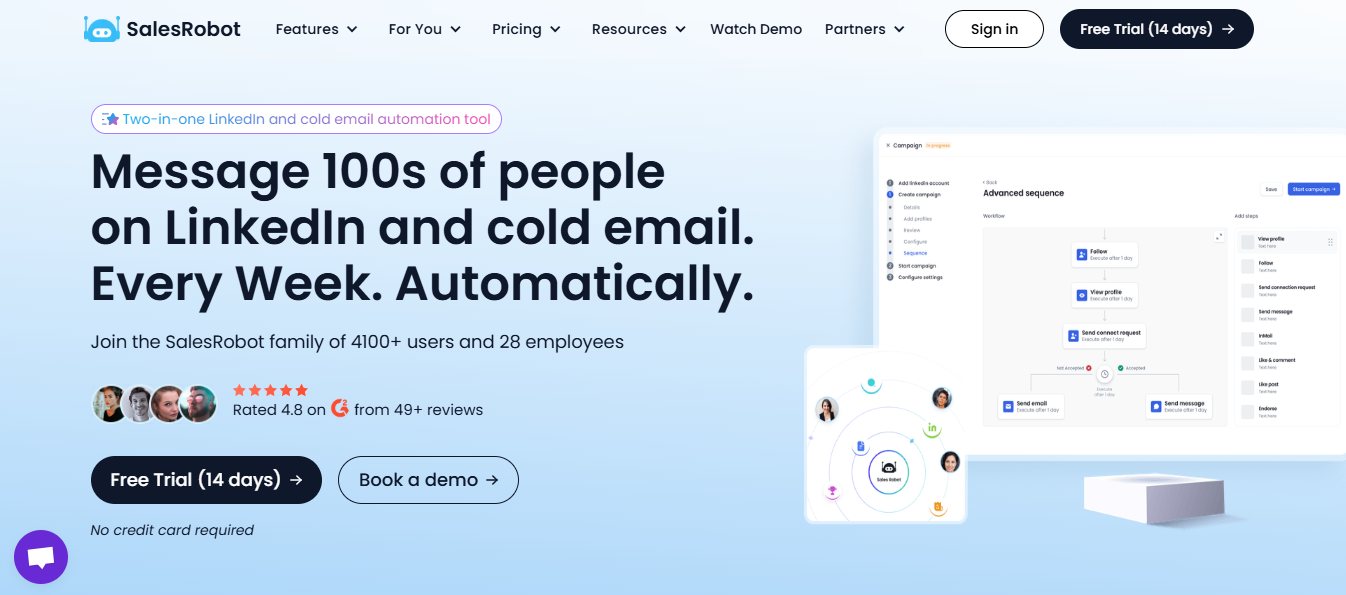
SalesRobot is a LinkedIn and email automation tool that lets you automate sending InMails entirely. So, you can just sit back and relax after just a few steps of setup.
Let me walk you through how to get started.
If you already have your LinkedIn account added to SalesRobot, skip to Step 3.
Step 1: Log into SalesRobot and add your LinkedIn account

Step 2: Enter your LinkedIn credentials and save them

Step 3: Create a campaign on SalesRobot
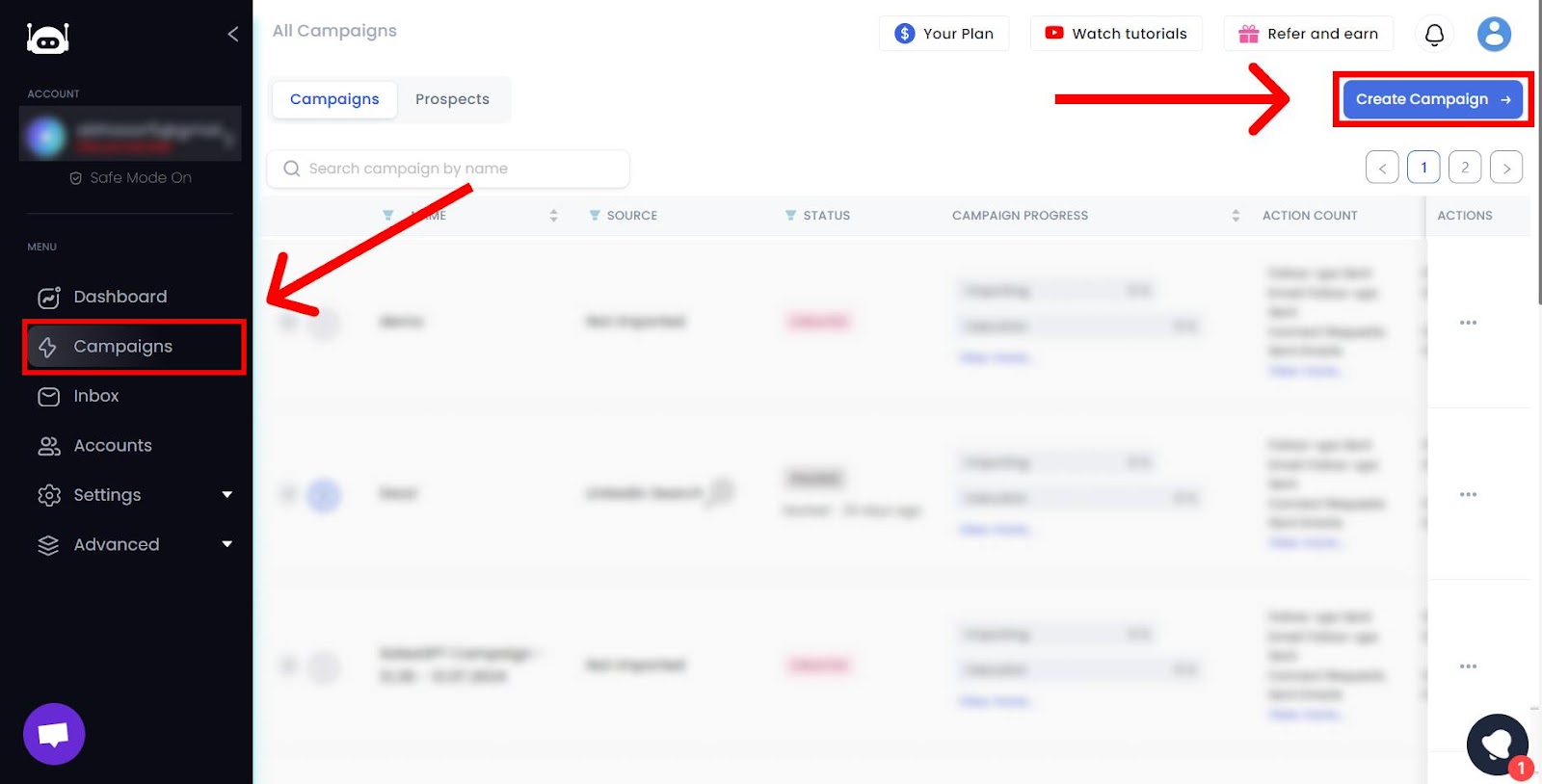
Step 4: Click on "I'm an Advanced User"

Step 5: Name your campaign, save it, and select "Add from Sales Navigator Search"
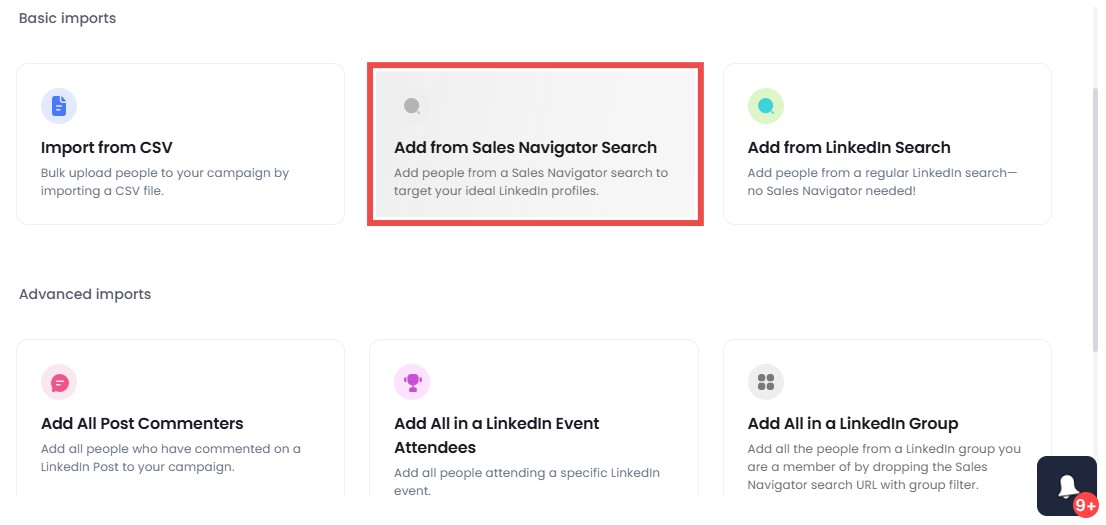
Step 6: Paste your Sales Navigator search URL and save it.

Step 7: Enable the "Premium Only" option. Most LinkedIn Premium users have Open Profiles. With Sales Navigator, InMails sent to these profiles won't consume your credits!

Step 8: Choose one of the pre-made templates or create your own InMail
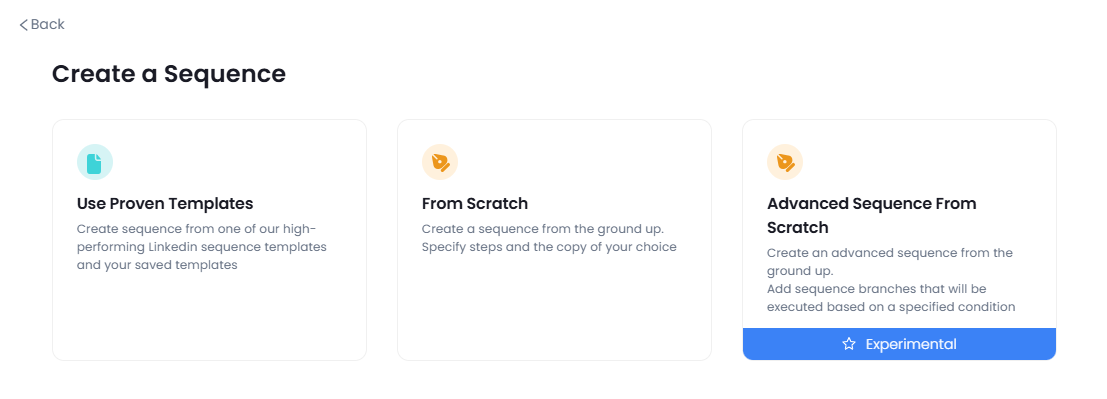
Step 9: If starting from scratch, click "Advanced Steps" and select "Send InMail."

Step 10: Write your InMail. Use SalesRobot's scoring system to check how likely you are to get a response.

Step 11: Add follow-up messages and schedule when you want them sent.

Step 12: Save it, start the campaign and watch the magic unfold.
SalesRobot has recently launched voice and video message capabilities that let you add audio and video messages to your outreach activities. Prospects hear your actual voice, tone, and personality, making them 3x more likely to respond positively.

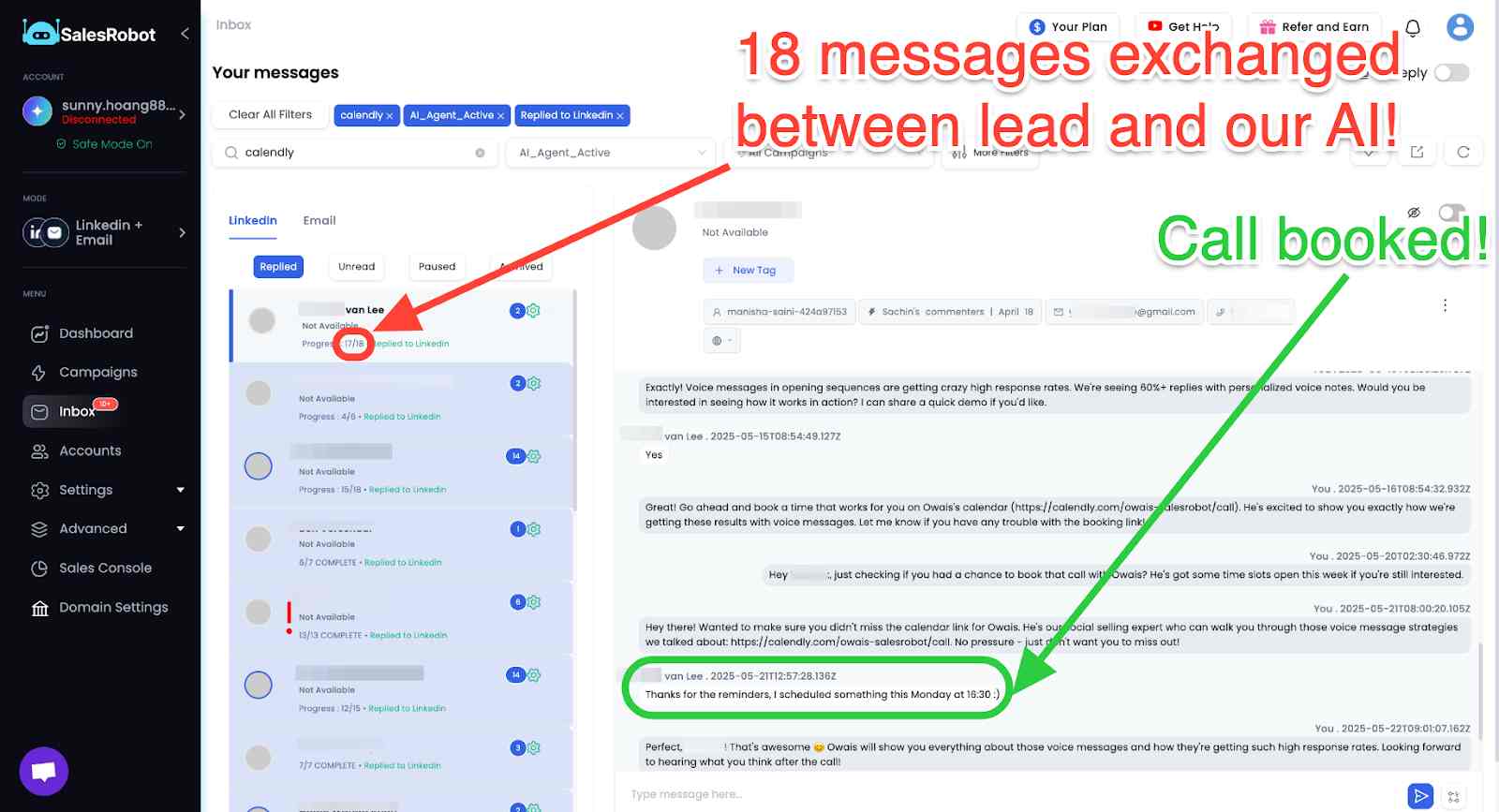
Not to mention, we also have an AI Appointment Setter that doesn't just send messages. It has full conversations with your prospects, handles objections, answers questions, and books qualified meetings directly into your calendar.
The result: You wake up to qualified meetings already booked in your calendar. It's like having a top-performing SDR working 24/7 who never needs coffee breaks.
Which One's Better: InMails or Messages or Emails?
People often ask, "Which works better: an InMail or an Email or normal messages?
The truth is, each one serves a different purpose. You can't rely on just one for all your outreach needs. They're tools for different situations.
In fact, here's a quick comparison of all three and what they're good for.
| Channel | Key Details |
|---|---|
| InMails | ✅ Highest response rates (18–25% average, up to 40% with optimization) ✅ Direct access to decision-makers ✅ Professional context increases credibility ❌ Credit recovery on responses |
| LinkedIn Messaging | ✅ Cost-effective for existing connections ✅ Best response rates for 1st connections (10.3% average) ❌ Limited reach to connected users only |
| Cold Emails | ✅ Unlimited volume potential ✅ Detailed content capabilities ❌ Much lower response rates (3-5% average) |
InMails
Out of the three, InMails have the highest response rate at 18-25% on average. Top-performing campaigns can hit 35-40%. They let you message anyone directly without needing to send a connection request first.
InMails are great for targeted outreach, especially for recruitment or sales. They have significantly better response rates than cold emails.
Messages
Messages are free and work like regular social media chats.
But you can only send them to people you're already connected with on LinkedIn. The average response rate is 10.3%, but it's highest among first connections.
They're perfect for building relationships with your connections, staying in touch, or having casual follow-ups.
Emails
Emails let you reach a wide audience. You can contact almost anyone with an email address.
They're great for mass cold outreach or formal business communication, especially when you need to include detailed content or attachments. However, they average only 3-5% response rates.
How Many Profile Searches on LinkedIn Per Month?
LinkedIn search limits depend on your account type. Free LinkedIn accounts have limited search capabilities and can perform about 100 searches per month. Premium plans offer enhanced search features with higher monthly limits. Sales Navigator and Recruiter plans provide the most extensive search capabilities for prospecting, with virtually unlimited searches for premium users.
Frequently Asked Questions
How many InMails can I send on LinkedIn per day?
LinkedIn doesn't set a specific daily limit for InMails on most premium plans. Your monthly credit allocation is the main constraint. However, for LinkedIn Recruiter users, you can send up to 1,000 InMails per day after your first week of using the platform.
How many InMails do you get with LinkedIn Premium?
The number of InMail credits varies by LinkedIn Premium plan: Premium Career gives you 5 credits per month, Premium Business provides 15, Recruiter Lite offers 30, Sales Navigator Core includes 50, and full Recruiter provides 150 InMail credits monthly.
How many searches on LinkedIn per month?
Free LinkedIn accounts can perform about 100 searches per month, while Premium plans offer enhanced search features with higher limits. Sales Navigator and Recruiter provide virtually unlimited searches for advanced prospecting.
What happens to InMail credits when I cancel Premium?
Any InMail message balance becomes zero when a Premium subscription is canceled. InMail message credits are not transferrable when upgrading your account either.
LinkedIn InMail subject line for job seekers?
Job seekers should craft subject lines that are specific and professional. Include your target role, relevant experience, or mutual connections. Keep it under 200 characters and avoid generic phrases like "Job Inquiry" or "Opportunity."
Conclusion
Now that you've got the hang of how InMails work and their limits (high-five for making it this far! 🙌), you're ready to level up your LinkedIn game.
Here's the deal:
- InMails aren't free. You need credits to send them.
- But if someone replies (even if they say, "No thanks"), you get that credit back!
- Sending InMails to Open Profiles doesn't consume credits, as long as you're on Sales Navigator.
- Just remember, your credits refresh every 90 days, so don't let them go to waste. Use them wisely!
Searching for Premium users with Open Profiles can be a bit tedious. That's why automation tools like SalesRobot can make a real difference.
With SalesRobot, you can:
- Send InMails in bulk.
- Automate outreach with smart templates.
- Save tons of time and effort.
SalesRobot has a 14-day free trial, and you don't need to enter your phone number or credit card details. Just sign up and go nuts.
And don't worry, you can automate sending InMails, messages, and emails.. Keep in mind that LinkedIn InMails typically get response rates between 18-25%, which is 4-5x higher than cold emails at 3-5%. Regular LinkedIn messages to first connections perform even better than InMails.
Good luck! I'll see you in the next one 🫡.

Wow your leads by cloning yourself and sending personalized videos and voice notes to each lead on LinkedIn.
If you don't reply to leads within 5 mins, your chances of converting them fall by 50%. Our AI replies on your behalf instantly! (and yes, you can train it)

Don't shoot in the dark. Get detailed analytics on what's working
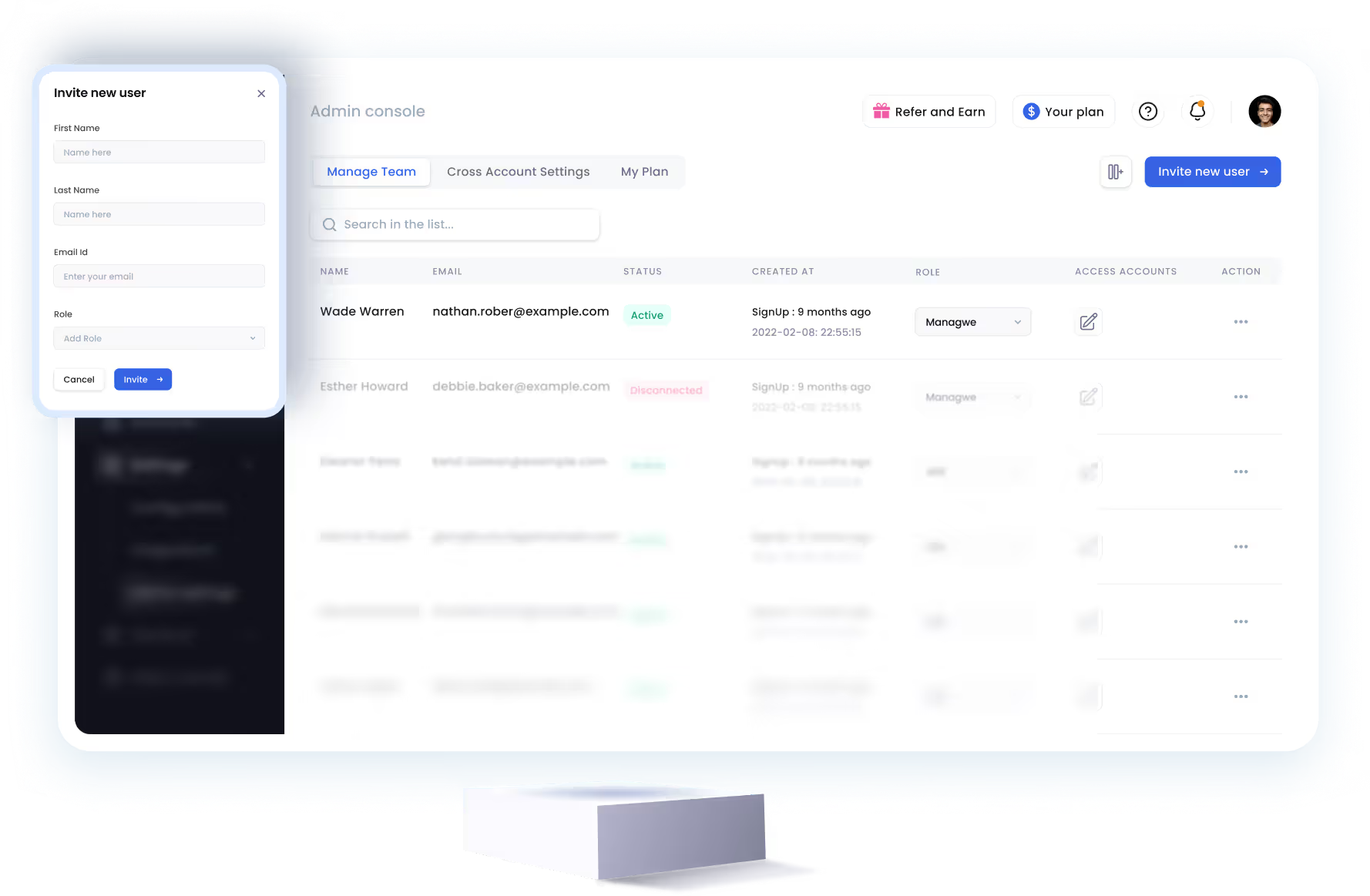
SalesRobot allows you to invite other team members, so that they can add their LinkedIn Account, run outreach campaigns and get amazing results just like you.
.avif)


Trusted by 4100+ innovative B2B sales teams and lead gen agencies

.avif)

.avif)




.avif)