.avif)
TL;DR
- LinkedIn voice notes stand out because they're audio in a sea of text. People open them out of curiosity before they even decide if they care.
- Recording each one by hand works fine at low volume. It stops scaling once you're prospecting more than a handful of leads a day.
- Personalized voice notes, built on an AI clone of your own voice, have been shown to push reply rates past 40%, without you re-recording a single file.
- Pair every voice note with a short line of text so the prospect knows what they're about to press play on.
- SalesRobot lets you record your voice once and generate a unique, personalized note for every prospect inside a normal outreach sequence.
You send the connection request, then the follow-up, then the 2nd follow-up.

Your prospect's LinkedIn inbox looks exactly like everyone else's. A stack of text messages, all competing for the same 3 seconds of attention before they scroll away.
A voice note doesn't fit in that pile the same way. It sounds like a real person took the time to say something.
Because that's exactly what it's supposed to sound like.
What Is a LinkedIn Voice Note, and Why Is It Working Right Now?
A LinkedIn voice note is a short audio clip you attach to a connection request or a direct message, instead of typing it out.
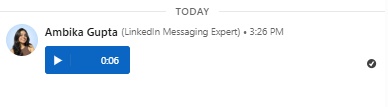
The prospect sees a play button.
Plus, I personally feel like it adds a bit of curiosity, like, “what did this person have to say, that it needed a voice message?”
That small difference matters a lot.
Everyone's inbox is already full of templated messages that open with some version of "I came across your profile."
Text personalization stopped feeling special a while ago, and swapping in a first name isn't enough anymore.
A voice note is harder to fake and harder to ignore, too.
Even a skeptical prospect will usually press play once, just to hear who's on the other end.
How Do You Use LinkedIn Voice Notes for Outreach?
Before automating anything, it helps to know what actually makes a voice note land.
When should you add a voice note in your sequence?
Use a voice note as a warm opener, not a closer.
It works best as the first or second touch, while the prospect is still deciding whether you're worth their time.
Sending one five messages deep into a sequence, after several ignored texts, tends to feel like a last resort.
How Do You Script a Voice Note That Doesn't Sound Like a Voicemail From 2007?
Please don’t say, "Hi, I hope this message finds you well." 🙂
- Talk the way you'd talk to a colleague you're introducing yourself to at an event.
- Say who you are.
- Mention something specific about them or their company.
- Get to the point in a sentence or two.
If you wouldn't say it out loud to a stranger's face, don't say it into the mic either.
How Long Should It Be, and How Should It Sound?
20 to 30 seconds is a good start.
Long enough to say something real, short enough that nobody has to commit.
A little background noise or an imperfect take is fine, even helpful. It's proof a person actually recorded it.
What kills it is echo, static, or you clearly reading off a script word for word.
When Should You Automate Your Voice Notes (and When Shouldn't You)?
Manual recording isn't a phase you graduate out of.
It's genuinely the better option for a small list of high-value leads. Automation earns its place once volume changes the math.
Manual vs. Automated: How Do They Actually Compare?
How To Send Personalized Voice Notes At Scale?
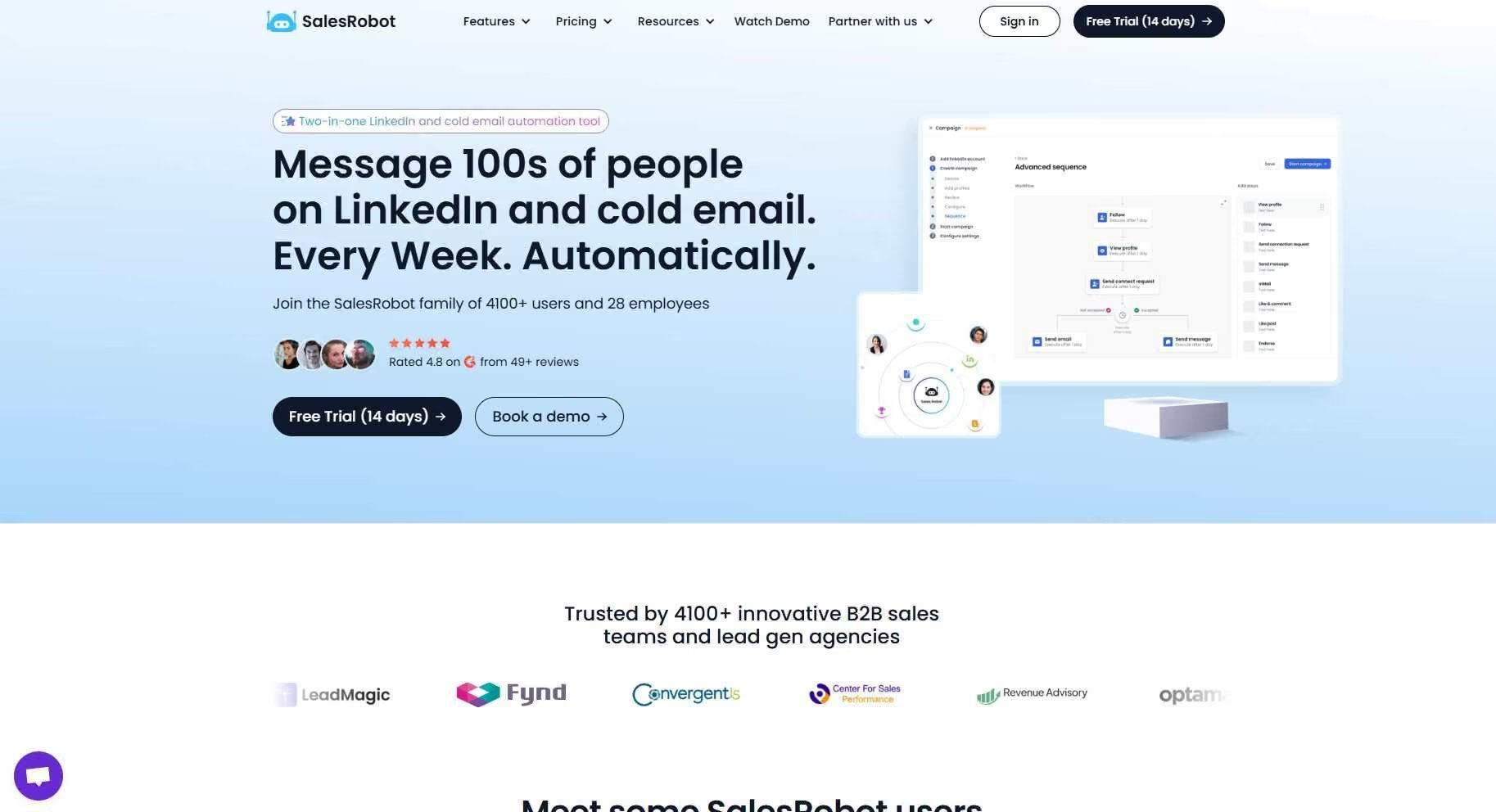
SalesRobot is a cloud-based LinkedIn outreach platform. It runs connection requests, follow-ups, and reply management on autopilot for over 5,000 B2B sales teams and agencies.
Its personalized voice notes feature is where the automation gap above actually gets closed.
You record a sample of your own voice once.
An AI clone then generates short, natural-sounding audio messages in that voice for every prospect in your sequence, each one built from your script and their own details.
It still sounds like a note someone recorded specifically for them. It just didn't take you an hour to make forty of them.
Personalized voice notes built this way tend to push reply rates past 40%. Mostly because they combine two things text can't do at once: sound human, and hit inboxes at outbound scale.
See how Voice Notes work if you want the full walkthrough.
Now i can almost imagine you guys going..

But yes, here’s how to do it.
How Do You Set Up Your First Voice Note Campaign?
Here's what the setup actually looks like inside SalesRobot, start to finish.
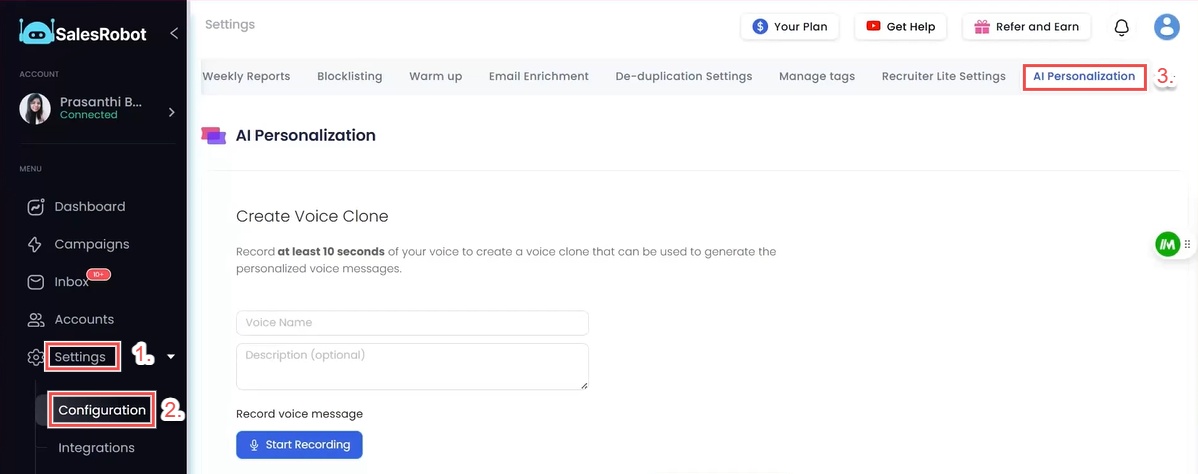
Step 1: Create your voice clone

- Log into your SalesRobot account then go to Settings → Configuration → AI Personalization
- Record a short sample in your natural tone. Twenty to thirty seconds is enough
- Name it and save it as your voice clone
This is what the AI uses to generate every future note in your own voice.
Step 2: Create a campaign
- Click Create Campaign, and choose LinkedIn
- Select the Advanced user flow
Step 3: Add your prospects

- Import them via CSV, a LinkedIn Search, or a Sales Navigator URL
- Once they're in, configure your campaign settings
Step 4: Build your sequence
- Start with a Connection Request
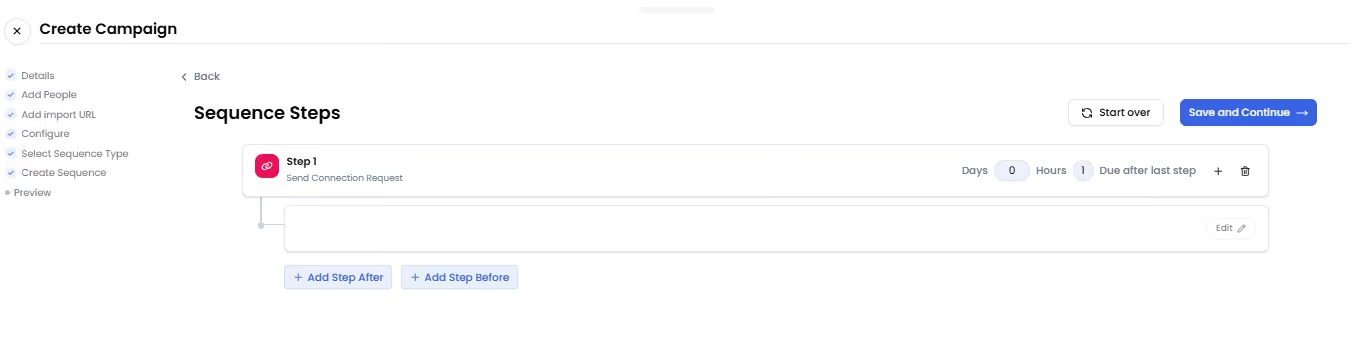
- Follow it with a Send Voice Note step
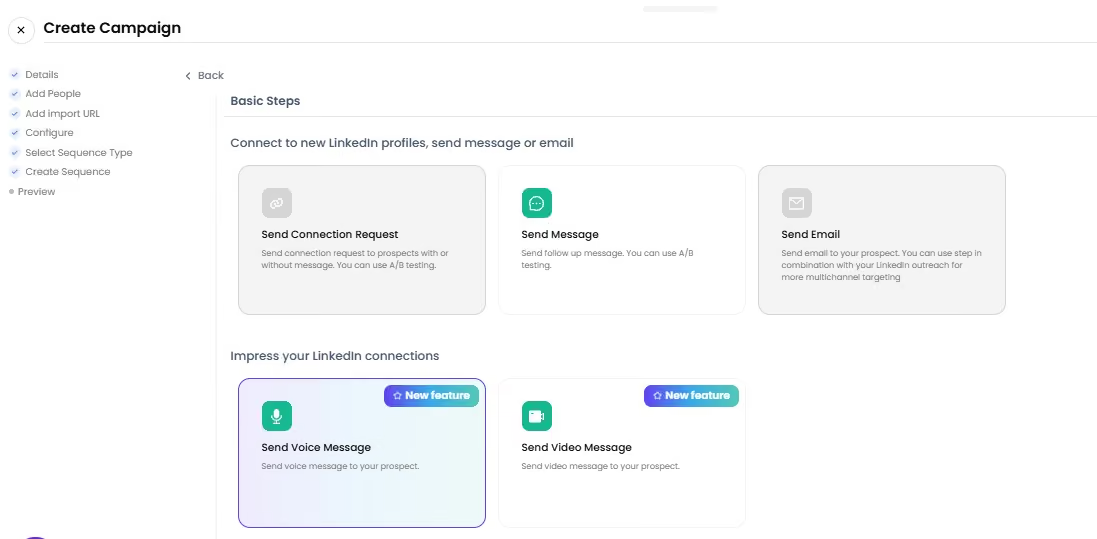
As you can see, you can also send video messages via SalesRobot, and they can be personalized too!
Step 5: Add the voice message
When you add a Send Voice Note step, you'll see three options:
- Record a new voice message
- Upload an existing audio file
- Use your AI voice clone
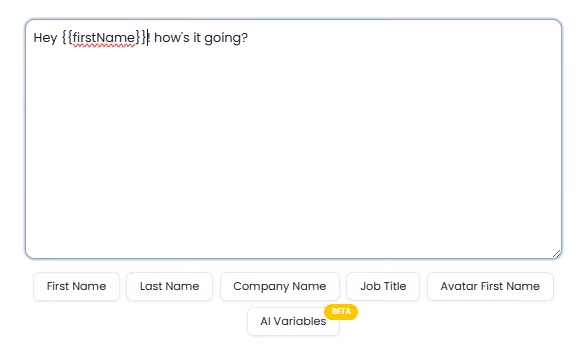
If you go with the clone, write the script you want the AI to read, and drop in variables like {{firstName}}, {{lastName}}, and {{jobTitle}}.
Save the message, and you're done.
One more thing worth doing here: attach a short text message alongside the voice note. A single line of context helps the prospect know what they're about to hear.
Step 6: Add follow-ups, set your delays, and launch
One voice note rarely closes the deal on its own. Add more follow-up steps after it if your sequence needs them, text, another voice note, whatever fits.
Set a delay between each step so the sequence doesn't fire everything back to back. A day or two between steps is usually enough breathing room.
Once the sequence looks right, click Save and Start Campaign.
That's it, your campaign is live!
Text DMs still have their place.
But if a handful of voice notes a week is already eating your afternoon, 40 a day was never going to happen manually.
Try SalesRobot free for 14 days and you can send 100s of personalized voice DMs without lifting your mic!
(except for the ONLY one time you have to record to create your clone, and that too 30 seconds only!)
FAQ
What is a LinkedIn voice note?
A short audio message you attach to a LinkedIn connection request or direct message, instead of typing text. The recipient sees a play button and hears your voice rather than reading a paragraph.
Do voice notes actually get more replies than text messages?
Generally, yes. They stand out in an inbox full of templated text. Personalized ones, built on a real voice clone with the prospect's actual details filled in, have been shown to push reply rates past 40%.
How do you manage voice notes and LinkedIn replies once outreach scales up?
Once you're sending voice notes at real volume, replies come in fast enough that a shared inbox stops being enough. A unified inbox with automated reply detection keeps every response, audio or text, organized and flagged so nothing sits unanswered for days.
How long should a LinkedIn voice note be?
Twenty to thirty seconds. Long enough to say something real, short enough that it doesn't feel like a commitment to open.
Can automated voice notes sound robotic?
Not if the clone is built from a natural, relaxed voice sample, and the script sounds like something you'd actually say out loud. The tech isn't what makes it sound stiff. A script that reads like a sales pitch does.
Do you need special equipment to record one?
No. Your phone's built-in microphone is enough, for both the original voice sample and any manual notes you record.

Wow your leads by cloning yourself and sending personalized videos and voice notes to each lead on LinkedIn.
If you don't reply to leads within 5 mins, your chances of converting them fall by 50%. Our AI replies on your behalf instantly! (and yes, you can train it)

Don't shoot in the dark. Get detailed analytics on what's working
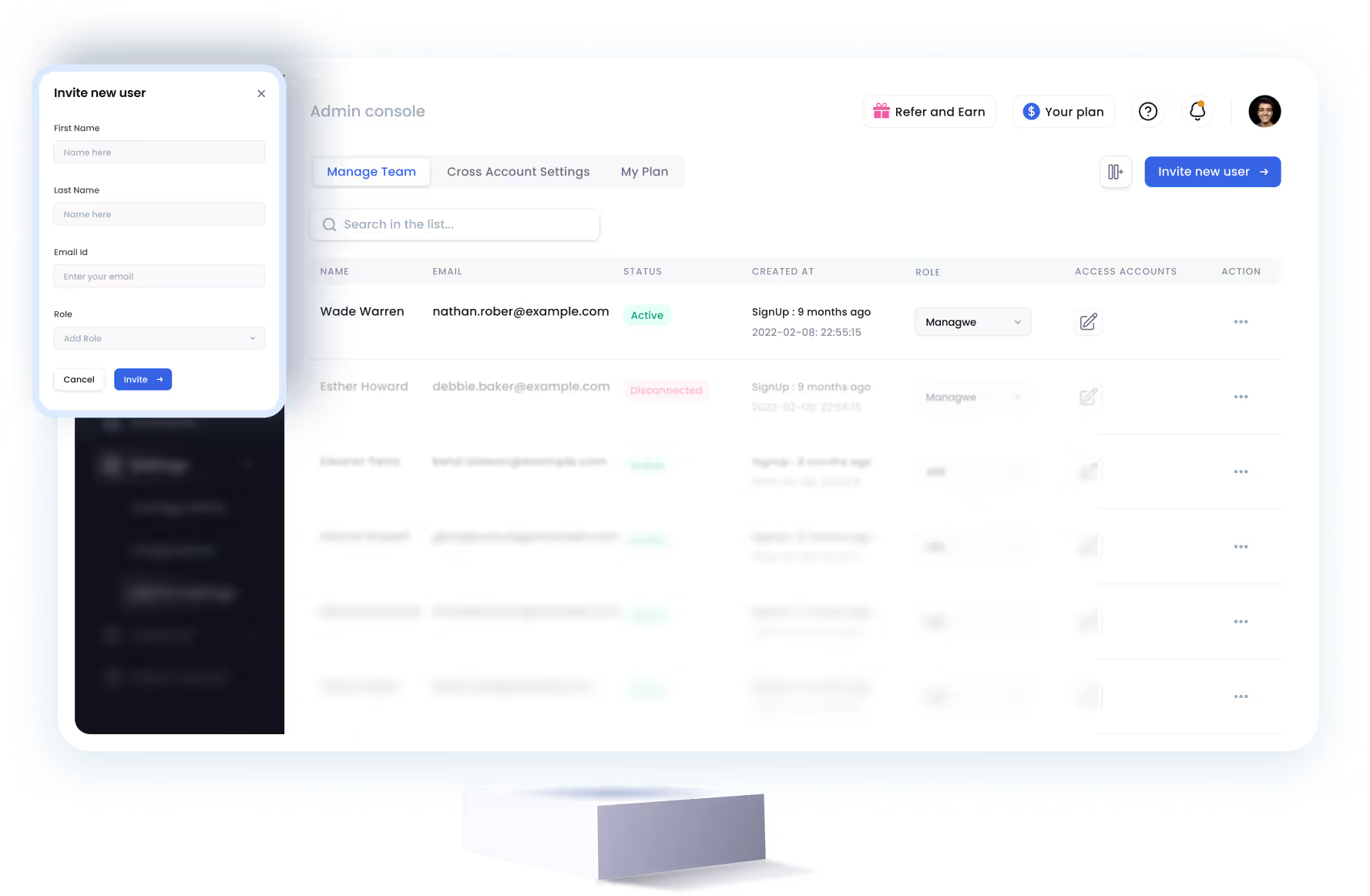
SalesRobot allows you to invite other team members, so that they can add their LinkedIn Account, run outreach campaigns and get amazing results just like you.
.avif)


Trusted by 4100+ innovative B2B sales teams and lead gen agencies

.avif)

.avif)



.avif)

Heading 1
Heading 2
Heading 3
Heading 4
Heading 5
Heading 6
Lorem ipsum dolor sit amet, consectetur adipiscing elit, sed do eiusmod tempor incididunt ut labore et dolore magna aliqua. Ut enim ad minim veniam, quis nostrud exercitation ullamco laboris nisi ut aliquip ex ea commodo consequat. Duis aute irure dolor in reprehenderit in voluptate velit esse cillum dolore eu fugiat nulla pariatur.
Block quote
Ordered list
- Item 1
- Item 2
- Item 3
Unordered list
- Item A
- Item B
- Item C
Bold text
Emphasis

Superscript
Subscript