.avif)
You built a list in Apollo. Titles match. Companies match. You've done the hard part.
Then Apollo shows you a LinkedIn step in the sequence and creates a task.
A task you have to do manually. One by one. In a separate tab.
That's the gap. Apollo is excellent at building lists and managing multi-step sequences. It is not a LinkedIn automation tool. It never was. So every time a contact hits a LinkedIn step in your sequence, the work lands back on you.
This n8n workflow closes that gap.
It pulls your Apollo saved list and pushes every contact directly into a SalesRobot LinkedIn campaign: no CSV exports, no copy-pasting, no tab-switching.
The whole thing runs in under 60 seconds.
What this workflow does
- Pulls contacts from an Apollo saved list using the Apollo API
- Filters out any contacts without a LinkedIn URL
- Maps Apollo fields (first name, last name, title, company, LinkedIn URL) to SalesRobot's campaign format
- Pushes each contact into your SalesRobot campaign via webhook
From there, SalesRobot handles the LinkedIn execution: connection requests, follow-ups, replies, while your Apollo sequence keeps running its email and calling steps untouched.
What you need
- An Apollo account (any paid plan with API access)
- An n8n account (cloud or self-hosted)
- A SalesRobot account with an active campaign
How to set it up
Step 1: Get your Apollo API key
Go to Apollo → Settings → Integrations → API. Copy your API key. If you don't have one yet, generate it from the same page.
Step 2: Find your Apollo list ID
Open the saved list you want to sync. Look at the URL.
You'll see something like ?labelIds=abc123xyz.
That string after labelIds= is your list ID. Copy it.
If your list was built from a sequence rather than a manual label, use contact_stage_ids instead of label_ids in the Config node. Same format, different field name.
Step 3: Get your SalesRobot campaign webhook URL
In SalesRobot, open the campaign you want contacts enrolled in.
Go to Integrations → Webhook and copy the endpoint URL.
Each campaign has its own webhook, so make sure you're copying the right one.
Step 4: Import the n8n template
Download this JSON file. In n8n, create a new workflow, click the menu in the top right, and select Import from File. Upload the JSON.
Step 5: Fill in the Config node
Open the Config node. Paste in:
- apolloApiKey — your Apollo API key
- apolloListId — your list ID from Step 2
- salesrobotWebhookUrl — your campaign webhook URL from Step 3
Step 6: Run it
Hit Run Workflow. Watch the execution. Each contact with a LinkedIn URL gets pushed to SalesRobot in batches of five. The whole list processes in seconds.
The workflow, node by node
Config
A single Set node holding your three credentials. Everything downstream reads from here, so you only ever touch one place if something changes.
Build Apollo payload
A Code node that constructs the API request body. It uses label_ids to filter by your saved list. This is the correct Apollo parameter for contacts organised under a label or saved list.
Fetch Apollo list
An HTTP Request node hitting POST /api/v1/contacts/search. Returns a paginated response — the default pulls up to 100 contacts per run. If your list is larger than that, you'll need to add a loop that increments the page number and re-runs until Apollo returns an empty array.
Split contacts
Splits the contacts array from Apollo's response into individual items so the rest of the workflow processes one contact at a time.
Has LinkedIn URL?
A Filter node that drops any contact where linkedin_url is empty. No LinkedIn URL means SalesRobot has nothing to work with. These contacts pass through to a dead branch and get ignored. If you're seeing a lot of drops here, run Apollo's enrichment on your list first, or push it through Clay before it hits this workflow.
Map to SalesRobot fields
A Set node that renames Apollo's field names (first_name, organization_name, linkedin_url) to the format SalesRobot's webhook expects. This is also where you'd add any custom variables your SalesRobot campaign messages reference.
Push to SalesRobot
An HTTP Request node posting each mapped contact to your SalesRobot webhook URL. Runs in batches of five with a one-second delay between batches to stay within rate limits.
A few things worth knowing
This doesn't replace your Apollo sequence. SalesRobot handles the LinkedIn layer. Apollo keeps running email steps, call tasks, and anything else in the sequence. They work in parallel.
Contacts get enrolled, not duplicated. If a contact is already in the SalesRobot campaign, SalesRobot skips them. You can re-run the workflow without worrying about double-enrollments.
Pagination caps at 100 per run. The default template pulls one page (100 contacts). For larger lists, add a Loop Over Items node after the Split node with a condition checking Apollo's pagination.total_pages response field.
Want this to run on a schedule? Swap the Manual Trigger node for a Schedule Trigger. Set it to run daily or weekly and it'll keep your SalesRobot campaign topped up as new contacts are added to your Apollo list.

Wow your leads by cloning yourself and sending personalized videos and voice notes to each lead on LinkedIn.
If you don't reply to leads within 5 mins, your chances of converting them fall by 50%. Our AI replies on your behalf instantly! (and yes, you can train it)

Don't shoot in the dark. Get detailed analytics on what's working
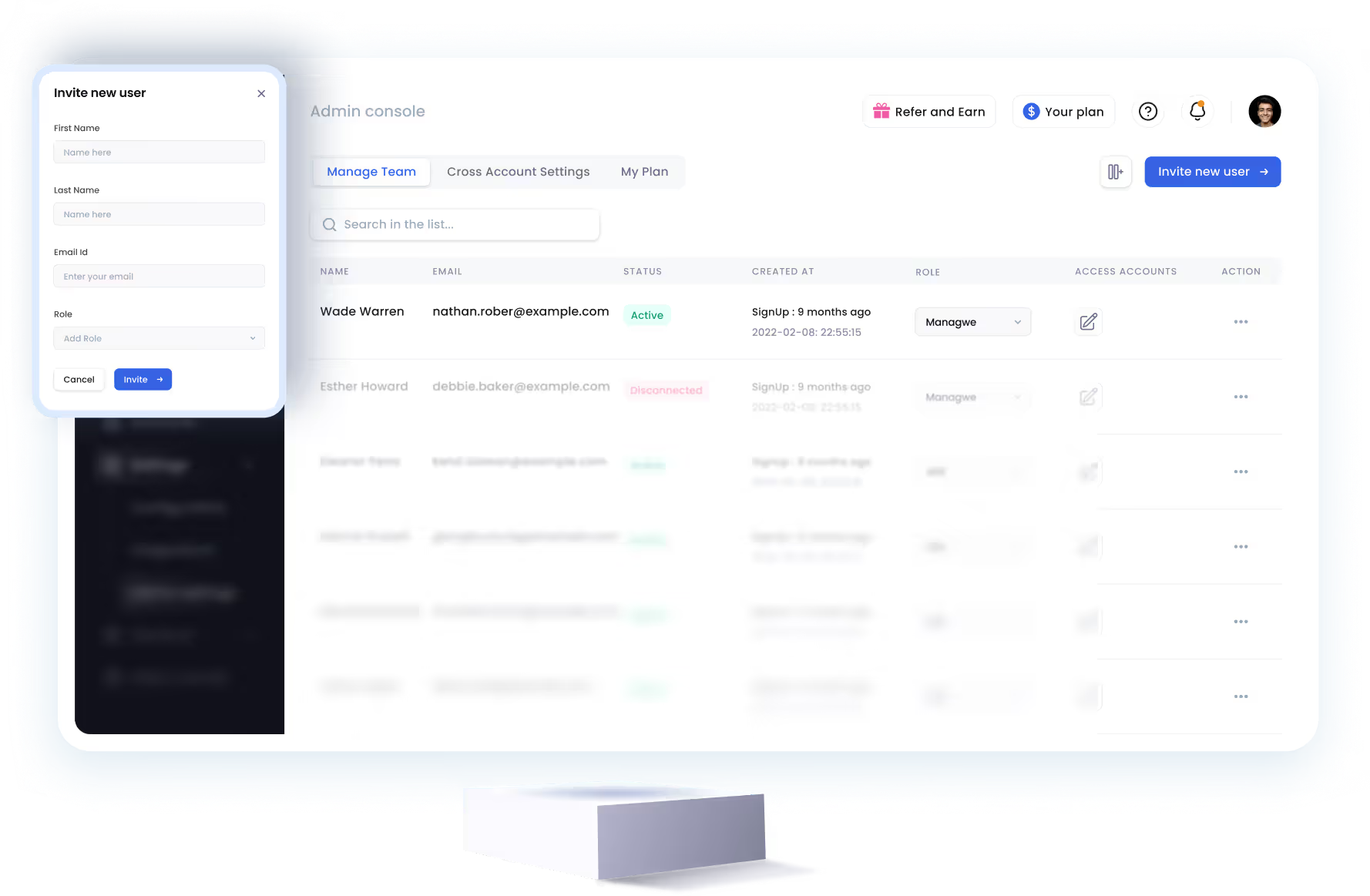
SalesRobot allows you to invite other team members, so that they can add their LinkedIn Account, run outreach campaigns and get amazing results just like you.
.avif)


Trusted by 4100+ innovative B2B sales teams and lead gen agencies

.avif)

.avif)




.avif)


Heading 1
Heading 2
Heading 3
Heading 4
Heading 5
Heading 6
Lorem ipsum dolor sit amet, consectetur adipiscing elit, sed do eiusmod tempor incididunt ut labore et dolore magna aliqua. Ut enim ad minim veniam, quis nostrud exercitation ullamco laboris nisi ut aliquip ex ea commodo consequat. Duis aute irure dolor in reprehenderit in voluptate velit esse cillum dolore eu fugiat nulla pariatur.
Block quote
Ordered list
- Item 1
- Item 2
- Item 3
Unordered list
- Item A
- Item B
- Item C
Bold text
Emphasis

Superscript
Subscript