.avif)
TL;DR
- Qualifying LinkedIn leads before you send the first message comes down to 7 checks: role fit, company firmographics, decision authority, intent signals, recent activity, timing triggers, and prior CRM contact.
- Intent signals are the highest-leverage check: LinkedIn says prospects in your Sales Navigator Spotlights are 64% more likely to reply to your messages.
- BANT-qualified deals win at 45% (Budget, Authority, Need, and Timeline) versus just 25% for unvetted leads, and ICP-matched qualification cuts junk leads by 40%.
- Use the Fit + Intent scorecard (below) to give every lead a keep/skip decision before you spend a single send.
- The single highest-impact takeaway: a tight, well-filtered list of 200–1,000 people consistently outperforms a 10,000-contact spray list.
- 👉 Skip the manual work: SalesRobot imports your qualified Sales Navigator list directly (no CSV) and enriches every lead with AI Variables — try free for 14 days.
"Bad Message or Bad List?" The Real Reason Your Reply Rate Is Flatlined

You rewrote the opener four times. You A/B tested the subject line. You added a voice note.
And your reply rate still looks thinner than a startup's break room coffee.
⚠️The uncomfortable truth is: the problem is usually not the message, but the lead list instead.
A bad lead is someone you should never have contacted in the first place:
No fit, no authority, no reason to care. No amount of clever copy fixes that.
Most advice skips this part. It teaches you BANT in the abstract, then leaves you staring at a LinkedIn profile with no idea where to actually find the signals.
This post fixes that. Below are 7 concrete checks: each mapped to the exact place you verify it on LinkedIn or Sales Navigator in 2026, plus a keep/skip rule.
Get these right, and a 55% reply rate stops sounding like fiction.
The LinkedIn Lead Qualification Scorecard
Before the checks, here's what ties them together.
Every lead gets scored on two things: fit (do they match who you close?) and intent (are they showing signs of buying now?).
ZoomInfo found an almost 30% reduction in sales cycle length when leads are properly vetted. This scorecard is how you vet them in about 10 minutes.
Screenshot it. Use it on every campaign. Now let's fill in each row.
Check #1: Role and Seniority: Does This Person Even Match Your ICP?
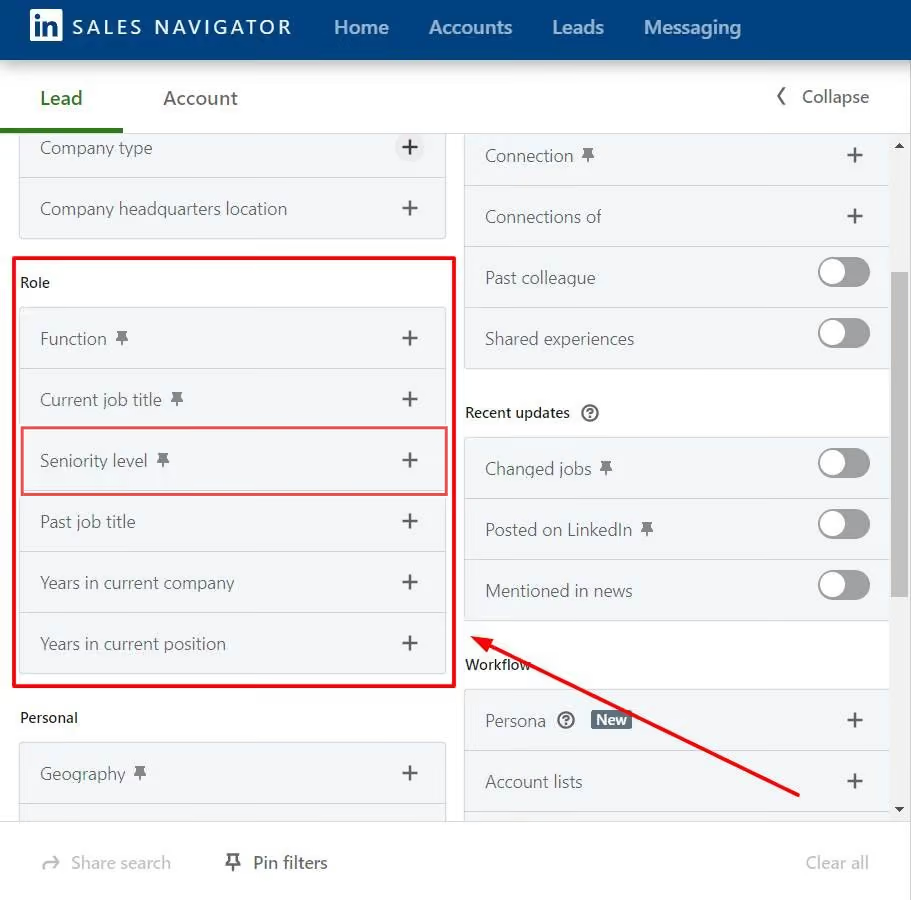
Start with role, because if the fit is wrong, nothing else matters: authority, timing, and intent are all irrelevant on the wrong person.
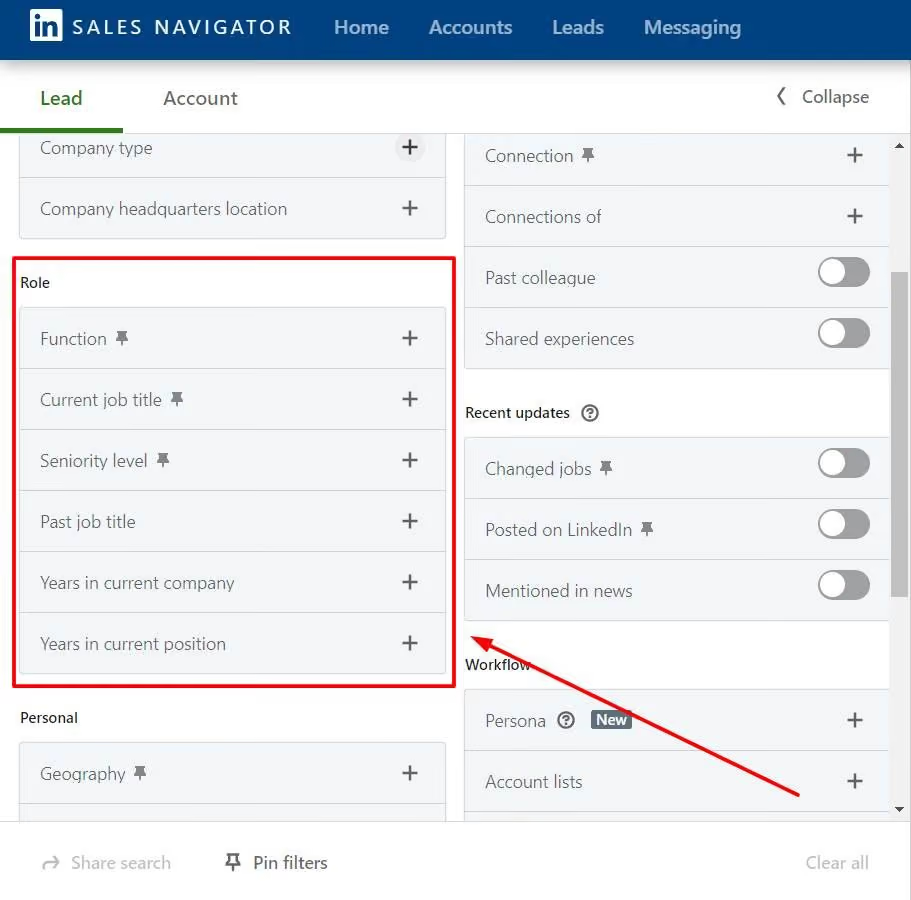
In Sales Navigator, filter by Seniority Level and Job Title first. This is your foundation layer before you stack anything else on top.
💡Why it matters: you can personalize a message beautifully and still lose, because the person was never going to buy your thing. Fit is the gate everything else passes through.
✅Keep/skip rule: if the title doesn't match your ICP seniority, skip. Don't try to personalize your way out of a bad fit.
And once you've locked your ICP filters, you don't have to babysit the export. SalesRobot imports leads directly from your LinkedIn Search and Sales Navigator searches, so the qualified list flows straight into outreach.
Check #2: Company Firmographics: Size, Industry, and Revenue Fit
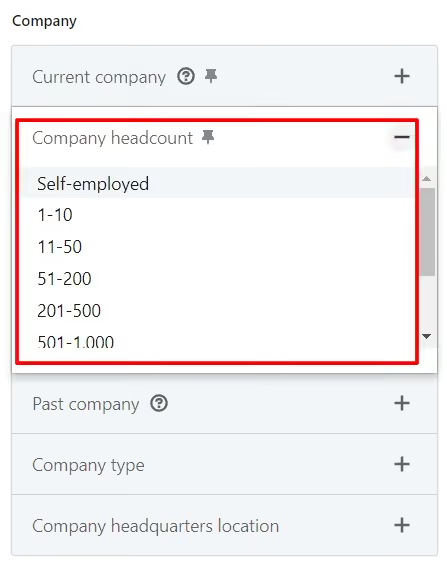
Even a perfect title at the wrong company is a wasted send. Check the firmographics next.
Sales Navigator gives you 40+ search filters: use the demographic base layer here: headcount, industry, and growth indicators like recent hiring or funding.
Stack them in the right order: demographic base first, then intent signals on top (that's Check #4). Stack them well, and a 10,000-person list collapses to a few hundred buyer-ready prospects.
For example, if you sell to Series B+ SaaS, filter headcount 50–500 plus industry "Software Development" plus a "Senior Leadership Changes" Spotlight signal.
✅Keep/skip rule: if headcount, industry, or revenue falls outside your ICP definition, skip. Because a great persona at the wrong company still won't close.
Check #3: Decision-Making Authority: Can They Actually Say Yes?
Authority is the "A" in BANT: Budget, Authority, Need, Timing, and it's also the most-skipped check on LinkedIn.
The stakes are real: BANT-qualified deals win at 45% versus 25% for unvetted leads. Screening for authority up front nearly doubles your odds.
How to verify it from a profile: read the title carefully (Director vs Manager vs Analyst), scan "People Also Viewed" to reconstruct the org chart, and check recommendations that mention purchasing or vendor decisions.
⚠️A quick rule of thumb: if someone is a "Manager" without "Senior" or "Head of," check who they report to before you message.
✅Keep/skip rule: if authority is unclear, either message to warm the relationship or reroute to their senior — don't burn your best pitch on someone who can't say yes.
Check #4: Intent Signals: Are They Actually In-Market Right Now?
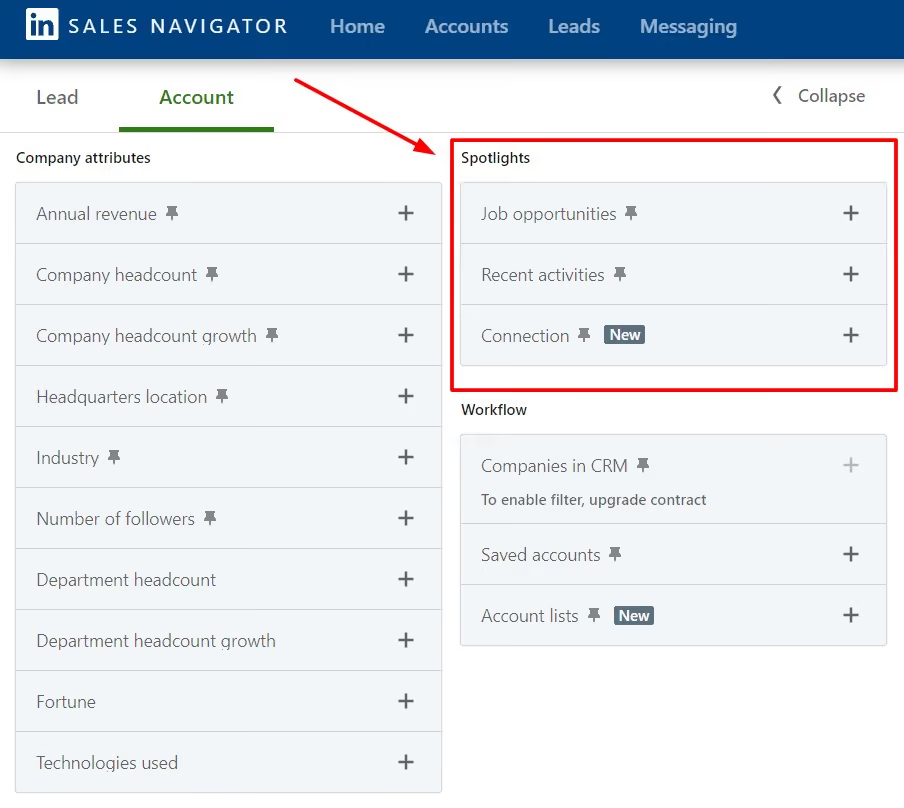
This simple check makes a huge difference, yet most reps miss it
Intent lives in Sales Navigator's Spotlight filters.
To turn them on: open a new search, expand the Spotlight category in the Lead Filters panel, and toggle on signals like Job opportunities, Recent activities, and Buyer Intent.
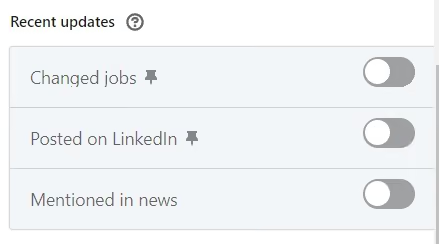
Rather than relying on outdated profile data, this focuses on active behavior such as recent job switches, posts, or news mentions.
The impact is pretty clear: LinkedIn found that prospects highlighted here are much more likely to respond.
✅Keep/skip rule: 2+ Spotlight signals mean a high-priority send today; zero signals means deprioritize or move them to a slow nurture.
These same signals: a recent job change, a fresh post, etc. are exactly the data points you'll use to personalize the opening line. Which brings us to Check #5.
Check #5: Recent Activity: Is This Profile Even Alive?
Messaging a dormant LinkedIn profile is a dead end.
Reaching out to someone who hasn't logged in for six months is pointless: they're not going to see your message.

Check the profile's activity tab: last post date, comment activity, and whether their follower count is trending up. An active profile signals both receptivity and a personalization hook.
Recent job changers are the best bet here. Job changers show higher response rates because they audit their tools and hunt for quick wins in the new role.
For a list of 20, you can do this by hand. For a list of 500, the manual scroll breaks you.
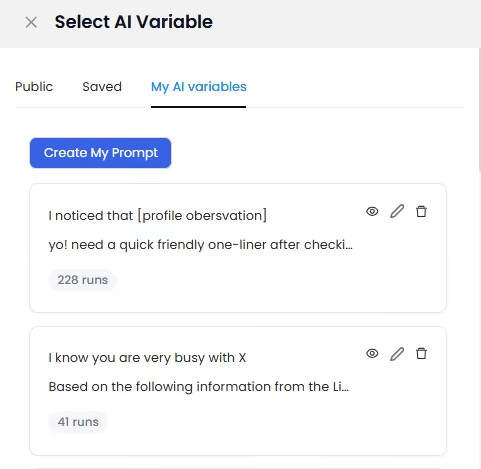
That's where SalesRobot's AI Variables feature earns its keep: it enriches each prospect with data from their LinkedIn profile (recent job changes, company news, shared connections, volunteer work) and uses it to personalize outreach automatically.
You can also warm prospects before you ever message: SalesRobot Smart Comments leaves AI-generated comments on prospect posts before outreach begins, lifting connection acceptance rates.
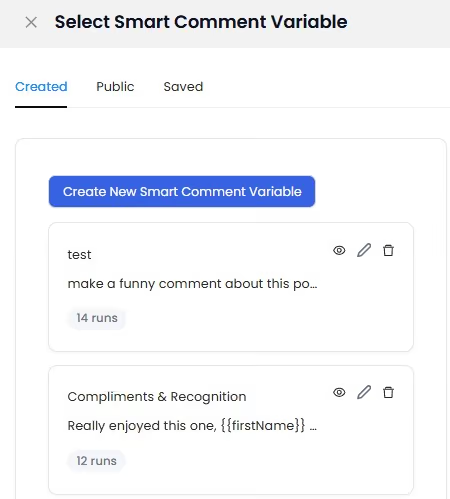
✅Keep/skip rule: no LinkedIn activity in 90+ days means deprioritize; a recent post means a personalization hook is sitting right there.
Check #6: Timing Signals: Is Something Happening That Creates Urgency?

Timing is the most underused BANT dimension on LinkedIn — and it's visible right on the profile if you know where to look.
Four trigger types create natural buying windows:
- "Open to work" or a recent job change — check the profile banner and About section, plus the "Changed Jobs" Spotlight for moves in the past 90 days.
- Company funding — check the News section or the company page.
- A new title or promotion in the last 90 days — look at the timestamp on their Experience entry.
- A hiring surge in their team — check the company's jobs tab.
💡Why it works: ICP-matched qualification that factors in timing reduces junk leads by 40%, and job changers respond faster because they're actively seeking wins.
✅Keep/skip rule: 1+ trigger event means jump the queue with a timely, relevant message; zero triggers means standard cadence.
Check #7: Prior Contact and CRM Status: Have We Already Messaged This Person?
Here's the most embarrassing qualification failure of all: messaging someone who already said no, is a current customer, or is mid-conversation with a teammate.
CRM clearance is the final gate before any send. Run three sub-checks:
- Search your CRM by name and company before importing.
- Check LinkedIn connection status — if they're already a 1st-degree connection, are they in an existing nurture sequence?
- Check the team-wide suppression list so two reps don't hit the same prospect.
Doing this by hand at scale is exactly how duplicates and awkward "didn't we already talk?" moments happen.
SalesRobot integrates natively with HubSpot, Salesforce, and Pipedrive: when a prospect accepts a connection or replies, their data syncs to your CRM automatically, so re-contact flags happen without a manual lookup at send time.
✅Keep/skip rule: an existing customer or a "no" within the last six months gets removed; an existing connection with no prior outreach gets a message customized to the relationship.
How SalesRobot Turns These 7 Checks Into a Repeatable System
These 7 checks work fine by hand for a list of 20.
At 200–1,000 leads per campaign, the enrichment, CRM-clearance, and personalization steps become enough to make you cry.
That's the layer SalesRobot handles, without replacing Sales Navigator.
Here's the flow: you paste your Sales Navigator search URL, SalesRobot pulls the qualified leads automatically, then AI Variables enriches each prospect with LinkedIn profile data — job changes, company news, shared connections.
Smart Comments can warm them up before the first message even sends. No separate prospecting database required.
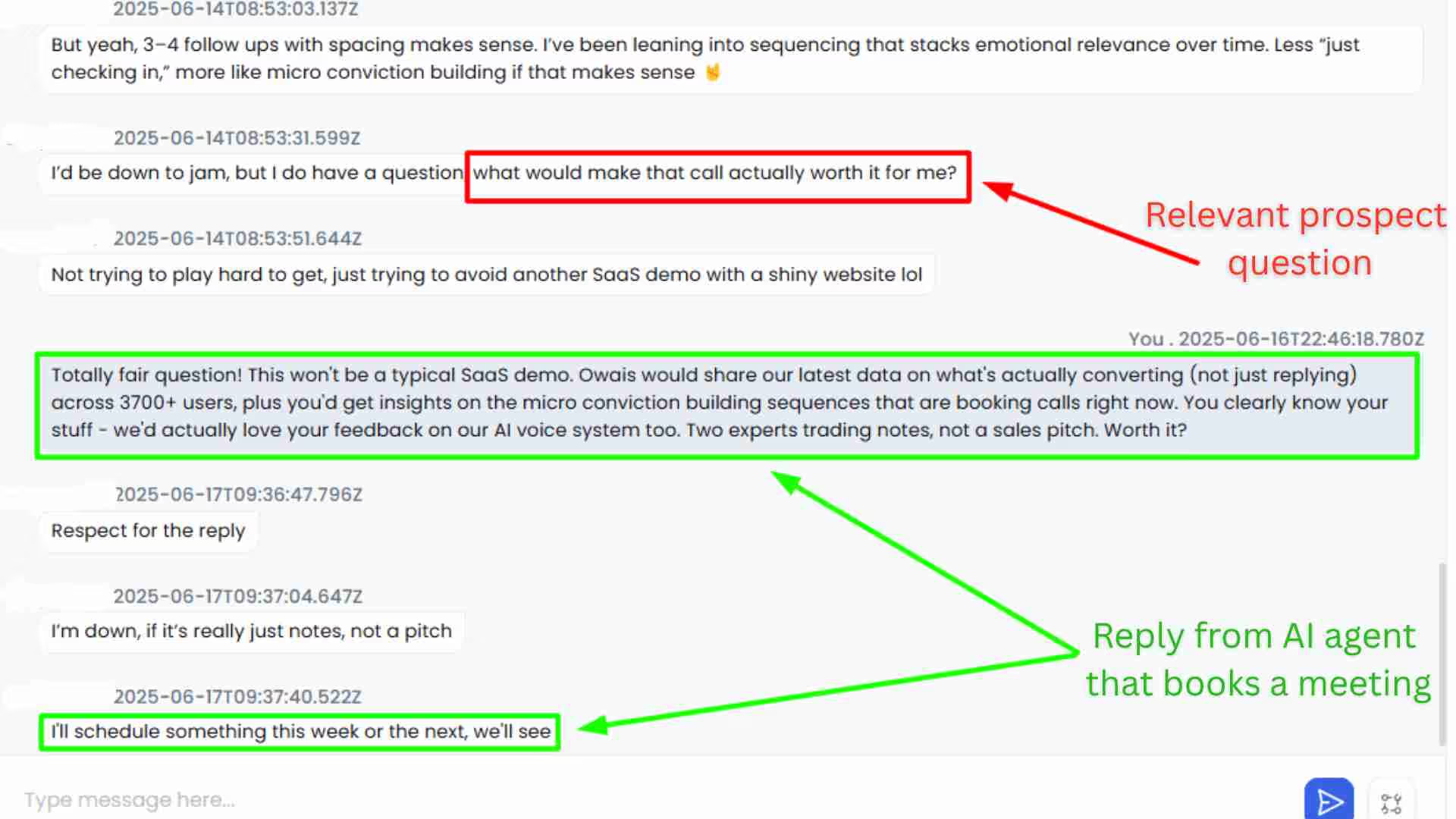
And the AI Appointment Setter can follow up with them on time so you don’t actually lose out on any interested leads.
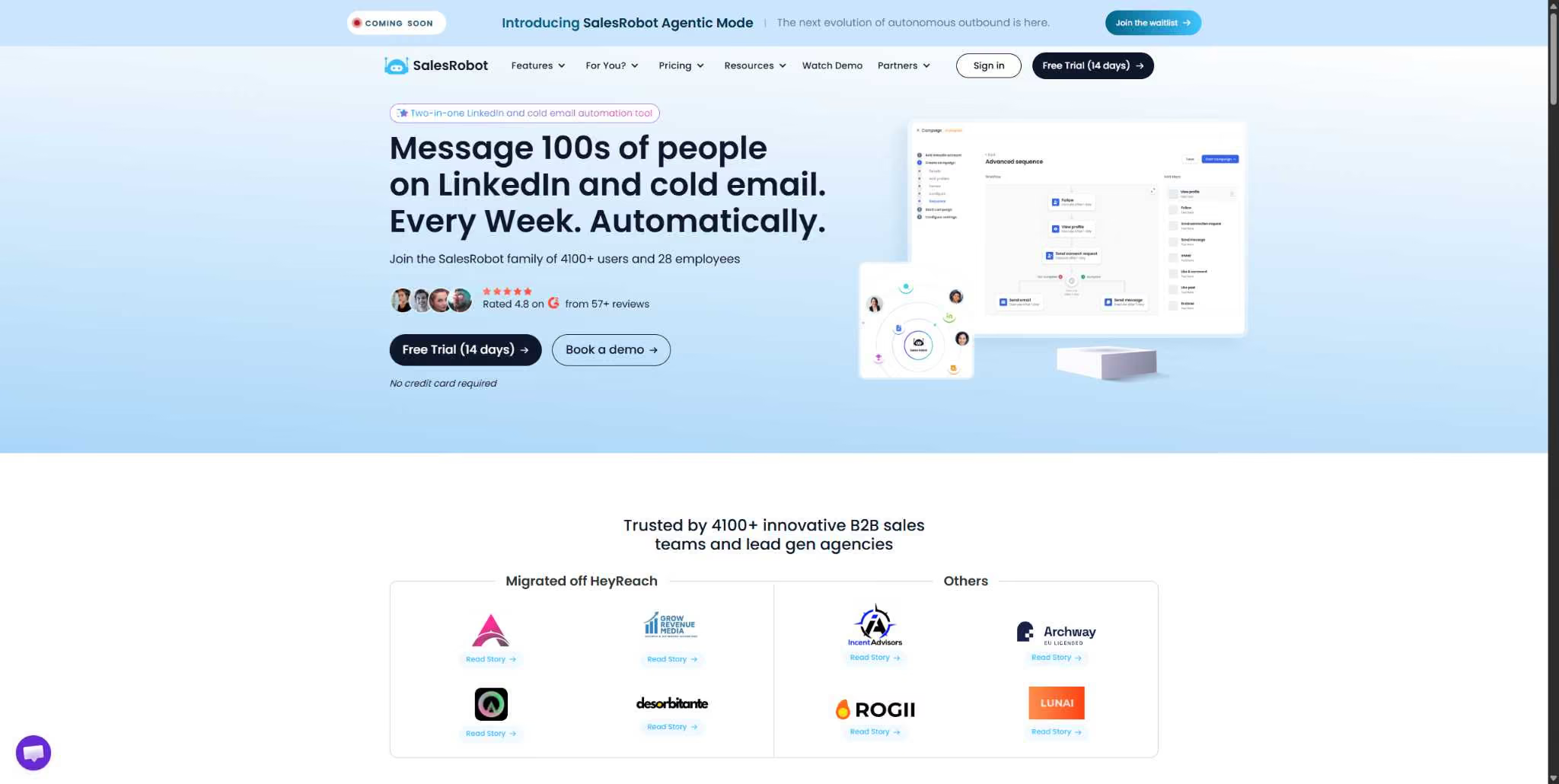
The math is friendly too. SalesRobot starts at $59/month with a 14-day free trial and no credit card required.
It's why 4,100+ B2B sales teams rely on it, why it holds a 4.8 on G2, and why the average customer sees a 55% reply rate once their list is actually qualified.
Try SalesRobot free for 14 days.
Frequently Asked Questions
What makes a LinkedIn lead "bad"?
A bad lead is someone you should never have contacted in the first place. They fail on fit (wrong role or company), authority (can't buy), or status (already a customer or a recent "no"). No message quality fixes a fundamentally wrong prospect — screen them out before you send, not after.
How do I find high-intent leads on LinkedIn?
Use LinkedIn Sales Navigator's Spotlight filters to surface behavioral intent — job changes in the last 90 days, recent posts, news mentions, and Buyer Intent data. Prospects in your Spotlights are 64% more likely to reply. Stack two intent signals over your firmographic base to isolate buyer-ready leads.
Where do I turn on intent filters in Sales Navigator?
Open a new lead search and expand the Spotlight section inside the Lead Filters panel. Toggle on signals like Changed Jobs, Posted on LinkedIn, and Buyer Intent. These sit in the Spotlight category and surface behavioral signals rather than static profile attributes, letting you rank leads by real buying activity.
What does BANT stand for, and does it work on LinkedIn?
BANT stands for Budget, Authority, Need, and Timing — a fast initial screening framework. It works well on LinkedIn: authority and timing are both visible on profiles, and BANT-qualified deals win at 45% versus 25% for unvetted leads. Use it as your first-pass filter before deeper qualification.
Do I need Sales Navigator to qualify LinkedIn leads?
No, but it accelerates the process. Sales Navigator Core costs $99.99/month per seat in 2026 and gives you 40+ filters plus Spotlight intent signals that speed up Checks #1, #4, and #6. You can qualify manually on a basic profile, but Sales Navigator makes filtering at scale far faster.
Stop Spraying, Start Qualifying: The Takeaway
The core takeaway is simple: list quality beats message quality every time.
A tight, well-filtered list of 200–1,000 people consistently outperforms a 10,000-contact spray list, and it's why properly vetted leads cut sales cycles by 30%.
Honest reality check: running these 7 checks adds about 10 minutes to your campaign setup. That's it. Those 10 minutes save you hours of wasted follow-up chasing people who were never going to reply.
Once your ICP filters are set, SalesRobot imports your qualified Sales Navigator list directly, enriches each lead with AI Variables, and syncs everything to your CRM, so the qualification work turns straight into ready-to-send outreach.
That's how customers hit a 55% average reply rate.
Qualify first, then send. Start your 14-day free trial of SalesRobot — no credit card required.

Wow your leads by cloning yourself and sending personalized videos and voice notes to each lead on LinkedIn.
If you don't reply to leads within 5 mins, your chances of converting them fall by 50%. Our AI replies on your behalf instantly! (and yes, you can train it)

Don't shoot in the dark. Get detailed analytics on what's working
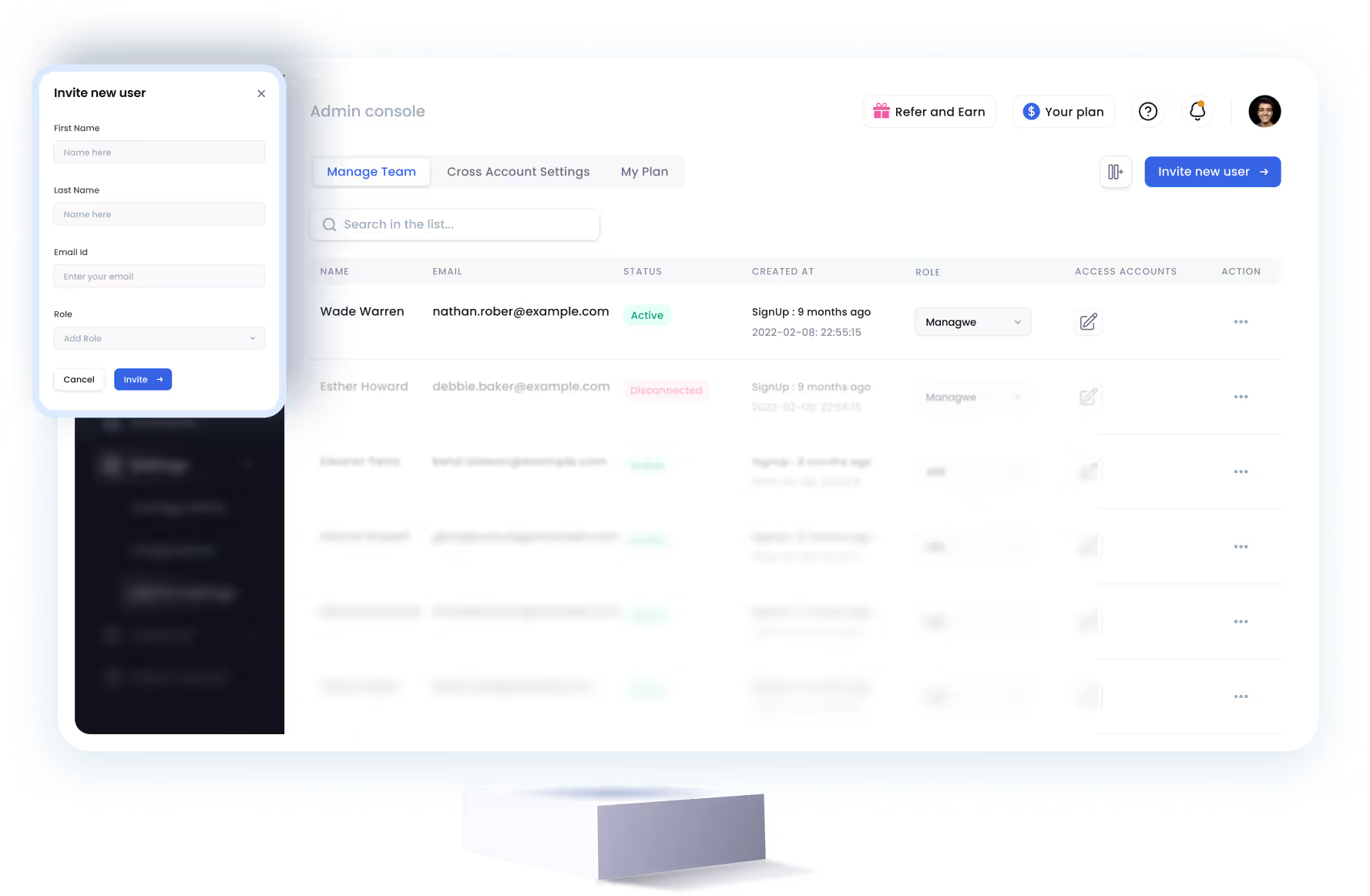
SalesRobot allows you to invite other team members, so that they can add their LinkedIn Account, run outreach campaigns and get amazing results just like you.
.avif)


Trusted by 4100+ innovative B2B sales teams and lead gen agencies

.avif)

.avif)




.avif)


Heading 1
Heading 2
Heading 3
Heading 4
Heading 5
Heading 6
Lorem ipsum dolor sit amet, consectetur adipiscing elit, sed do eiusmod tempor incididunt ut labore et dolore magna aliqua. Ut enim ad minim veniam, quis nostrud exercitation ullamco laboris nisi ut aliquip ex ea commodo consequat. Duis aute irure dolor in reprehenderit in voluptate velit esse cillum dolore eu fugiat nulla pariatur.
Block quote
Ordered list
- Item 1
- Item 2
- Item 3
Unordered list
- Item A
- Item B
- Item C
Bold text
Emphasis

Superscript
Subscript