.avif)
TL;DR:
LinkedIn automation via MCP lets your AI assistant run your LinkedIn outreach directly inside LinkedIn automation tools, from a single chat window.
You just describe what you want, and it executes it.
This article breaks down what MCP actually is, how LinkedIn automation via MCP works, what you can do with it, and how to get started today.
There's a shift happening right now in how people run LinkedIn outreach.
And it's not another AI feature bolted onto an old dashboard.
The interface itself changed.
Instead of logging into a tool, clicking through menus, and manually configuring sequences, you just tell your AI assistant what you want.
And it does it.
That's LinkedIn automation via MCP.
And by the end of this, you'll know exactly how it works and how to start using it today.
What Is MCP (Model Context Protocol)?
MCP stands for Model Context Protocol.
It's a standard introduced by Anthropic in late 2024 that lets AI assistants connect to external tools and actually do things inside them.
Not "help you write a message you then paste somewhere else."
Actually do things. In the tool. For real.
Think of it like a universal connector for AI. Before MCP, your AI assistant and your software lived in separate windows. You had to manually carry information between them.
With MCP, your AI plugs directly into your tools and starts taking actions on your behalf.
In 2026, the best sales software is building MCP servers specifically so AI assistants can connect in and run outreach.
SalesRobot (my baby) is one of them, with a live MCP server at mcp.salesrobot.co.
What Is LinkedIn Automation via MCP?
LinkedIn automation via MCP is when your AI assistant runs your LinkedIn outreach directly through a connected tool, without you ever touching a dashboard.
Here's what that looks like in practice.
You open Claude.
You type: "Create a campaign targeting VP of Sales at B2B SaaS companies, pull prospects from Sales Navigator, build a 4-step sequence, connect request first, follow up in 3 days."
And SalesRobot builds it.
You described it once, and the tool did it.
That's the part that makes this genuinely different from every LinkedIn automation tool that existed before.
The interface is a conversation.
How It Actually Works
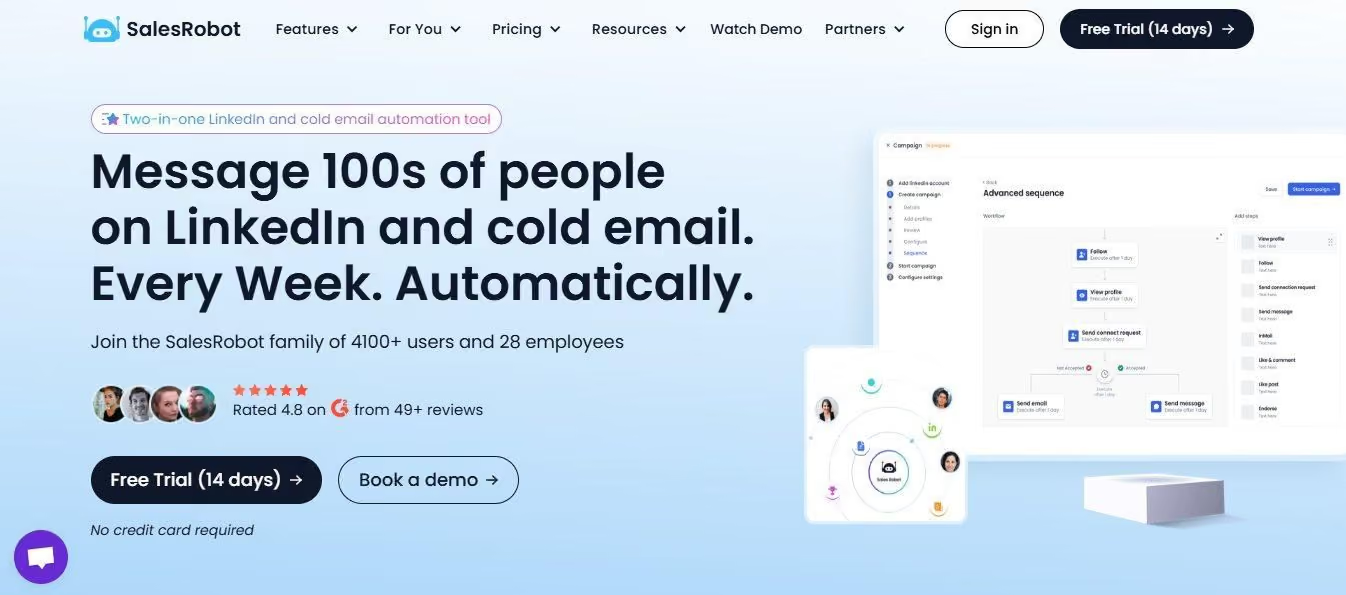
Let me walk you through exactly what happens when you connect SalesRobot to your AI assistant.
Step 1: Connect SalesRobot to your AI tool
SalesRobot has a live MCP server at https://mcp.salesrobot.co. You add it to Claude (or any MCP-compatible AI) as a custom connector.
Grab your API key from Settings → Admin Settings → API Key inside SalesRobot.

Paste the MCP URL into your AI tool's connector settings, authorize with your API key, and you're in.
Takes about 3 minutes.
Step 2: Open a chat and start talking
Once connected, your AI assistant has full context of your SalesRobot account. Your LinkedIn accounts, your campaigns, your prospects, your inbox.
It's all there. You're not starting from scratch every time.
Step 3: Tell it what you want
This is the part that still feels a little unreal.
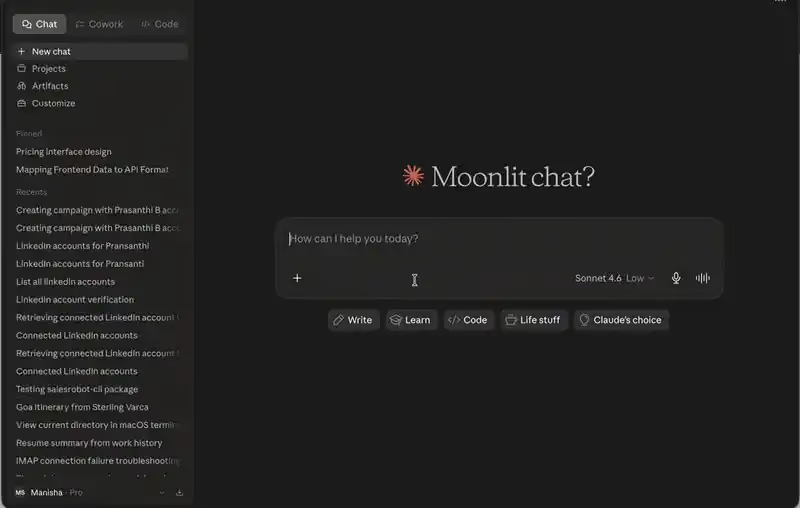
You say "List my campaigns" and it lists them.
You say "Pause the campaign targeting CHRO prospects" and it pauses it.
You say "Import these contacts and add them to my enterprise campaign" and it does it.
No navigation. No searching through menus. Just a conversation.
Step 4: Your outreach runs
SalesRobot takes it from there. Connection requests go out. Follow-ups are sent. Replies land in your unified inbox.
And you kicked all of that off without logging into a single dashboard.
What You Can Do from Chat
Here's the full breakdown of what you can actually run through SalesRobot MCP from a conversation.
LinkedIn Accounts
See which LinkedIn accounts are connected, check their status, and manage them without opening the SalesRobot app.
Campaigns
Create new campaigns, list existing ones, check stats, pause or resume them, and build full multi-step sequences. All from chat.
Prospects
Add people manually, pull from a Sales Navigator search, import from a LinkedIn URL, or upload a CSV. Your AI handles the import and drops them into whatever campaign you want.
Inbox
Read conversations, draft LinkedIn DMs, send replies, and tag chats. If a lead responds and you want a reply drafted based on the conversation history, you just ask.
Settings
Update your daily sending quotas, adjust your sending schedule, and manage your blacklist. Without opening a settings page.
And here's the thing about all of this.
You're not just saving clicks.
You're collapsing the mental overhead of managing an outreach tool entirely. You stay in one window. Your context carries across the whole session. Your AI and your software aren't two separate things anymore.
They're the same thing.
Who Should Use This
Honestly, anyone running LinkedIn outreach at volume.
But here are the people who get the most out of it.
SDRs and sales reps running multiple campaigns at once who are spending more time managing dashboards than actually selling.
Founders doing outbound themselves who want to move fast and don't want to relearn a tool interface every time something needs to change.
Agency operators managing client accounts who need to spin up, adjust, and monitor multiple campaigns across multiple LinkedIn accounts without burning half their day on admin.
Growth teams who are already living inside AI tools all day and want their outreach stack to plug directly into that workflow.
If any part of your LinkedIn outreach still involves manual setup, MCP closes that gap. 😇
How to Get Started with SalesRobot MCP
This is the easy part.
1. Get your SalesRobot API key
Log into SalesRobot, go to Settings → Admin Settings → API Key, and copy it.
2. Add SalesRobot to your AI tool
In Claude, go to Settings → Connectors → Add custom connector. Paste this URL: https://mcp.salesrobot.co. When the authorization page opens, paste your API key and click Connect.
3. Test the connection
Open a new chat and type: "List my LinkedIn accounts."
If your accounts show up, you're live.
4. Start running outreach from chat
If you don't have a SalesRobot account yet, grab a 14-day free trial. No credit card required.
The Way LinkedIn Outreach Works Is Changing
Not because someone built a better dashboard.
Because the concept of "logging into a tool to run outreach" is starting to disappear.
Your AI assistant is becoming the interface. The tools that plug into it are the ones that win.
SalesRobot is already there.
If you've been running LinkedIn outreach manually, or if you're sick of switching tabs every time you need to adjust something, this is worth ten minutes of your time.
Start a free 14-day trial and run your first campaign from a chat window.
You'll feel the difference immediately. 😄

Wow your leads by cloning yourself and sending personalized videos and voice notes to each lead on LinkedIn.
If you don't reply to leads within 5 mins, your chances of converting them fall by 50%. Our AI replies on your behalf instantly! (and yes, you can train it)

Don't shoot in the dark. Get detailed analytics on what's working
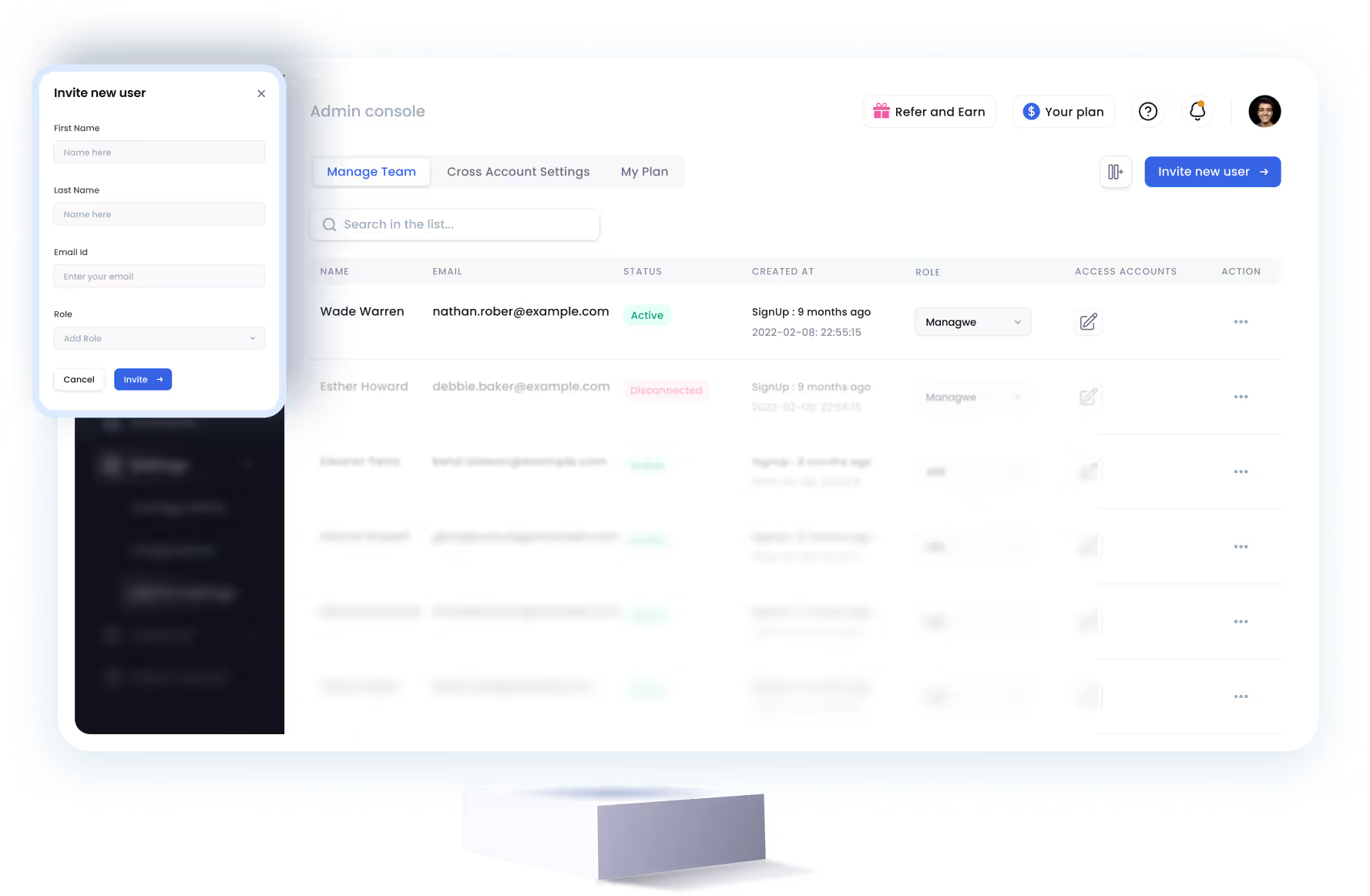
SalesRobot allows you to invite other team members, so that they can add their LinkedIn Account, run outreach campaigns and get amazing results just like you.
.avif)


Trusted by 4100+ innovative B2B sales teams and lead gen agencies

.avif)

.avif)




.avif)


Heading 1
Heading 2
Heading 3
Heading 4
Heading 5
Heading 6
Lorem ipsum dolor sit amet, consectetur adipiscing elit, sed do eiusmod tempor incididunt ut labore et dolore magna aliqua. Ut enim ad minim veniam, quis nostrud exercitation ullamco laboris nisi ut aliquip ex ea commodo consequat. Duis aute irure dolor in reprehenderit in voluptate velit esse cillum dolore eu fugiat nulla pariatur.
Block quote
Ordered list
- Item 1
- Item 2
- Item 3
Unordered list
- Item A
- Item B
- Item C
Bold text
Emphasis

Superscript
Subscript