.avif)
TL;DR
LinkedIn Messages are free and let you communicate with your 1st-degree connections. They're perfect for building relationships, following up, and sharing content with people you already know.
LinkedIn InMails require a Premium subscription and let you message anyone on LinkedIn - even people you're not connected with. They're ideal for cold outreach, recruiting, and reaching high-profile professionals, but its unknown how many you can safely send.
Key Differences:
- Messages get 25-35% response rates (you already know them)
- InMails get 10-25% response rates (reaching strangers)
- Messages are unlimited and free
- InMails are limited depending on your specific account
Tips for Better InMail Responses:
- Keep it short and direct (under 400 characters get 22% higher response rates)
- Write compelling subject lines
- Target Premium profiles (free InMails)
- Avoid hard-selling
- Personalize every message
Automation Benefits: SalesRobot can save time by automating outreach while maintaining personalization, A/B testing messages, and integrating with your CRM; making your efforts more scalable and cost-effective.
Most people wonder: LinkedIn InMail vs Message, which one delivers better results for professional outreach?
Both serve as great tools for communicating with people.
But they do have some unique features and work differently in various scenarios.
Taking this into consideration, you might think…
Which one should I go for?
Well, don't you worry, because that's exactly why I'm here.
In this blog, you're gonna find out more on:
👉How to Write LinkedIn InMails That Get Responses? (5 tips)
Strap on; we're going for a ride!

What's a LinkedIn InMail?
With LinkedIn InMails, you can send direct messages to people on LinkedIn. That's right, this means that you don't even have to be connected to them.
If you're someone who's looking to recruit and network with people or is just looking for a good way to make use of cold outreach, InMails is extremely handy.

All you need to do is click on the person's profile, click on more, and select "Message".
That's it!
The LinkedIn InMail feature is ideal for sales professionals, recruiters, and anyone seeking to expand their professional network beyond their existing connections.
What's a LinkedIn Message?
This one's pretty simple. A LinkedIn Message is basically the same as sending normal messages, just like any other social media app.
It's free, but unlike InMails, you can send them to people who you're already connected to. Note that this only works for first-degree connections.
LinkedIn messages shine when you have to communicate with your existing connections, build a good rapport, write follow-up messages, or even just have casual conversations.

LinkedIn InMail vs Message: Key Differences Explained
LinkedIn Messages = Free messaging for people you're already connected to (1st-degree connections only)
LinkedIn InMails = Premium feature that lets you message ANYONE on LinkedIn, even if you've never met them
The biggest difference?
InMails allow you to send messages to almost anyone on LinkedIn, whereas Messages are limited to your 1st degree connections.
Which Should You Go For: Messages or InMails?
Both of them are quite useful, but their use is largely dependent on your objective, target audience, and the connection you share with the recipient.
So yeah, let me just break it down for you!
When are Messages Useful?
As I said earlier, you can only send messages to the people you have a first-degree connection with. This is where LinkedIn Messages shine:
- Building good rapport:
LinkedIn is a professional platform where the quality of your connections matters more than the quantity. Messages are the best way to build and nurture relationships.
Get creative, engage in conversations, and share updates; all of this will help you build a good rapport and also earn you a good reputation.
- Follow-ups:
Follow-ups are extremely crucial, whether it is after sending a connection request or as a reminder.
As long as you remember to write a polite follow-up message and not spam like a robot, you can set up a good tone and vibe for any potential future interactions.
- Sharing Content:
LinkedIn messages are the best way to share links, documents, or any other resources that can be helpful to your connections.
If you're part of any group or event, you will be required to interact a lot and share various resources and reports.
Just make sure not to be this kinda person 😂👇

When Are InMails Useful?
LinkedIn InMails is a premium feature designed to reach an audience outside your network. They shine in:
- Cold Outreach:
There are plenty of potential clients or recruits you aren't connected with, and InMails can help you message them directly without having to do so.
You will find them very useful if you're looking to sell your product/service or even send an invitation to an event.
- Targeting High-Profile accounts:
CEOs, directors, and founders are more likely to respond to well-crafted InMails rather than connection requests from random people they don't know.
Remember, you gotta be crafty with your InMails!
- Networking:
Since you can send InMails to just about anyone on LinkedIn, it's the best way to increase your networking reach.
Just make sure not to spam random messages to a lotta people 💀 because there are limitations, which I will get into next.
LinkedIn InMail vs. Message: Which One Gets Better Response Rates?
Response rates depend entirely on your approach, not just the feature you choose.
LinkedIn Messages typically get higher response rates (25-35%) because you're reaching out to people who already know you.
LinkedIn InMails see solid response rates (10-25%) despite reaching strangers, and give you access to a much larger audience.
What Are the Limitations of Messages and InMails?
Messages
LinkedIn messages are free to use and have no daily credit limitations, but they do have weekly caps. For free LinkedIn accounts, you can send a maximum of 100 messages per week. For paid LinkedIn accounts, you get up to 150 messages per week.
This makes LinkedIn messaging extremely cost-effective solution.
InMails
The limitations of InMails are quite different from those of messages.
And honestly, with LinkedIn's new update and algorithm changes, the number of InMails you can send depends entirely on your
- Account age
- Response rates
- And how LinkedIn favors your content.
There is no set limit, but we also do not know how many you can safely send without getting banned, so your best bet is to rely on DMs or make sure your InMails get a consistently high response rate.
How to Write LinkedIn InMails That Get Responses?(5 tips)
You're gonna have a limited number of InMails, so you gotta make sure that they are used wisely. Otherwise, it'd just be a huge waste of money.
Here are a few tips to keep in mind while sending InMails:
- Keep things short: You don't have to explain an entire story while sending an InMail. Keep your messages short and straight to the point. Messages under 400 characters get responses at a rate that's 22% higher than the global average. This shows that you mean business and don't want to just waste time with unnecessary jargon.
- First impressions do matter: That's right; you have to create a catchy InMail subject line because that's what people first look at when they see an InMails. Make sure to target the recipient's pain points that way, there's a bigger chance of them not ignoring your InMail.
You can try out our Email Subject Line Generator.
- Target Premium Profiles: Most LinkedIn users who have a LinkedIn Premium account have their accounts open. This means that even if they don't reply to your InMail, you won't lose any credits. Make sure your primary target is always Premium profiles.
- Avoid Hard-Selling: Try not to make your InMail a sales pitch. These kinda messages have the highest chance of getting ignored. Instead of saying, "Buy our product" or "Check out how our product can help you," try to spin it around by using something like "I'd love to hear your feedback on {your solution} I'm working on/developing."
- Personalization is everything: Positively, do not copy-paste the same message to everyone. You have to personalize each message based on the recipient to get the most number of replies.
Can Automation Be a Game Changer?
Automation can play a huge role in sending LinkedIn messages or InMails. You can potentially save loads of your time just by automating repetitive tasks like these.
I mean, from a logical point of view, it's way more efficient than having a group of people open multiple profiles in new tabs and text them one by one.
Automation can essentially give you:
- Scalability: Even if you're a beginner, once you start prospecting, you will see that your target audience keeps getting bigger and bigger. With automation, you no longer have to worry about repetitive tasks.
- Personalization: Automation tools also offer a variety of templates that are crafted based on a variety of audiences. So you can rely on them for creating personalized messages and not sound generic with the same messages all the time.
- Improved Response Rates: Automation tools include A/B testing features. This essentially gives you a lot of flexibility to test out different message formats, subject lines, and CTAs to give you the best response rate.
- Integration with CRMs: Since most automation tools integrate with CRMs, you will have a better tracking system for your responses and lead management too.
- Cost Effective: In the long run, automation tools have proven to be more cost-effective because they considerably reduce the time and workforce required for manual outreach.
But this question is, which automation tool is worth investing in?
Enter SalesRobot!
SalesRobot is a cloud-based LinkedIn automation tool. You can automate sending emails, LinkedIn messages, and InMails.
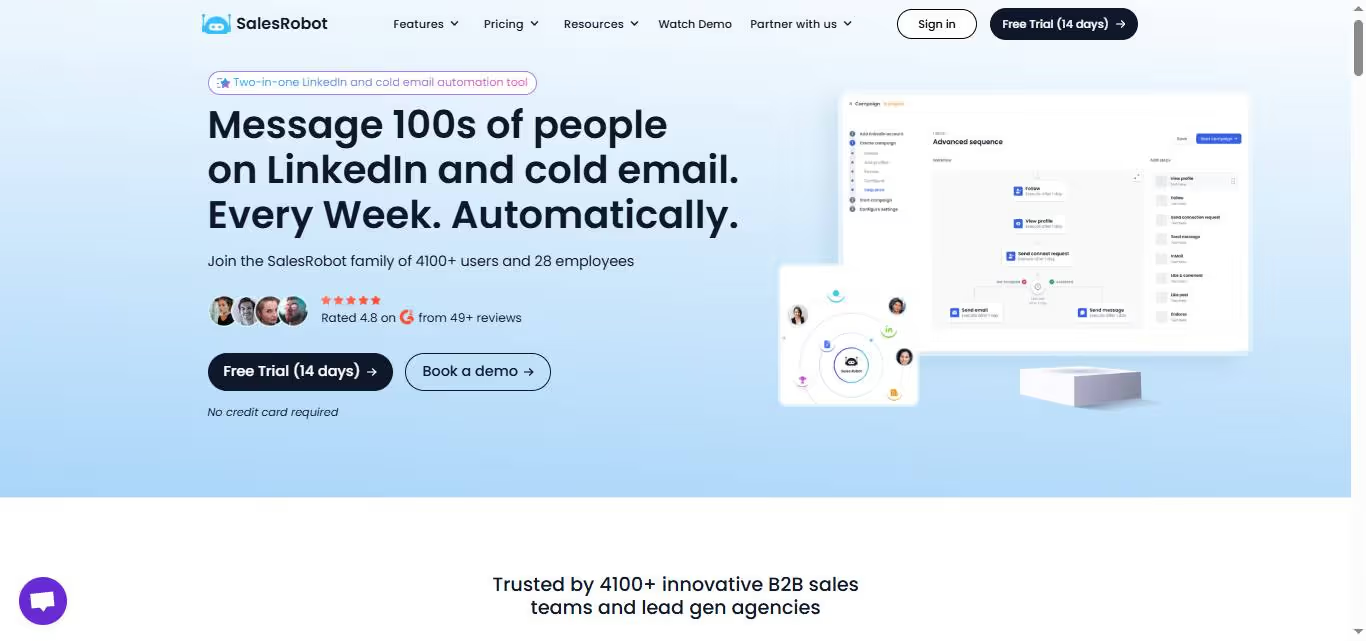
This also means that you no longer have to search for premium users, open hundreds of tabs, and copy and paste the same text message.
Just add the list to SalesRobot and it will automatically reach out to people on your behalf.
Let me just show you how SalesRobot does this with ease.
To begin, you will need to link your LinkedIn account to SalesRobot.
- Log in to SalesRobot, select "Add Account" and select "Add LinkedIn Account."


- Add in your credentials and click on "Add account".

- Head over to the campaign section and create a campaign.

- Select the option you wish to go for and then select "I'm an Advanced User."


- Give your campaign a name and select the relevant option to add your search results to the campaign.

- Enter your search URL and click save.

- Once you save it, click on configure settings, and the magic begins.
You can choose to enrich your emails from the search URL you just entered and even target only premium profiles. That's right, SalesRobot does all this for you automatically.
This way, you can efficiently make the most of your limited InMails.

- Once that's done, you can begin creating your LinkedIn message or InMail sequence.
You can choose to do it from scratch or even use our pre-made templates.
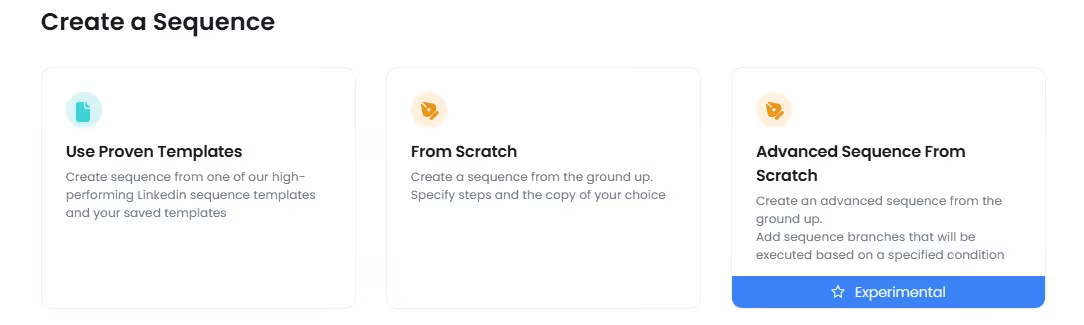
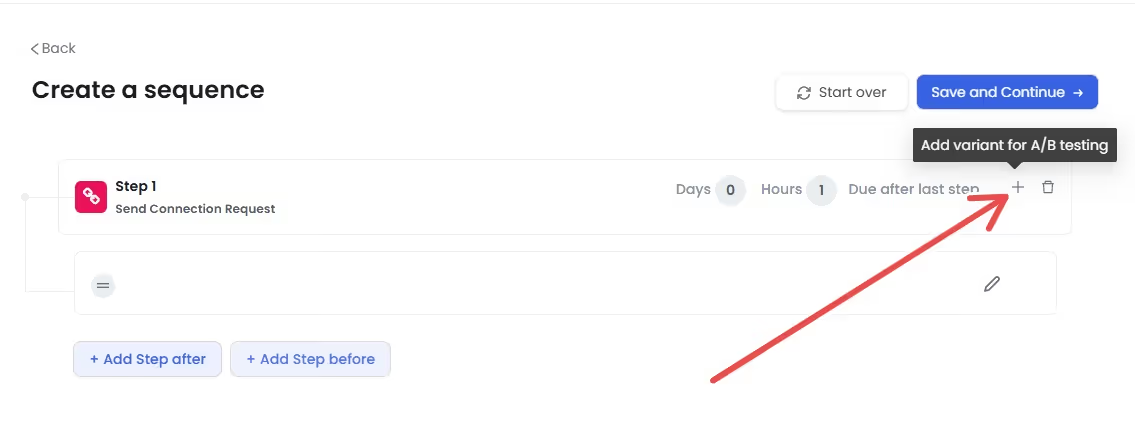
- Now, you have two options; you can go for the basic steps where you can automate sending connection requests, messages, and then emails.
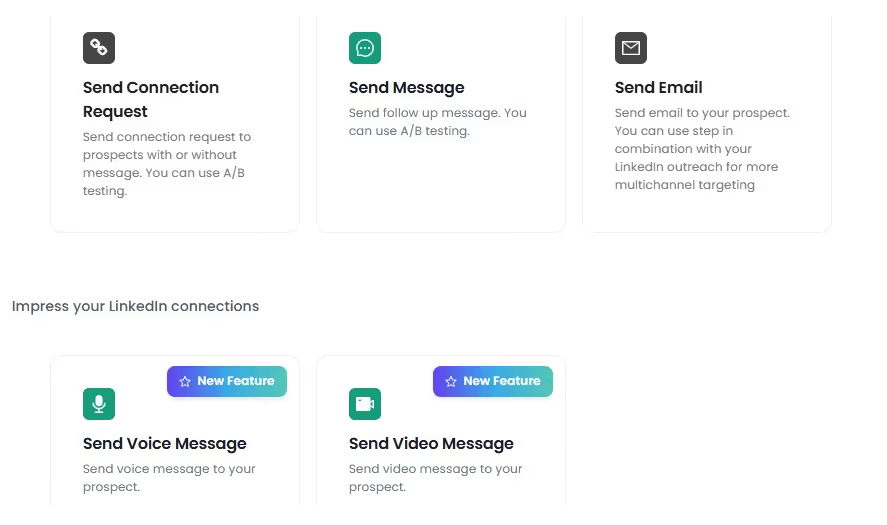
- Click the "+" icon on this page.
- Next, turn this toggle on, and write your InMail copy:
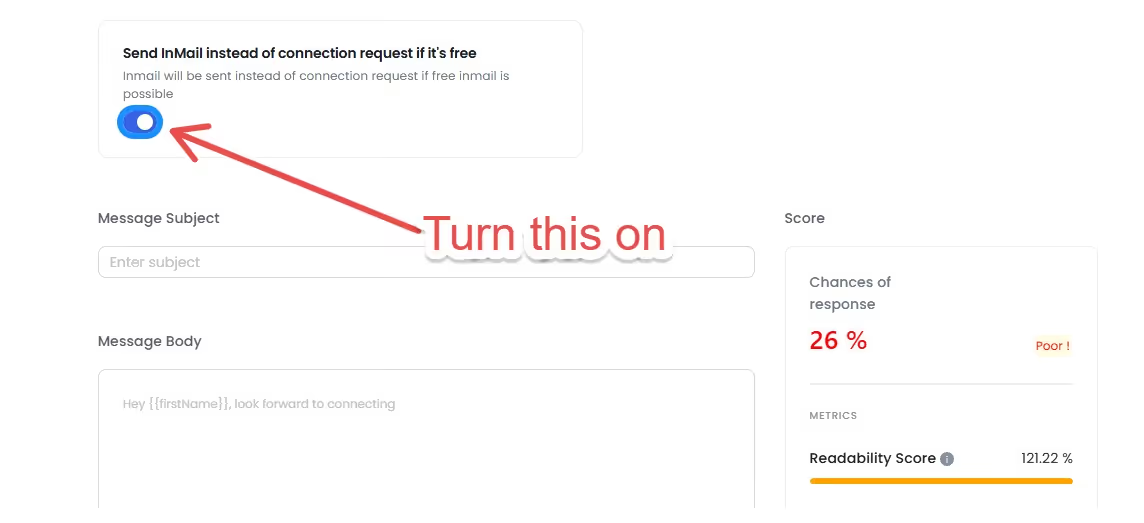
Once you've done this, SalesRobot will automatically begin sending 30 to 40 open InMails per day.
Once you type in your InMail, if you're ever having any second thoughts on whether it's good enough to send or not, don't worry;
SalesRobot has a built-in score system that shows you your chances of getting a response.

That's it; if you wish, you can add further steps to your sequence.
Oh, before I forget, if you're wondering about having to create personalized messages, don't worry 😂 SalesRobot's got you covered.

Using the Hyperise integration, plus you also get to add profile based personalized variables to your messages.
Here's how this AI Variables feature works:
- For example; you want to mention something specific in your messages from your prospects' profiles.
- You go into SalesRobot, create a campaign as usual, and in the Add Message or Send Connection Request step (if you're a premium/sales nav user) you select the AI Variables option.
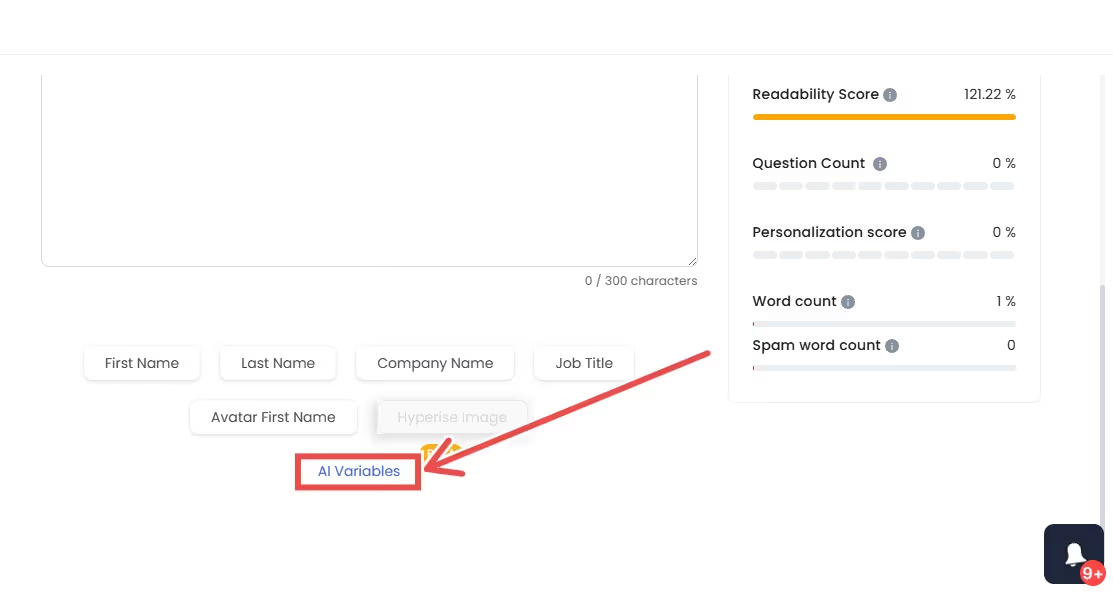
- When you select this option, you'll see 3 options;
Public- these are pre-created variable prompts which you can use directly
Saved- variable prompts which you save
My Variables- your custom made variables
- So, how this works is, based on the prompt you give, the AI analyzes the prospect's profiles and creates custom messages for each prospect mentioning elements from their profile!
When prospects start replying, SalesRobot's AI Appointment Setter learns your messaging style and takes over prospect conversations.
It is capable of engaging, qualifying leads, and booking meetings all by itself!
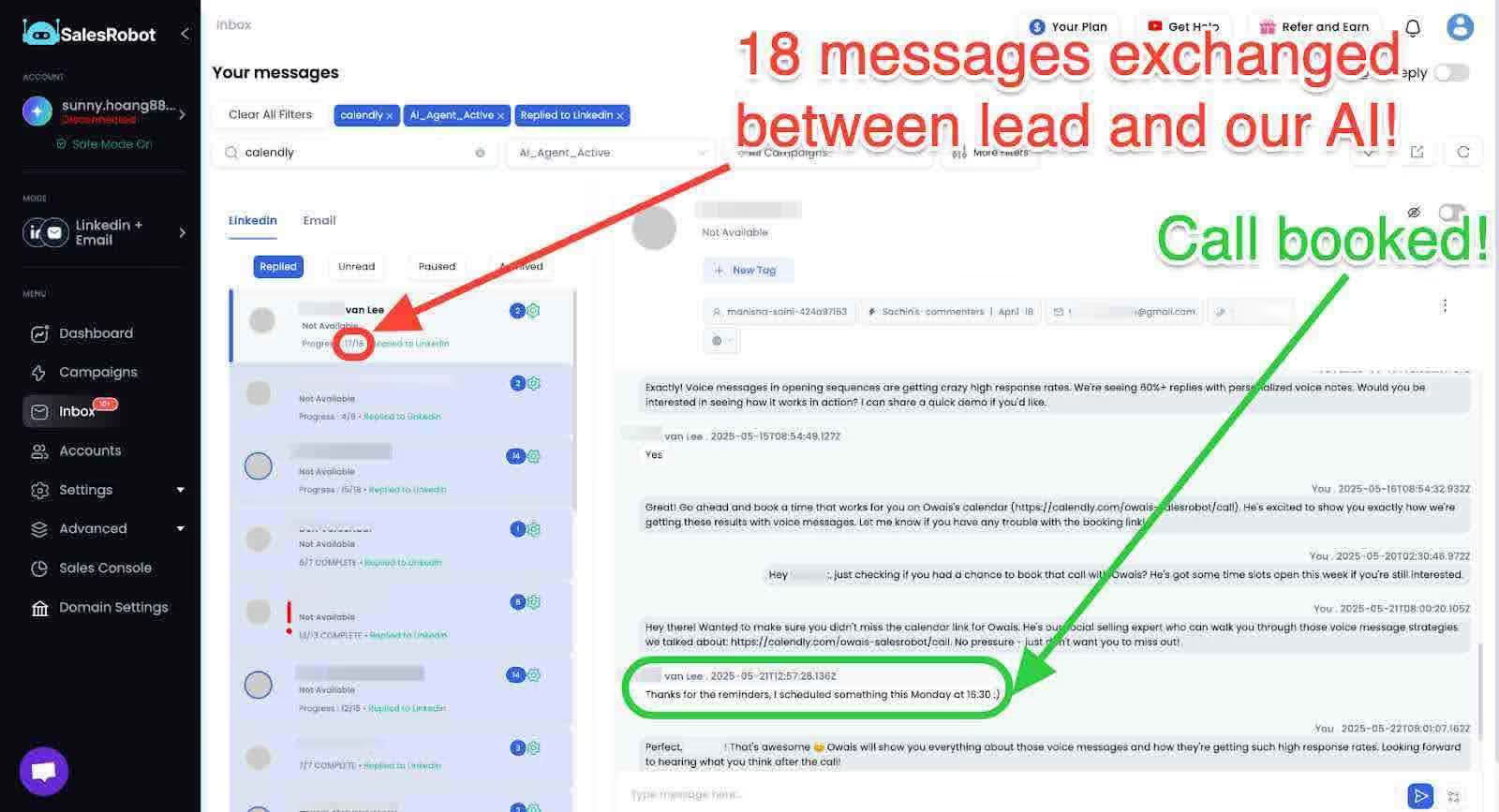
You can choose between CoPilot mode (generates replies for your review) or Autopilot mode (generates and sends automatically based on your goals).
Pretty crazy, right!!!
Plus, our voice/video notes feature lets you send personalized automated audio/video messages that get way more responses than text, because hearing your actual voice builds instant trust!

Because in this day and age, everyone is a bot unless proven otherwise.
LinkedIn Message Templates for Job Seekers
When you're job hunting on LinkedIn, having the right message templates can make a huge difference in your response rates. Here are some effective approaches for job seekers:
For networking messages: "Hi [Name], I came across your profile and was impressed by your work at [Company]. I'm currently exploring opportunities in [industry/role] and would love to learn more about your experience. Would you be open to a brief chat?"
For follow-up after applying: "Hi [Name], I recently applied for the [Position] role at [Company] and wanted to express my enthusiasm for the opportunity. I'd welcome the chance to discuss how my background in [relevant skill/experience] could contribute to your team."
For reaching out to hiring managers: "Hello [Name], I noticed you're hiring for [Position] and I'm very interested in the role. My experience in [specific area] aligns well with what you're looking for. Could we schedule a brief call to discuss how I might contribute to your team?"
LinkedIn InMail Subject Line for Job Seekers
Creating compelling subject lines is crucial for job seekers using LinkedIn InMail. Here are some proven approaches:
- "[Your Name] - [Specific Skill] Professional interested in [Company Name]"
- "Quick question about the [Job Title] role at [Company]"
- "[Mutual Connection] suggested I reach out about [Position]"
- "Experienced [Your Profession] seeking opportunities at [Company]"
Remember to keep your LinkedIn message subject line under 50 characters when possible, as shorter subject lines tend to get better open rates.
The Takeaway
LinkedIn messages and InMails have their own areas where they shine, but this completely depends on their use cases.
LinkedIn messages are free and can be used to communicate with people who you're already connected to. This works best for building and maintaining relationships.
Just remember to warm up your account and not spam messages because it could potentially get you banned.
LinkedIn InMails can be used to communicate with people who you aren't connected with. This makes it the best option if you're looking for cold outreach.
However, you will need to have a LinkedIn premium to use InMails, and you also have a limited number of them, so you gotta use them wisely.
Automating the sending of messages or InMails is always a worthwhile investment as these tasks are very repetitive and require personalization.
Most automation tools like SalesRobot can personalize sending messages and warm up your account to avoid the risk of getting banned.
SalesRobot offers a 14-day free trial, so you can check all of these features out for yourself. There's no need to enter any credit card details or phone numbers; just sign up, and you're all good.
I hope you found this blog helpful; I'll catch you in the next one! 😎
Frequently Asked Questions
Is it unprofessional to message on LinkedIn at night?
Not at all! LinkedIn operates globally across different time zones, so what's nighttime for you might be daytime for your recipient. The beauty of LinkedIn messaging is that people can respond when convenient for them. Just focus on sending thoughtful, professional messages regardless of when you send them.
When you delete a message on LinkedIn does the other person know?
No, the other person won't receive a notification when you delete a LinkedIn message. However, if they've already seen the message, they'll notice it's gone from the conversation thread. LinkedIn only allows you to delete messages within 60 minutes of sending them.
How do you delete a LinkedIn message after 60 minutes?
Unfortunately, you can't delete LinkedIn messages after the 60-minute window has passed. LinkedIn's policy only allows message deletion within the first hour after sending. After that, the message becomes permanent in the conversation history.

Wow your leads by cloning yourself and sending personalized videos and voice notes to each lead on LinkedIn.
If you don't reply to leads within 5 mins, your chances of converting them fall by 50%. Our AI replies on your behalf instantly! (and yes, you can train it)

Don't shoot in the dark. Get detailed analytics on what's working
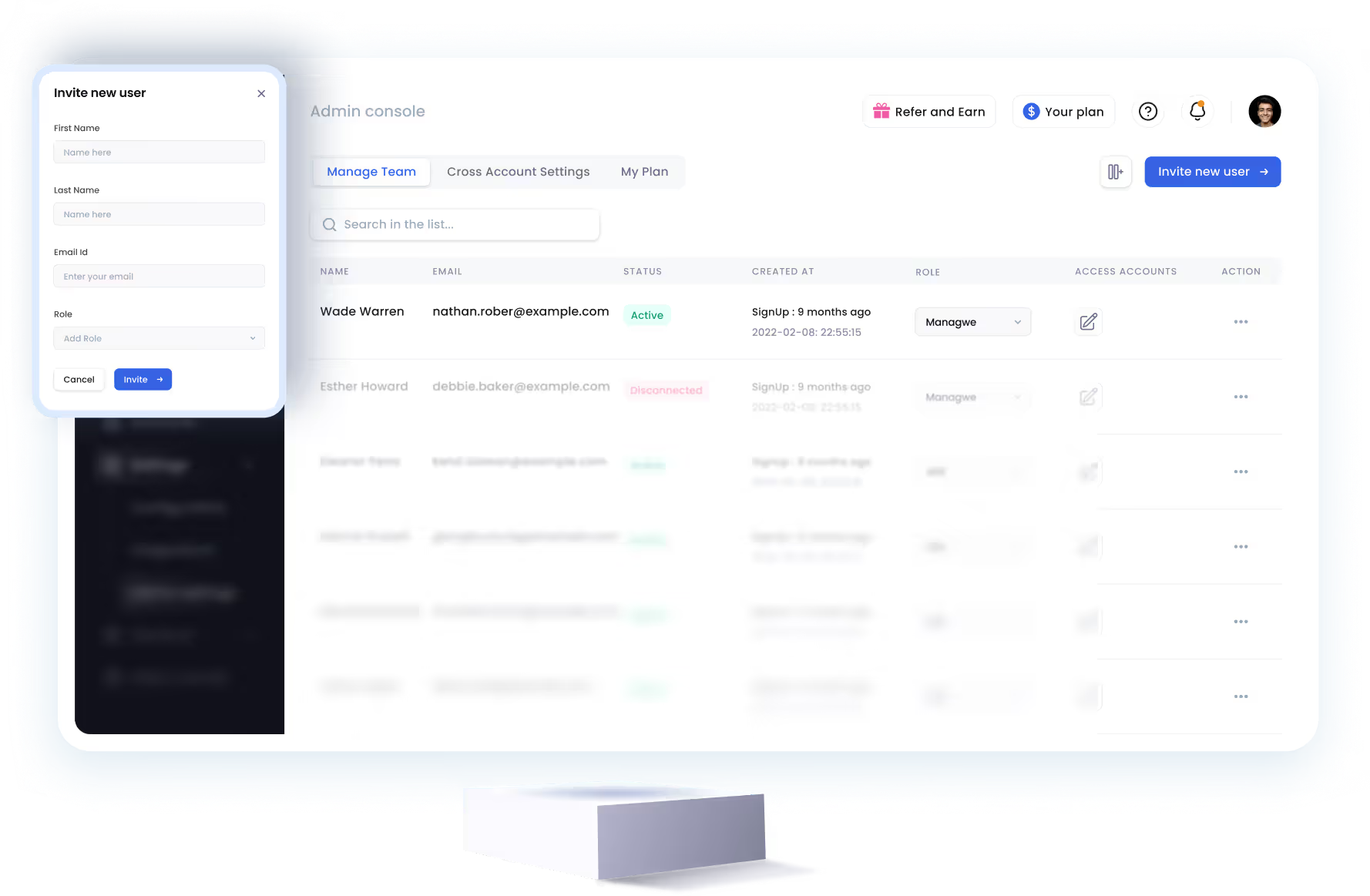
SalesRobot allows you to invite other team members, so that they can add their LinkedIn Account, run outreach campaigns and get amazing results just like you.
.avif)


Trusted by 4100+ innovative B2B sales teams and lead gen agencies

.avif)

.avif)




.avif)


Heading 1
Heading 2
Heading 3
Heading 4
Heading 5
Heading 6
Lorem ipsum dolor sit amet, consectetur adipiscing elit, sed do eiusmod tempor incididunt ut labore et dolore magna aliqua. Ut enim ad minim veniam, quis nostrud exercitation ullamco laboris nisi ut aliquip ex ea commodo consequat. Duis aute irure dolor in reprehenderit in voluptate velit esse cillum dolore eu fugiat nulla pariatur.
Block quote
Ordered list
- Item 1
- Item 2
- Item 3
Unordered list
- Item A
- Item B
- Item C
Bold text
Emphasis

Superscript
Subscript