.avif)
TL;DR
- Start with a sharp ICP before you touch LinkedIn. Teams with strong, grounded ICPs see 68% higher win rates, and account-first targeting (companies before contacts) beats scattershot every time.
- Sales Navigator ($119.99/mo Core, $159.99/mo Advanced as of Aug 2026) caps searches at 2,500 results and gives names and titles only, never emails, so enrichment is mandatory, not optional.
- Use the two highest-signal filters: "Posted on LinkedIn in past 30 days" (active prospects) and "Changed Jobs in Last 90 Days" (new decision-makers with fresh budget).
- LinkedIn's standard limit is around 100 connection requests a week (up to 200 for high-SSI accounts). Blow past it with a browser extension and you risk a restriction, and a banned account closes zero deals.
- SalesRobot imports your Sales Navigator search URL directly (no CSV export), personalizes each message with AI Variables, and runs it inside safe mobile-API limits. Customers average a 55% reply rate and 51% connection acceptance rate.
- Choose manual list-building plus a scraper if you need a one-off list on a tight budget; choose SalesRobot if you want the list to actually run itself into booked meetings.
- 👉 Skip the manual work: SalesRobot pulls leads straight from your Sales Navigator search and starts outreach for you. Try free for 14 days.
Your Lead List Is Only as Good as the Targeting Behind It
You spent three days building a LinkedIn list. Filtered, exported, cleaned, uploaded.
Then you sent 400 messages and got 8 replies. Two of them said "not interested." One said "how did you get my email."
Here's the uncomfortable truth: a bad list makes great messaging invisible.
A list built on a sharp ICP, current data, and proper enrichment makes average messaging outperform great messaging on a bad list.
The number that proves it: teams with strong, grounded ICPs see 68% higher win rates. Not marginally better. Sixty-eight percent.
Most guides stop the moment you've "built a list." This one goes further, through the six steps that take you from a blank screen to a list that's actually generating replies, without getting your account flagged along the way.
Let's build.
Step 1: Define Your ICP Before You Touch LinkedIn
Do not open Sales Navigator until you can describe your ideal customer in one sentence. Filters are only as smart as the target behind them, and a vague ICP produces a vague list.
Your Ideal Customer Profile is the set of attributes that define who's most likely to buy: industry, company size, seniority, geography, and the one most people skip, a buying trigger like recent funding, a new hire, or a job change.
Go account-first, not contact-first. Decide which companies you want to target before deciding which people to reach.
Companies buy in committees. Gartner's B2B research found typical purchases involve six to ten decision-makers, so picking the right accounts first lets you multi-thread later.
For example, you could lock your ICP as: "US-based B2B SaaS companies, 50-200 employees, that raised a seed or Series A in the last 12 months, targeting VP Sales and Head of Growth."
Fill in this template before moving on:
- Industry: ______
- Company size: ______
- Seniority: ______
- Geography: ______
- Buying trigger: ______
That last line is what separates a list that converts from a list that gets ignored.
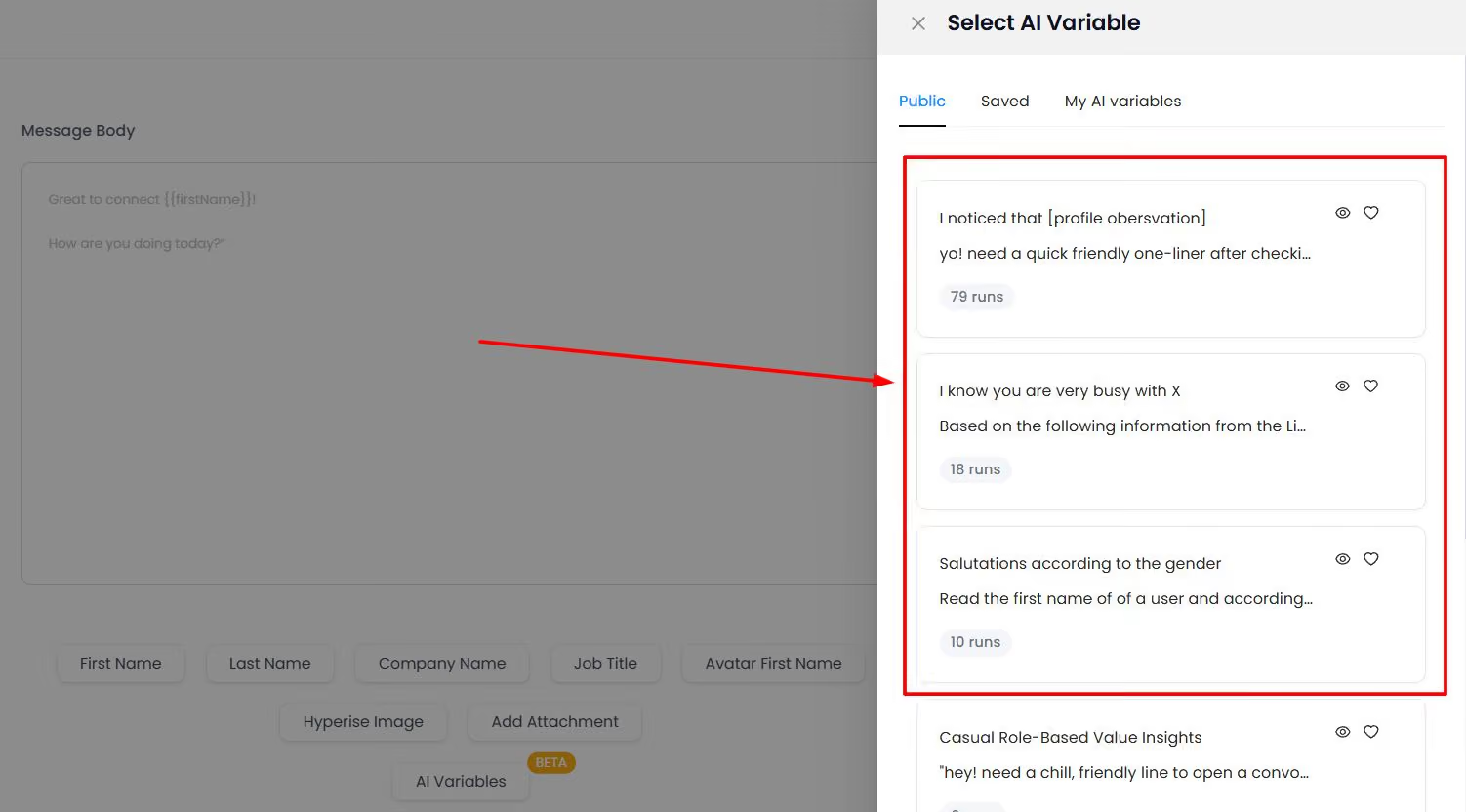
Once you have it, tools like SalesRobot's AI Variables can enrich each prospect with recent job changes, company news, and shared connections to personalize the outreach automatically, but only if you've defined who first.
Step 2: Choose Your List-Building Surface (Free vs. Sales Navigator)
Free LinkedIn search works for small, occasional lists; Sales Navigator is worth it once outbound is a real motion. The difference comes down to volume caps and filter depth.
Free accounts hit a commercial use limit, typically 250 to 350 searches per month, after which LinkedIn throttles your search access until the next billing cycle. Free search also caps visible results at 1,000 per query, versus 2,500 on Sales Navigator.
Sales Navigator isn't cheap. As of August 2026, LinkedIn lists Core at $119.99/month and Advanced at $159.99/month.
https://www.salesrobot.co/playbooks/the-correct-way-to-use-sales-navigator
For that you get 40-plus filters and higher result caps, but note the Core plan still lacks native CRM sync and enforces that 2,500-lead cap, which frustrates larger teams.
For example, if you're building one list of 200 local prospects, free search plus a light enrichment tool is plenty. If you're running weekly campaigns against a repeatable ICP, Sales Navigator pays for itself fast.
Tools like Apollo and Evaboot can supplement either surface for enrichment, but they're a layer on top of your search, not a replacement for defining it.
And whichever surface you pick, SalesRobot imports leads directly from LinkedIn Search and Sales Navigator searches without CSV exports.

More on that in Step 5.
Step 3: Apply the Right Sales Navigator Filters (And Ignore the Rest)
Most of Sales Navigator's 35-plus filters are noise. Six do the heavy lifting. Nail these and your list is 80% of the way to targeted.
The core six:
- Job Title: exact roles, not vague functions
- Seniority Level: VP, Director, C-suite as needed
- Company Headcount: matches your ICP size band
- Industry: your target vertical
- Geography: where you can actually sell
- The behavioral triggers: the multiplier most people ignore
Those triggers are where intent lives.
"Posted on LinkedIn in past 30 days" finds prospects who are active on the platform, meaning they'll actually see and respond to your outreach.
"Changed Jobs in Last 90 Days" targets new decision-makers who are often looking to make changes and have a fresh budget to spend.
For example, you could build a search for VP-level SaaS decision-makers in the US, at companies with 50-200 employees, who posted on LinkedIn in the last 30 days. That's a list of the right people who are currently paying attention.
One critical constraint: Sales Navigator caps each search at 2,500 results. Don't treat that as your final list, treat it as your first segment.
If your search returns more, split it by geography or headcount into tighter sub-searches. Smaller, sharper queries beat one giant blurry one.
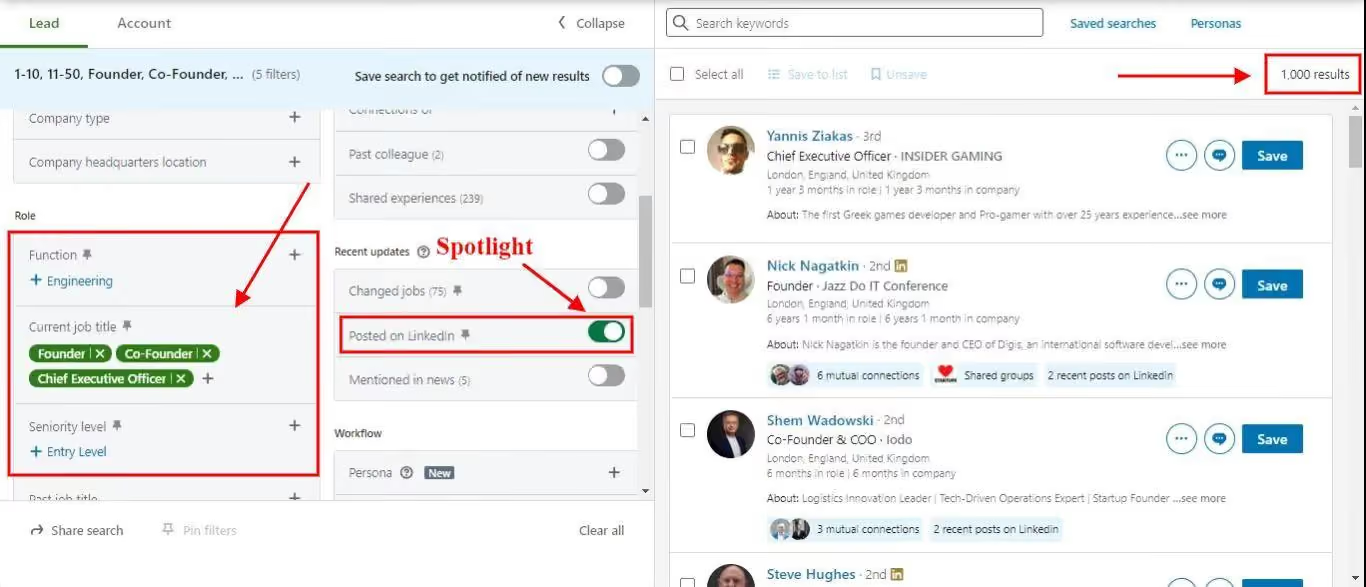
That exact search URL is what you'll feed into your outreach tool next.
Step 4: Enrich Your List So It's Actually Usable
Sales Navigator gives you names and titles, never emails or phone numbers. Its User Agreement also prohibits scraping the results directly. So the raw list you just built isn't ready to run; it needs enrichment.
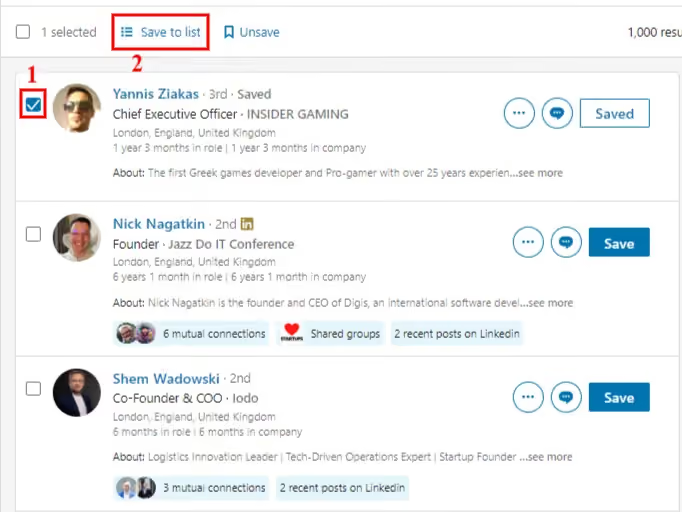
Enrichment is the process of turning a name into verified, contactable data.
The reliable method is a waterfall: take the LinkedIn identity, run it through an email finder, then verify deliverability before you send. Skipping verification is how you tank your sender reputation on day one.
Here's how the common enrichment tools stack up:
For example, you could export a cleaned list with Evaboot, run it through Clay's waterfall for verified emails, then check deliverability before outreach.
If you're staying LinkedIn-first, you may not need email enrichment at all. SalesRobot accepts direct CSV uploads and enriches contacts with LinkedIn profile data before outreach begins.
Its enrichment is profile-level (job changes, company news, shared connections) rather than a phone-and-email waterfall, so pick your path based on whether you're running LinkedIn, email, or both.
Step 5: Turn Your Search Into a Live List Without the Export Grind
Here's where the manual path and the SalesRobot path split hard, and it's the exact step this whole blog has been walking toward.
The manual path: export your Sales Nav results (which Sales Navigator doesn't even let you do natively), clean the CSV, find and verify emails, format the columns, then upload the file somewhere to actually use it. That's the two-plus hours nobody warns you about.
The SalesRobot path: you paste the Sales Navigator search URL straight into a campaign, and it pulls the entire list for you.

No export, no CSV cleanup, no re-upload. Within about 24 hours your prospects land in the platform with their details filled in, ready to work.
It reads every lead from these sources, not just Sales Nav: a standard LinkedIn search, a Sales Navigator search, LinkedIn Groups, event attendees, post commenters, or a plain CSV. So however you built the list in the steps above, it's one paste away from live.

Two things make this a list-building step, not just an import button.
First, the built-in email finder. It typically pulls verified work emails for 85%+ of a LinkedIn search, so the enrichment work from Step 4 is largely handled in the same motion.
Second, smart filtering. Sales Navigator's results are never perfectly clean, there's always a chunk of leads who don't actually fit.
SalesRobot's smart filtering strips the irrelevant ones out of your Sales Nav results before they ever enter a campaign, so the 2,500-result cap you fought to stay under in Step 3 isn't padded with dead weight.
That's the difference between a list you built and a list that's ready to run: imported, enriched, and filtered in one step instead of three tools and an afternoon.
Step 6: Segment Before You Outreach (Personas, Not Bulk Blasts)
A list is not a campaign. Segment it first, or every prospect gets the same generic message. Splitting your enriched list by persona and trigger is what lets you personalize at scale.
Segment along three lines:
- By persona tier — champion vs. economic buyer vs. technical evaluator (remember, six to ten people touch a B2B deal)
- By buying trigger — job changers vs. funding events vs. active posters
- By sequence priority — hottest segments get your best cadence first
Why bother? Because most B2B deals need repeated follow-up to close, often five or more touches, and you can't run disciplined multi-touch cadences if everyone's lumped into one blast. You need segments to run different messaging.
For example, you could split into two:
Segment A, prospects who changed jobs in the last 90 days, opened with a connection request referencing their new role.
Segment B, active posters, warmed up with a comment on their recent post before the connection request even lands.
That warm-up move is a real lever. SalesRobot's Smart Comments feature automatically leaves AI-generated comments on prospect LinkedIn posts before outreach begins, warming up prospects and increasing connection acceptance rates.
Segment B stops being cold before you ever send a request.
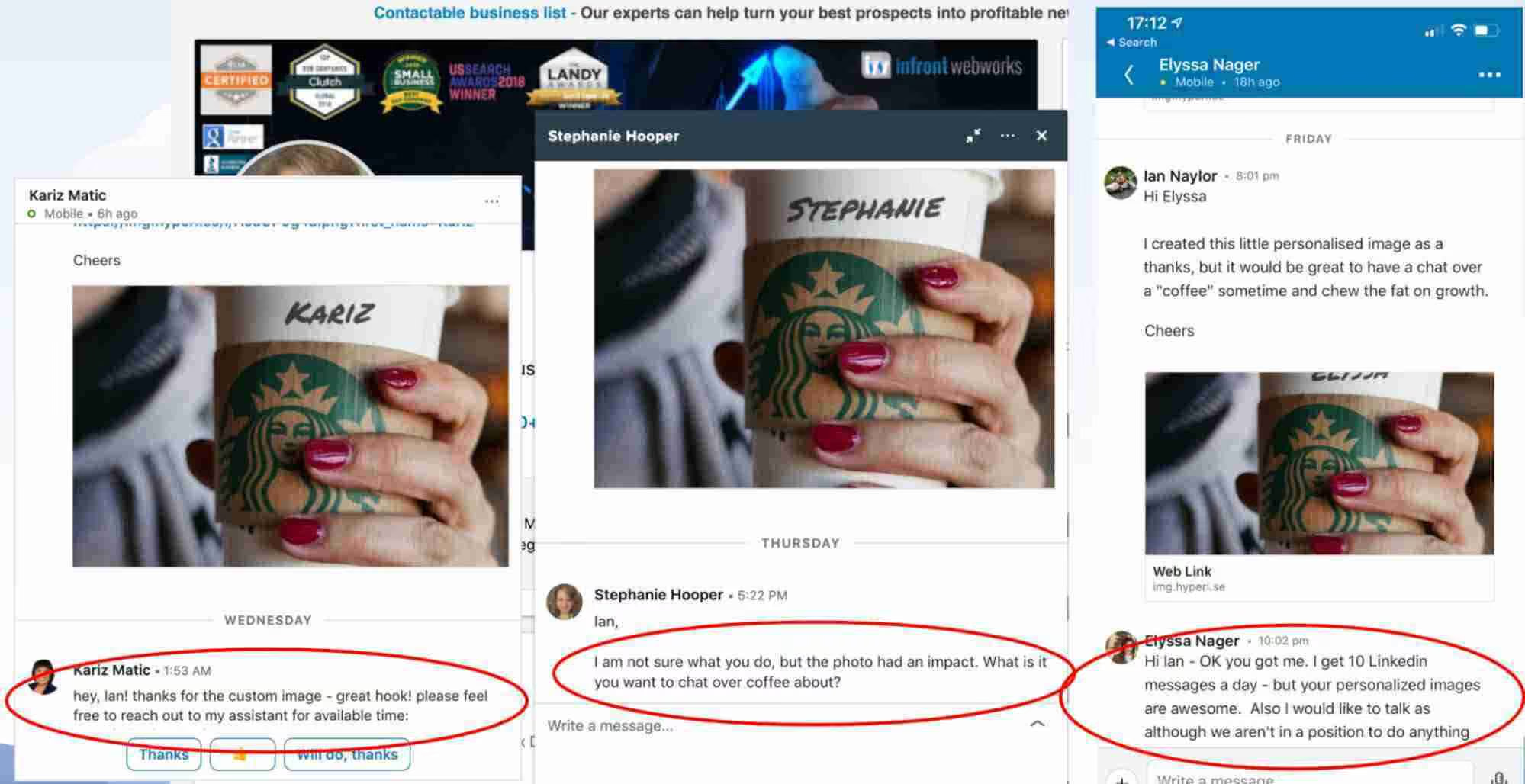
Segmenting cleanly also solves deduplication, decide which segment owns a contact so nobody gets hit by two campaigns at once.
Step 7: Run Your List Without Getting Your LinkedIn Account Flagged
This is the step every other guide skips, and it's the one that gets accounts banned. Building the list is safe. Running it carelessly is not.
LinkedIn's standard limit is widely reported at around 100 connection requests per week across all account types. Accounts with strong health (SSI above 65, acceptance rates above 40%, and 6-plus months of age) can push up to 200 requests per week.
Blow past the limit and you get a pending-queue freeze or a temporary restriction. Do it with a clunky browser extension and you risk a full ban.
Here's the honest comparison of running a list two ways.
The manual way: track sends in a spreadsheet, hand-send a capped number each day, remember to follow up on a schedule, and hope your browser-based automation tool doesn't trip LinkedIn's detection. Desktop and extension-based automation is exactly what triggers most restrictions.
The SalesRobot way: it uses mobile API technology that mimics human behavior, with randomized delays, human-like daily limits up to 200 requests/week, and residential IP rotation.
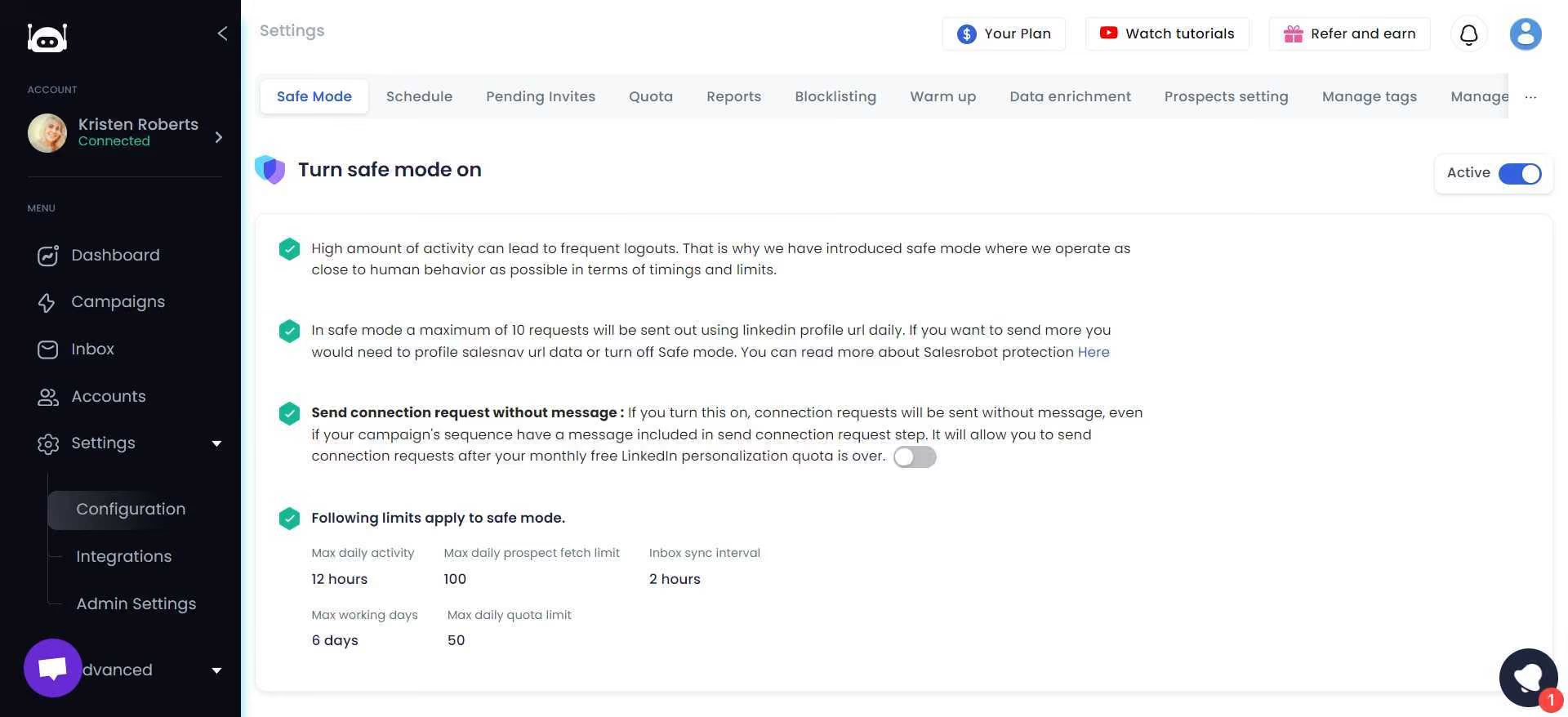
It's cloud-based, so it runs 24/7 without keeping your browser open, and customers report zero account bans when following Safe Mode guidelines.
And it closes the loop the rest of this guide has been building toward: you paste your Sales Navigator search URL, SalesRobot pulls the leads automatically, and starts your outreach campaign, no downloading, formatting, or re-uploading.
That's how you go from "list built" to "campaign running" in one move, with a 51% connection acceptance rate and 55% average reply rate on the other side.
How SalesRobot Turns Your LinkedIn Lead List Into a Running Outreach Machine
Here's the gap nobody on page one closes: Sales Navigator builds the list. Something still has to run it. That something is where SalesRobot lives.
Sales Navigator was built for sourcing, not sending, there's no native way to sequence outreach, schedule follow-ups, or personalize at scale inside it. That's the execution layer you'd otherwise stitch together from a scraper, an enrichment tool, and a sender. Here's how SalesRobot maps to the six steps above:
The contrast with the alternative is sharp. Browser-extension and desktop tools run through your own session on a fixed IP, the exact fingerprint LinkedIn's detection is built to catch, and they stop the moment your laptop closes. SalesRobot's cloud mobile-API setup avoids that entirely.
The price contrast is the kicker: SalesRobot starts at $59/month, roughly half of Sales Navigator Core's $119.99/month, and includes the execution layer Sales Navigator doesn't have.
It's trusted by 4,100+ B2B sales teams, rated 4.8 on G2 from 57+ reviews, and comes with a 14-day free trial, no credit card required.
Build the list once. Let SalesRobot run it into booked meetings.
Common Mistakes That Kill a LinkedIn Lead List
Even a good process gets sabotaged by predictable errors. Avoid these five:
- Skipping ICP and jumping straight to filters. Filters without a defined target produce a big, useless list. Define the ICP in Step 1 first, the 68% win-rate lift depends on it.
- Treating the 2,500-result cap as your final list. Sales Navigator's cap is a first segment, not a finish line. If your search overflows, split it by geography or headcount into tighter queries.
- Enriching without verifying. An unverified email is a deliverability landmine. Always run a verification pass before you send, or your sender reputation pays for it.
- Automating with a browser extension. Desktop and extension-based tools are exactly what trip LinkedIn's detection. Use safe, mobile-API automation like SalesRobot's Safe Mode instead, customers on it report zero bans.
- Blasting one sequence to every segment. Since most B2B deals need five or more touches to close, you need segmented cadences, not one generic message fired at everyone.
Frequently Asked Questions
How do I create a lead list with LinkedIn Sales Navigator?
Open Sales Navigator, apply your core filters (job title, seniority, headcount, industry, geography), then add high-intent filters like "Changed Jobs in Last 90 Days." Save the results as a lead list.
Note the 2,500-result cap, split larger searches into tighter sub-segments for cleaner targeting.
Can I build a LinkedIn lead list without Sales Navigator?
Yes. Free LinkedIn search plus an enrichment tool works for smaller lists, though you'll hit a commercial use limit of roughly 250 to 350 searches per month and a 1,000-result cap per query.
You lose filter depth and volume, but for occasional, targeted lists it's perfectly workable.
What happens if you reach LinkedIn's weekly invitation limit?
Once you hit the standard limit of around 100 connection requests per week, LinkedIn queues additional invites as pending and may temporarily restrict your account.
High-health accounts (SSI above 65, acceptance above 40%) can reach 200 per week. Safe automation tools like SalesRobot pace sends automatically to stay under the ceiling.
How accurate is automated LinkedIn data extraction?
LinkedIn profile data is highly accurate because it's self-reported and regularly updated by users. Email and phone enrichment accuracy varies by tool and provider.
Remember that LinkedIn's User Agreement prohibits scraping search results directly, so use compliant enrichment layers and always verify contact data before outreach.
How do I prevent the same contact appearing on multiple lists?
Deduplicate at the segmentation stage: decide which segment owns each contact before you launch.
Use Sales Navigator's exclusion lists to filter out already-targeted people, and run outreach through a tool that tracks contact status across campaigns so no one gets messaged twice.
Is it safe to automate outreach to a lead list this large?
It depends entirely on the tool's architecture, not the list size. Browser extensions and desktop apps run through your own session on a fixed IP, the easiest pattern for LinkedIn to detect, and they're behind most restriction stories.
Cloud tools that use mobile-API access, randomized delays, and residential IP rotation (like SalesRobot) are built to avoid those signatures and pace sends under the weekly ceiling automatically. No tool can promise zero risk since LinkedIn's terms prohibit automation, but SalesRobot reports a ban rate under 0.001% across its 4,100+ users on Safe Mode.
Start With the List. Win With the Follow-Through.
A targeted LinkedIn lead list is the foundation, but the list isn't the win. Safe cadences, personalized messaging, and disciplined follow-up are what turn names into pipeline.
Honest reality check: building a great list the right way takes two to four hours the first time.
Shortcuts cost more. Bad enrichment burns deliverability, bulk blasting burns replies, and browser-extension automation burns the whole account. The slow way is the fast way here.
Once the list is built, SalesRobot is the execution layer that runs it: paste your Sales Navigator search URL, personalize every message with AI Variables, and send inside safe mobile-API limits that keep your account healthy.
That's how customers hit a 55% average reply rate at $59/month, less than half the cost of Sales Navigator Core.
Build the list. Let SalesRobot run it. Try it free for 14 days, no credit card required.

Wow your leads by cloning yourself and sending personalized videos and voice notes to each lead on LinkedIn.
If you don't reply to leads within 5 mins, your chances of converting them fall by 50%. Our AI replies on your behalf instantly! (and yes, you can train it)

Don't shoot in the dark. Get detailed analytics on what's working
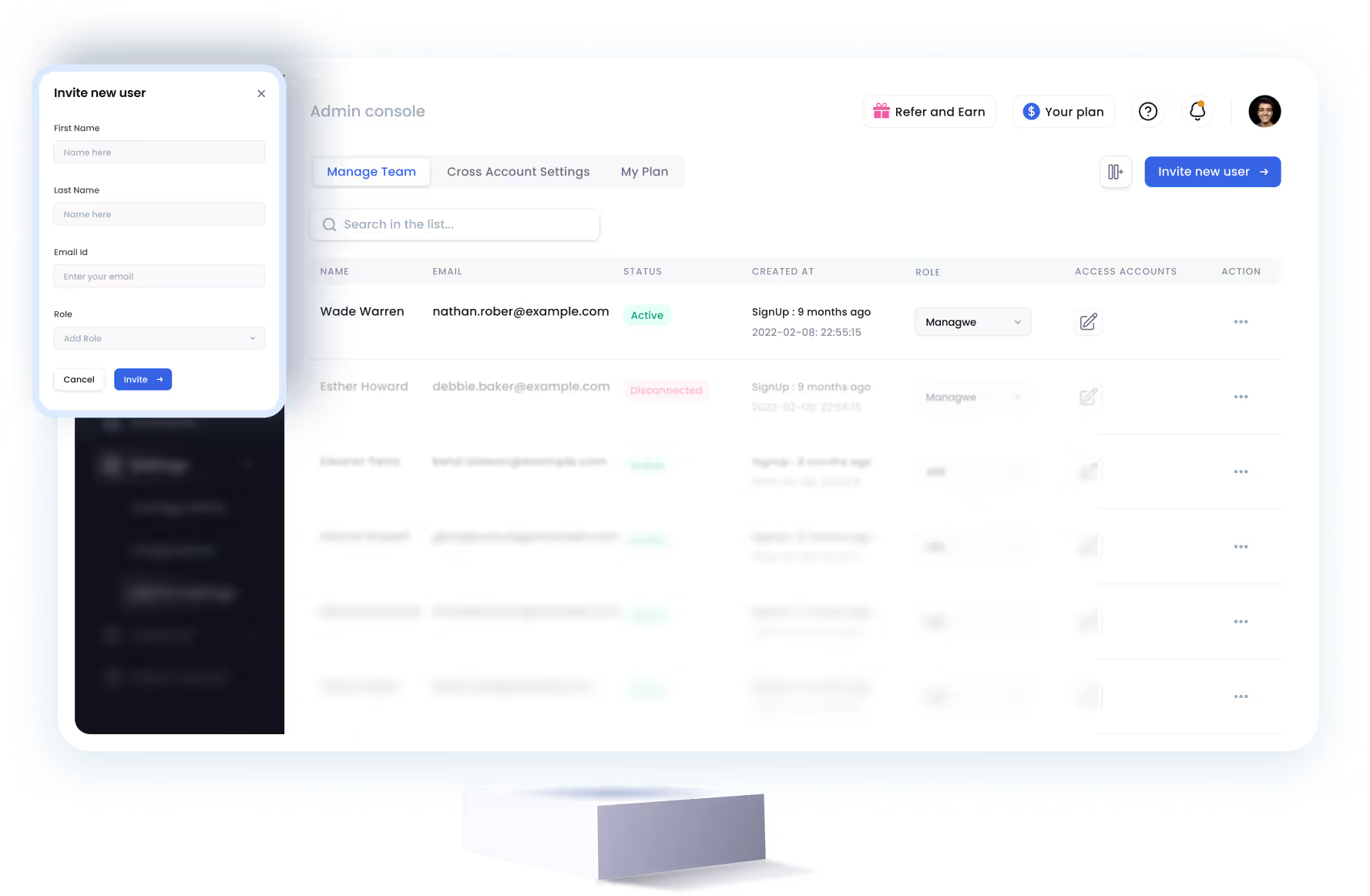
SalesRobot allows you to invite other team members, so that they can add their LinkedIn Account, run outreach campaigns and get amazing results just like you.
.avif)


Trusted by 4100+ innovative B2B sales teams and lead gen agencies

.avif)

.avif)




.avif)


Heading 1
Heading 2
Heading 3
Heading 4
Heading 5
Heading 6
Lorem ipsum dolor sit amet, consectetur adipiscing elit, sed do eiusmod tempor incididunt ut labore et dolore magna aliqua. Ut enim ad minim veniam, quis nostrud exercitation ullamco laboris nisi ut aliquip ex ea commodo consequat. Duis aute irure dolor in reprehenderit in voluptate velit esse cillum dolore eu fugiat nulla pariatur.
Block quote
Ordered list
- Item 1
- Item 2
- Item 3
Unordered list
- Item A
- Item B
- Item C
Bold text
Emphasis

Superscript
Subscript