.avif)
TL;DR
- AI variables read each prospect's LinkedIn profile and write a unique line for them, so you can personalize hundreds of messages without opening a single profile
- Basic variables like {first_name} only swap in stored data. AI variables write brand new sentences
- You can set them up in SalesRobot in six steps, right inside the message box
- Good prompts are short, never copy profile text, and sound like a real person
- Use AI for one personalized line, not the whole message
Writing a custom icebreaker for 500 prospects takes about 5 hours.
Doing it with AI variables takes about 5 minutes.
And that is if you actually do the work. Most people don't. They add {first_name}, hit send, and wonder why nobody replies.
Me looking at my own "personalized" outreach from 2021...
[MEME: Person staring at a laptop screen, caption "Hi {first_name}, I saw you work at {company}"]
This blog covers what AI variables are, how to use them, how they work in SalesRobot, how to write the prompts, and whether AI personalization actually works.
What Are AI Variables?
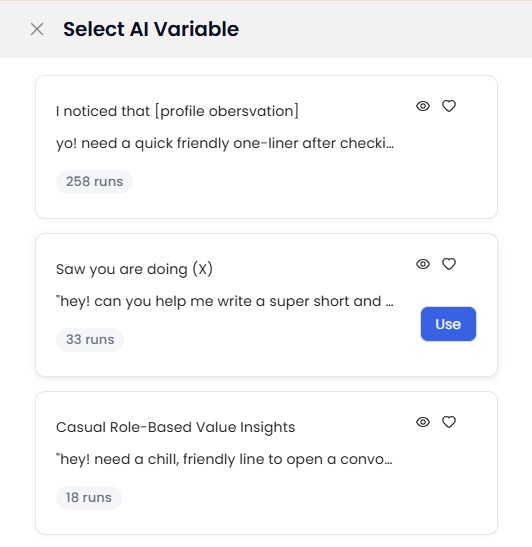
An AI variable is a placeholder in your LinkedIn message that an AI fills in by reading the prospect's profile.
You write the base message once. The AI writes a different line for every person on your list.
Think of the {first_name} variable you already know.
It pulls a stored name and drops it into your message.
An AI variable goes a step further. It reads the prospect's headline, job title, summary, and even their company website, then writes a sentence that sounds like you did your homework.
Here is the difference at a glance:
Basic variables still matter. You need them.
They just can't carry your personalized messages alone anymore, because prospects spot a name swap from a mile away.
How to Use AI Variables in Your LinkedIn Messages
You do not need to rebuild your whole LinkedIn outreach process.
AI variables slot into the messages you already send.
✅Use one per message. One sharp personalized line beats three clumsy ones.
✅Put it near the top. The opening line is what decides if someone keeps reading.
✅Keep the rest of the message short. The AI line does the personal part. Your base message does the selling.
✅End with one clear ask. A personal line followed by a vague pitch still gets ignored.
✅Test on a small batch first. Read the output for 10 or 20 prospects before you launch to everyone.
Here is what a message looks like before and after.
Before:
Hi John, I'd like to connect. I work with teams in construction and thought we could chat.
After (with an AI variable):
Hi John, I'd like to connect. I know you're super busy with sustainable project planning in the construction space, but would love to explore how we can support your LinkedIn outreach.
Same message. Completely different feel.
Where do they fit in your sequence?
- Connection request note: Keep it light. Check our tips on writing a connection request that gets accepted, or grab a few connection request templates.
- First message after they accept: This is where a strong AI line works best.
- Follow-ups: Use a fresh angle each time. Our guide on how many LinkedIn follow-ups to send will help you plan this.
- Open Profile messages: LinkedIn Premium members with open profiles can be messaged without a connection request, so a personal opening line matters even more here.
How AI Variables Work in SalesRobot
SalesRobot's AI variables live right inside the message box of your LinkedIn automation campaign. Here is the full setup.
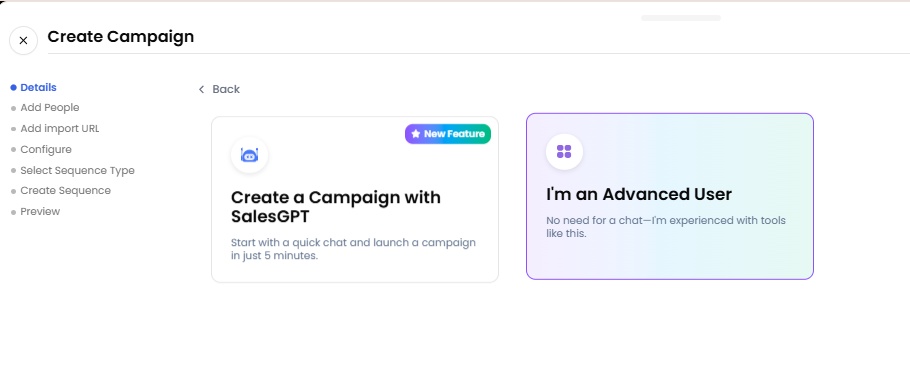
Step 1: Start your campaign
Click Create Campaign and pick LinkedIn or LinkedIn + Email. Then choose the Advanced user flow.
Step 2: Add your leads
Import from Sales Navigator, a normal LinkedIn search, or a CSV.
Give your campaign a name so you can find it later.
Not sure how to build a good list? Here is how to use Sales Navigator for lead generation.
Step 3: Create your sequence
Configure your settings and save. When you see the sequence options, select From scratch.
Step 4: Write your base message
On the connection request step, type your base message in the box. For example: "Hi {first_name}, I'd like to connect..."
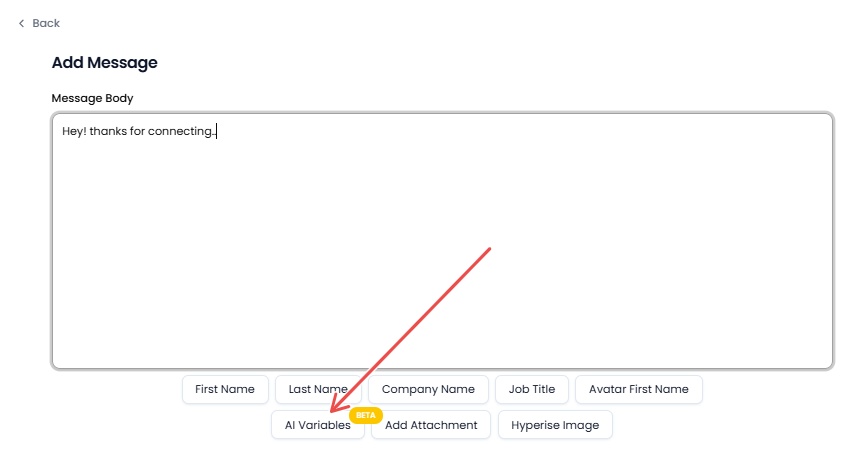
Step 5: Click "AI Variables" and pick one
You will see three options:
Option
What it is
Public AI Variables
Ready-made variables you can pick and use right away
Saved Variables
Variables you created or customized and saved for later
My AI Variables
Your own collection, fully built and managed by you
Pick one that fits your message, like "I know you're busy with X", and click Use.
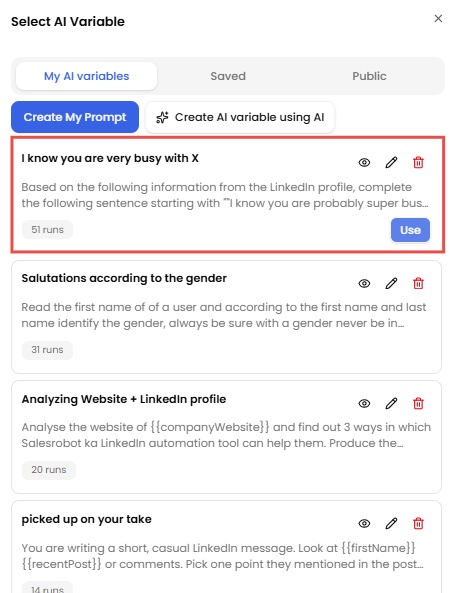
Step 6: Understand the prompt
Every AI variable runs on a prompt. The default looks like this:
Based on the following information from the LinkedIn profile, complete the following sentence: I know you're super busy with...
The AI then looks at the prospect's:
- LinkedIn headline
- Job title
- Summary
- Company website, if available
It rewrites the sentence without copying profile text directly. That is why the output reads like something you wrote, not something scraped.
Here is the final output:

Want to see this on your own prospect list?
Start your 14-day free trial of SalesRobot and set up your first AI variable in about five minutes.
No credit card needed.
How to Write AI Variable Prompts That Sound Human
The public variables work fine. But your own prompt is where the real results come from, because it can match your offer and your voice.
A good prompt has four parts:
- What to look at. Tell the AI which parts of the profile to use (headline, role, summary).
- What to write. Name the exact sentence or idea you want.
- How it should sound. Casual, warm, direct. Pick one.
- Hard limits. Length, no copying, no fluff.
Here are the rules we follow:
✅Never copy words from the profile. Tell the AI to paraphrase everything.
✅Keep it to 1 or 2 sentences. Long AI lines feel like essays.
✅Write at a simple reading level. Plain words win on LinkedIn.
✅Ban sales language. No "game-changing," no "revolutionary," no "synergy."
✅Tell it what to do when data is thin. If the profile is empty, the AI should stay general instead of guessing.
And here are three prompts you can copy and use.
Prompt 1: The "busy with" line
Based on the following information from the LinkedIn profile, complete the sentence: "I know you're super busy with..." Use their headline, job title, and summary to name what they actually work on. Do not copy exact words from the profile. Keep it under 15 words. Sound like a friendly person, not a salesperson. If the profile has no clear information, keep it general and do not guess.
Prompt 2: The role-focus opener
Read the LinkedIn profile and write one short opening sentence about the main problem someone in this role is probably focused on right now. Use simple words. Do not repeat their job title back to them. Do not mention anything personal. Maximum 20 words.
Prompt 3: The new role opener
If the profile shows a recent job change or new role, write one short, friendly sentence congratulating them and asking what they are focused on in the first few months. If there is no sign of a recent change, write a neutral sentence about their industry instead. Do not copy profile text. Maximum 25 words.
Want the AI to write the prompt for you?
Ask ChatGPT or Claude.
Tell it what you want to personalize on, your goal, and your tone, then ask for a copy-paste prompt with the rules above.
We share a ready-to-use version inside the AI variable SOP playbook.
What to avoid:
- Creepy details. Stick to work context. Mentioning someone's holiday photos is a fast way to lose a reply.
- Flattery. "I was blown away by your incredible journey" screams automation.
- Long lines. If your AI line is longer than the rest of your message, cut it.
Does AI Personalization Actually Work?
Short answer: yes, when it is done well.
Personalization has been shown to lift replies on LinkedIn.
According to a 2024 Belkins study, as cited by Gracker, personalized connection requests got a 9.36% reply rate compared to 5.44% for blank ones.
AI makes that kind of personalization possible at volume.
In one of our playbooks, a client booked 71 sales calls in 23 days using AI-personalized LinkedIn DMs after a long dry spell, even though their list and message sequence were already solid.
But here is the honest part. AI personalization is not magic. It works best when:
- The AI writes one line, not the whole message
- Your list is targeted to the right people to begin with
- Your prompt is tight and bans fluff
- You read the output before scaling up
How to test it yourself:
Run two campaigns to similar audiences. Use a basic message in one and the same message plus an AI variable in the other.
Let both run for a week or two, then compare acceptance and reply rates in your analytics. Keep the one that wins.
You can also layer in voice notes and videos after the first reply, and let the AI Inbox Manager handle responses so no lead sits cold.
Which Setup Is Right for You?
Here is a simple way to decide.
If you send fewer than 20 messages a week, write them by hand. You do not need AI yet.
If you send hundreds of messages and you are tired of {first_name} only, use AI variables for the opening line.
If your list is small and very high value, use AI variables for a draft, then edit the best ones yourself.
If you want help after the first reply, pair them with the AI Appointment Setter to keep conversations moving.
If you want more message ideas first, browse our LinkedIn sales message templates or our guide on hyper-personalized LinkedIn outreach.
Frequently Asked Questions
What are AI variables in LinkedIn automation?
AI variables are placeholders in your message that an AI fills in by reading each prospect's LinkedIn profile. Instead of inserting a stored field like a name, the AI writes a fresh, personalized sentence for each person.
How are AI variables different from {first_name} and other basic variables?
Basic variables swap in data you already have, like a name or company. AI variables create new text based on the prospect's headline, job title, summary, and company website. One fills a blank. The other writes a line.
Does the AI copy text from the prospect's profile?
No. The prompt is built to rewrite the information in new words, so the line does not repeat profile text word for word.
Can I create my own AI variable?
Yes. You can pick from Public AI Variables, reuse Saved Variables, or build your own under My AI Variables with a custom prompt.
Where can I use AI variables?
You can use them in your connection request message and in your follow-up messages. Start with the opening line of your first message, where they make the biggest difference.
Where do the leads come from?
You can import leads from Sales Navigator, a regular LinkedIn search, or a CSV file. You can also use custom variables from your own data alongside AI variables.
Do I need LinkedIn Premium to use AI variables?
No. SalesRobot works with a free LinkedIn account. If you are curious about the paid plans, here is what LinkedIn Premium is and who it is for.
Is it safe to use AI variables on LinkedIn?
AI variables only change what your message says. Account safety depends on how the tool sends it. SalesRobot runs in the cloud and uses residential IPs and mobile APIs so activity looks natural. No automation is completely risk free, so keep your daily volume sensible and compare options in our roundup of LinkedIn automation tools.
How many AI variables should I use in one message?
One. A single well-written line feels personal. Three of them feels like a robot trying too hard.

Wow your leads by cloning yourself and sending personalized videos and voice notes to each lead on LinkedIn.
If you don't reply to leads within 5 mins, your chances of converting them fall by 50%. Our AI replies on your behalf instantly! (and yes, you can train it)

Don't shoot in the dark. Get detailed analytics on what's working
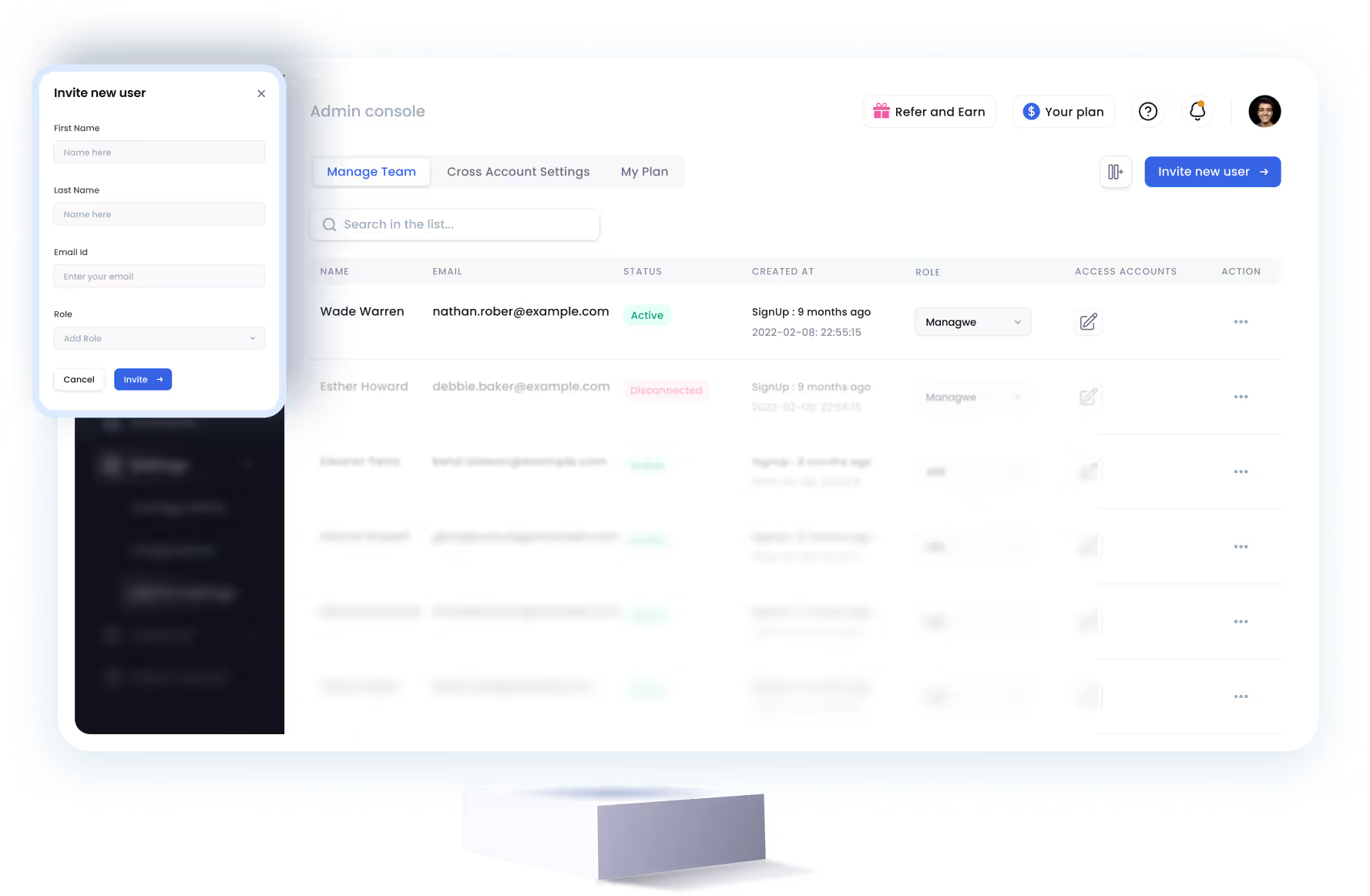
SalesRobot allows you to invite other team members, so that they can add their LinkedIn Account, run outreach campaigns and get amazing results just like you.
.avif)


Trusted by 4100+ innovative B2B sales teams and lead gen agencies

.avif)

.avif)



.avif)


Heading 1
Heading 2
Heading 3
Heading 4
Heading 5
Heading 6
Lorem ipsum dolor sit amet, consectetur adipiscing elit, sed do eiusmod tempor incididunt ut labore et dolore magna aliqua. Ut enim ad minim veniam, quis nostrud exercitation ullamco laboris nisi ut aliquip ex ea commodo consequat. Duis aute irure dolor in reprehenderit in voluptate velit esse cillum dolore eu fugiat nulla pariatur.
Block quote
Ordered list
- Item 1
- Item 2
- Item 3
Unordered list
- Item A
- Item B
- Item C
Bold text
Emphasis

Superscript
Subscript