.avif)
TL;DR
LinkedIn InMail credits are limited:
- Premium Career: 5/month
- Premium Business: 15/month
- Sales Navigator: 50/month
- Recruiter Lite: 30/month
The problem: Buying extra credits costs $10 each with no guarantee of results.
The approach: With Sales Navigator, you can send free InMails to Premium users with Open Profiles enabled, no credit spent.
The catch: Manually finding these profiles and writing personalized messages is exhausting.
The shortcut: Use SalesRobot ($59/month, 14-day free trial) to:
- Automatically filter for Premium/open profiles
- Skip the manual search entirely
Bottom line: Stop burning money on InMail credits. Target open profiles instead, and use automation to scale without the grind.
Now let's get to it in deeeeeetails! ❤️
LinkedIn InMails are cheap...

I know those limited InMail credits keep holding you back.
Does this sound familiar?
- You're writing the perfect message, only to realize you're out of credits.
- You're stuck calculating whether it's worth upgrading to Premium just to send more messages.
- Or maybe you're thinking, "Isn't there a smarter way to get around this?"
Well, guess what? There is!
You can send free InMails to LinkedIn users with 'open profiles' (Premium members with the gold icon) — but you'll need Sales Navigator to do it!
Sounds unbelievable? Stay with me.
I'm going to show you exactly how to make it happen, step by step.
Plus, I've got an exclusive, little-known strategy that can take your LinkedIn outreach to the next level. 😎
Here's what we'll cover in this blog:
🤖 How Many InMail Credits Do You Get?
🤖 How to Bypass the Monthly InMail Limit With a Sales Nav Account
🤖 What Really Are InMail Credits?
🤖 How to Mass InMail People Without Using Credits
Ready to break free from the InMail credit trap?
Let's dive in!
How Many LinkedIn InMail Credits Do You Get Per Month?
I know y'all are here for the hacks, but hear me out first..
Understanding how LinkedIn's InMail credit system works is crucial because these credits are limited, and running out of them can be a huge roadblock for you.
And here's the breakdown of monthly InMail credits by account type:
- Premium Career: 5 credits/month
- Premium Business: 15 credits/month
- LinkedIn Sales Navigator: 50 credits/month
- Recruiter Lite: 30 credits/month
But wait, there's more.
LinkedIn doesn't let you collect credits indefinitely.
There's a cap on how many unused credits you can carry over to the next month.
Here's the maximum you can accumulate:
- Premium Career: 15 credits
- Premium Business: 45 credits
- Sales Navigator: 150 credits
- Recruiter Lite: 120 credits
And LinkedIn is strict with InMail credits:
- You can't send a new InMail to someone until they respond to your last one.
- 200-character limit for subject lines and 1,900 characters for the message body.
- If you're running Sales Navigator, all plans come with the same 50 InMails per month.

And since I'm not one to play favorites, here's what's actually good about LinkedIn InMail credits:
- If your recipient responds within 90 days, LinkedIn refunds the credit.
- Plus, you can easily check your remaining credits.
Now, what happens if you've exhausted all your credits?
Can I Buy InMail Credits on LinkedIn?
Yes! You can buy more InMail credits.
BUT is it really worth it?
LinkedIn gives you the option to buy more InMail credits with premium plans like Premium Career, Business, Sales Navigator, and Recruiter Lite.
BUT ask yourself…
Is paying $10 per credit really the best investment to generate leads?
I mean, what's the guarantee that if you spend $1,000 for 100 credits, you'll book a single meeting?
No guarantee, right?
That $10/credit starts to feel more like a gamble than a smart investment.
So, what's the solution to this?

Our secret strategy, of course, let's talk about it…
How to Bypass the Monthly InMail Limit With Sales Navigator?
Here's something LinkedIn doesn't advertise loudly: you can send free InMails to users with open profiles.
These profiles, often owned by Premium LinkedIn users, let you send messages without burning through your precious InMail credits. Sales Navigator users can message Premium members who have Open Profile enabled without using InMail credits.
To enable the Open Profile feature, Premium users must first turn on their Premium Profile visibility. Once that's done, they can adjust their Open Profile message settings to allow others to send them free InMails.
How do you identify a LinkedIn premium profile? Look for profiles marked with a golden LinkedIn icon next to the person's name.

They have the golden LinkedIn icon next to their name.
But manually searching for Premium users and crafting personalized messages is a time-sucking nightmare.
And this is where things get exciting.
This is where the secret tool comes in.
But first...
What Really Are InMail Credits?
InMail credits are like LinkedIn's special currency coins that you use to send direct messages to people you're not connected with on the platform.
They're incredibly useful for reaching out to 2nd and 3rd-degree connections without needing to send a connection request.
Here's how LinkedIn's InMail credit system works across different plans:
- Premium Career: 5 credits per month
- Premium Business: 15 credits per month
- Sales Navigator Core: 50 credits per month
- Recruiter Lite: 30 credits per month
But there's a catch:
- If you have Sales Navigator, you can message Premium members with open profiles enabled without spending a credit
- Want to message someone else? That'll cost you 1 InMail credit.
And it's all too easy to burn through your credits in no time, leaving you stuck without a way to message those critical leads. So, use them wisely.
And I know some of you might be wondering, "Why do InMails matter?" Because InMails are a powerful way to reach potential clients, recruiters, or influencers without needing to connect first.
This also brings me to my next question:
How to Mass InMail People Without Using Credits?
The secret tool is SalesRobot, a powerful LinkedIn and email automation tool that makes your life infinitely easier.
SalesRobot automates repetitive tasks such as:
- Sending connection requests
- Following up with leads
- Identifying premium profiles
- Sending InMails directly
This means you can send mass InMails without ever burning through your credits.
You don't need to spend hours manually searching for Premium users and composing personalized messages. SalesRobot does it all for you!
Steps to send InMails via SalesRobot:
Method 1: Add InMail as a Variant to Your Connection Request Campaign
Use this method when you want SalesRobot to automatically send an InMail instead of a connection request if the prospect has an open profile.
How it works: When SalesRobot detects that a prospect has an open profile, it'll send your InMail message rather than a connection request. For prospects without open profiles, the regular connection request is sent.
- Go to the Campaigns section and click "Create Campaign."

- Select "I'm an advanced user" and name your campaign.

- Click "Add from LinkedIn Search" and paste the search URL from your LinkedIn search.

- Adjust the settings to your preferences and make sure the "Premium only" option is selected.

- Click the "+" icon on this page.
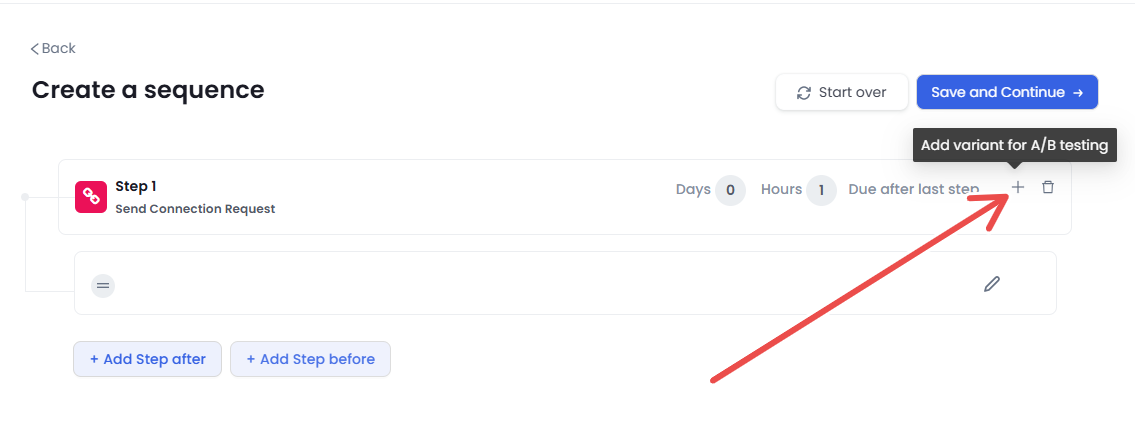
- Next, turn this toggle on, and write your InMail copy:

Method 2: Create a Standalone InMail-Only Campaign
Use this method when you want to send bulk InMails exclusively; no connection requests involved.
How it works: SalesRobot will only send InMails to prospects with open profiles. All other profiles will be skipped entirely.
- Select "I'm an advanced user" and name your campaign.
- Click "Add from LinkedIn Search" and paste the search URL from your LinkedIn search.
- Adjust the settings to your preferences and make sure the "Premium only" option is selected.
- Scroll down on the "Add steps to your sequence" page, and in the "Advanced steps" option, select "Send InMail"

- Write your InMail. Use SalesRobot's scoring system to check how likely you are to get a response.

Once you've chosen either of these two methods, SalesRobot will automatically begin sending open InMails daily to eligible profiles
You won't even need to lift a finger!
Why This Is a Game-Changer
Using SalesRobot saves you an enormous amount of time and effort, allowing you to target the right profiles without manually searching for each one.
The best part?
The more messages you send, the more likely you are to receive responses, which can lead to valuable connections and leads.
LinkedIn InMail Subject Line Tips for Job Seekers
If you're using InMails for job hunting, your subject line can make or break your message. Here are some quick tips:
- Be specific: "Marketing Manager seeking opportunities at [Company Name]"
- Show value: "5+ years SEO experience — interested in your opening"
- Keep it under 50 characters to avoid cutoff in mobile previews
- Avoid generic phrases like "Job Inquiry" or "Seeking Opportunities"
Remember, job seekers often compete with hundreds of other candidates, so personalization is key to standing out.
Conclusion
And that's a wrap, let's quickly run through the topics that we covered in this blog: We got to know about InMail Credits.
We got to know how many InMail Credits we get per month with each account
The secret to Bypass the Monthly InMail Limit using Sales Nav.
And finally how to Mass InMail People Without Using Credits. If you didn't read through the blog, here's the summary:
You can bypass LinkedIn's monthly InMail credit limit by focusing on open profiles and leveraging a tool like SalesRobot to automate the process.
If you want to go further and save even more time, consider SalesRobot for just $59/month, which will allow you to automate your entire lead-generation process.
And the good thing is:
We offer a 14-day free trial, so you can try it out with no strings attached.
Ready to give it a shot?
Just drop your email, and you're all set!

Wow your leads by cloning yourself and sending personalized videos and voice notes to each lead on LinkedIn.
If you don't reply to leads within 5 mins, your chances of converting them fall by 50%. Our AI replies on your behalf instantly! (and yes, you can train it)

Don't shoot in the dark. Get detailed analytics on what's working
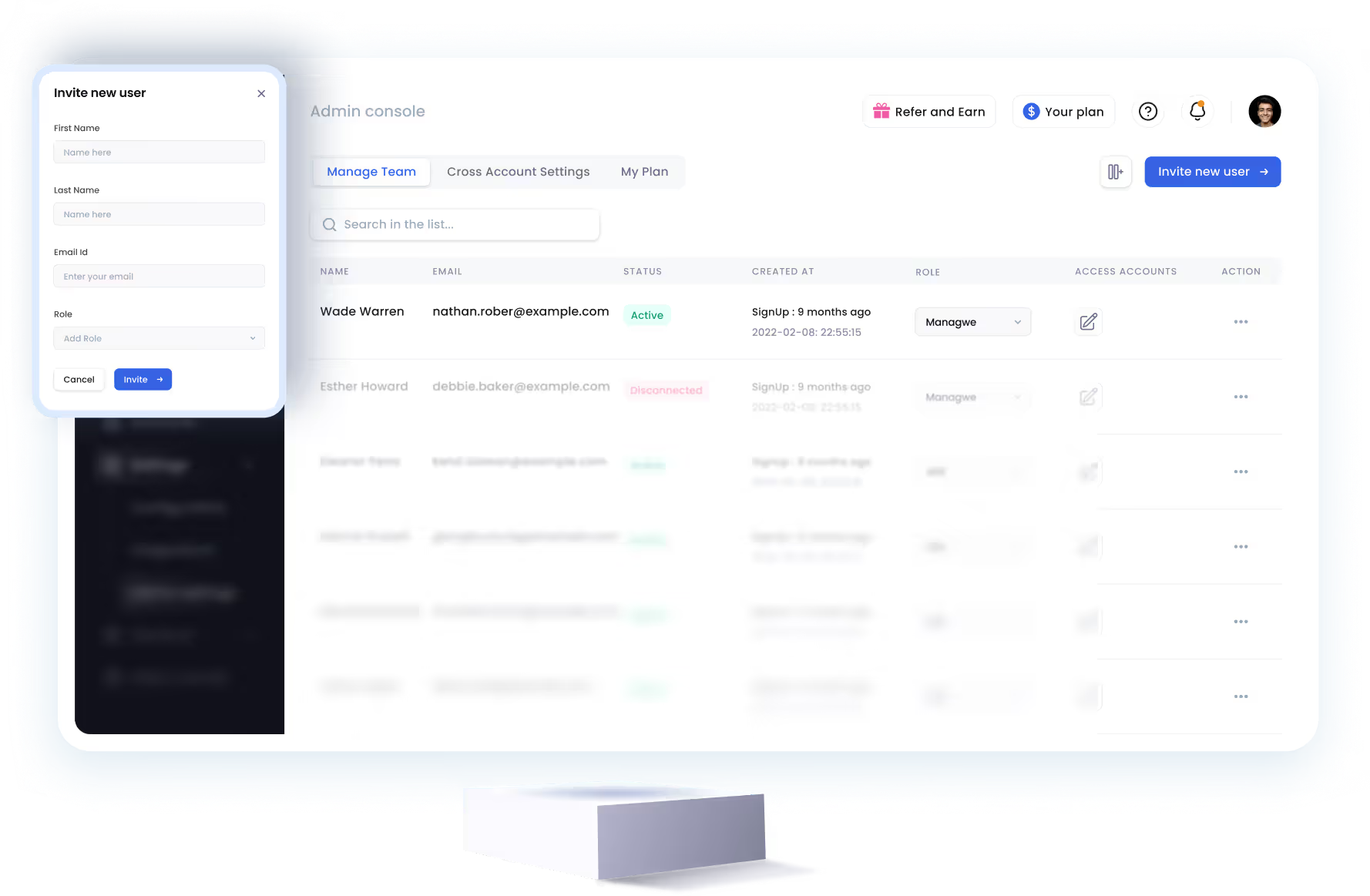
SalesRobot allows you to invite other team members, so that they can add their LinkedIn Account, run outreach campaigns and get amazing results just like you.
.avif)


Trusted by 4100+ innovative B2B sales teams and lead gen agencies

.avif)

.avif)




.avif)


Heading 1
Heading 2
Heading 3
Heading 4
Heading 5
Heading 6
Lorem ipsum dolor sit amet, consectetur adipiscing elit, sed do eiusmod tempor incididunt ut labore et dolore magna aliqua. Ut enim ad minim veniam, quis nostrud exercitation ullamco laboris nisi ut aliquip ex ea commodo consequat. Duis aute irure dolor in reprehenderit in voluptate velit esse cillum dolore eu fugiat nulla pariatur.
Block quote
Ordered list
- Item 1
- Item 2
- Item 3
Unordered list
- Item A
- Item B
- Item C
Bold text
Emphasis

Superscript
Subscript