.avif)
TL;DR
Key Limits: 100 connection requests/week, 50-70 messages/day, 30,000 total connections max, character limits on posts/messages/profiles. Exceeding limits = account restrictions or permanent bans.
3 Safe Bypass Methods:
(1) Send free InMails to open profiles instead of connection requests,
(2) Message event attendees directly (no connection needed),
(3) Use "Services" search filter to find messageable profiles.
SalesRobot Solution: Automates all 3 methods while staying within LinkedIn's limits. Features: account warm-up, randomized daily activity, hyper-personalized messages, AI Appointment Setter, auto-follow-ups.
Times were good when you could text message and send connection requests (or friend requests on Facebook) to anyone you wanted to.
And then, social media became exceedingly popular and just like everything else, there was a need for some rules and regulations.
With growing user bases and an increasing number of interactions, even LinkedIn had to introduce limits to manage the sheer volume of activity and ensure a positive user experience.
Today, LinkedIn limits are more important than ever.
From character counts to connection restrictions, understanding these boundaries can help you use LinkedIn more effectively.
So if you're ready, let's see what these limits are, what the dangers of exceeding them are, and what you can do to stay within them.
I also have some tricks up my sleeve that can help you bypass these limits while safely continuing your LinkedIn outreach.
Don't believe me?
Skip to this section to read more about it.
P.S. Did you even know LinkedIn had 42 limits?
No?

LinkedIn limits overview
⚠️Connection Limits
- Connection Requests: 100 connection requests per week across all account types (Premium and Sales Navigator users may have slightly higher tolerance)
- Connection Requests (Free accounts): 80/week (recommended safe range)
- Connection Requests (Premium/Sales Nav): the ~100/week cap applies across ALL tiers, though warmed, high-SSI accounts are widely reported to reach 150-200/week. Paying for Premium alone does not raise the invitation cap.
- Total Connections: Maximum of 30,000 connections (all account types). When you reach this limit, Follow will become the default option on your profile.
⚠️Message Limits
- Direct Messages: 50-70/day
- Personalized Connection Requests (with Premium): 300 characters
- Personalized Connection Requests (without Premium): 200 characters, limited to approximately 3-5 per MONTH (not per week)
- InMail Messages:
- Basic (Free) Account: No InMail credits
- Premium Career: 5 InMail credits per month
- Premium Business: 15 InMail credits per month
- Sales Navigator: 50 InMail credits per month, depending on the plan
- Recruiter Lite: 30 InMail credits per month
- LinkedIn Recruiter: 150 InMail credits per month
⚠️Profile Viewing Limits
- LinkedIn Profile Visits: 150 LinkedIn profile visits per day for standard accounts
- SalesNav Profile Visits: 1000 Sales Navigator profile visits per day when viewing profiles within the Sales Navigator interface
⚠️Character Limits
- Profile Summary: 2,600 characters
- Headline: 220 characters
- Position Title: 100 characters
- Position Description: 2,000 characters
- Experience Section: 2,000 characters per position
- Skill Endorsements: Up to 50 skills
- Recommendations: 3,000 characters
- Posts: 3,000 characters
- Articles: 125,000 characters
- Group Posts: 3,000 characters
- Comments: 1,250 characters
- Connection Request Message (Free): 200 characters
- Connection Request Message (Premium): 300 characters
- InMail Subject Line: 200 characters
- InMail Message: 2,000 characters
- LinkedIn Message: 8,000 characters but stick to ≤1,900 for readability and device compatibility
⚠️Invitation Limits
- Pending Invitations: Up to 3,000 outstanding connection requests
⚠️Group Participation Limits
- Group Memberships: Up to 100 groups
- Groups Created in One Day: Up to 5 groups
- Groups Deleted in One Day: Up to 30 groups
- Membership Limit per Group: 3 million members
- Group Owners: Up to 10 owners per group
- Group Managers: Up to 20 managers per group
- Groups Managed: Up to 30 groups
- Pending Group Join Requests: Up to 20 pending requests
⚠️ Activity Limits
- Endorsements: Up to 50 skills can be endorsed, but excessive activity may be flagged
- Recommendations: Unlimited, but excessive activity may be flagged
- Mentions: Up to 20 mentions within one conversation
⚠️Sales Navigator Limits
- Lead and Account Saves:
Sales Navigator Core: Up to 10,000 saved leads and accounts
Sales Navigator Advanced: Up to 10,000 saved leads and accounts (with added team collaboration and CRM sync features) - Advanced Searches and Filters: Higher limits compared to basic accounts
⚠️Advertising Limits
- Ad Character Limits:
- Headline: 70 characters.
- Description: 600 characters
- Sponsored Content: 600 characters for introductory text, 200 characters for headline, 300 characters for description
- Profile Content Limits:
- Media Uploads: Up to 10 media files per profile section
- Featured Section: No specific limit, but excessive media can slow profile loading
LinkedIn profile search limit and monthly restrictions
LinkedIn doesn't officially publish daily profile view limits, but these numbers come from platform data and user reports.
The LinkedIn profile search limit varies based on account activity, age, and SSI score. For standard accounts, you can typically view around 150 profiles per day, while Sales Navigator users can view up to 1000 profiles daily within the Sales Navigator interface.
The monthly limit for profile searches on LinkedIn isn't explicitly set, but consistently exceeding daily limits will trigger restrictions. Understanding what is the monthly limit for profile searches on LinkedIn helps you plan your LinkedIn outreach strategy effectively.
The LinkedIn search limit per month generally allows for approximately 4,500 profile views for standard accounts (150 per day × 30 days), though this can vary based on your account status and activity patterns.
Why do these limits exist?
Obviously, these limits exist for a reason.
👉🏼To improve the overall user experience of the platform.
👉🏼To minimize spammy behavior and encourage quality over quantity.
👉🏼To protect user data and privacy.
While there are ways to bypass some of them without triggering any account restrictions (or even worse, bans), it's not recommended for all.
So if you're someone with a new or relatively less active LinkedIn account, we'd suggest you strictly stay within the limits and not do anything suspicious all of a sudden if you wanna avoid going to LinkedIn jail.
The limits are obviously different for a free vs Premium/ Sales Nav account.
It's always a good thing to start slow so you don't trigger LinkedIn's algorithms.
Why should you care about them?
You should care about them because if you don't...
You can cause a lot more damage than you think.
If you take LinkedIn limits lightly, you can face:
❌Account restrictions

LinkedIn restricts account activity for some time when you suddenly increase your activity above recommended levels. It also restricts you for spamming people or using unsafe automation tools.
Account restrictions are temporary. The duration depends on how severe your activity was. You'll probably get your account back, but LinkedIn will keep watching you for a while.
P.S. If your account's already restricted, watch this ASAP:
❌Account Bans

If you didn't guess it already, account bans are permanent. There's almost no chance of getting your account or page back.
And once you're on LinkedIn's radar and you keep exceeding limits or violating the T&C, your account will get banned.
That's not all. You'll be restricted from creating new accounts with that email and phone number.
All this can severely damage your reputation on the platform.
If you get your account banned:
⚠️You'll lose everything,
⚠️People will wonder where you went, highlighting unprofessionalism,
⚠️You'll miss out on opportunities, and
⚠️You'll have to build everything from scratch again.
Now, I get it. If your goal is to generate leads from LinkedIn, LinkedIn's limits might actually slow down your progress.
So I have some sneaky ways you can bypass these limits. You can continue with your LinkedIn outreach.
How to safely bypass LinkedIn limits [3 Simple Tips]
I'm saying this again because it's important:
You can't bypass all of the LinkedIn limits.
There are simple workarounds that can help you make the most of LinkedIn's features. You can do this while staying within its guidelines.
#1 Use Free InMails to bypass connection request message limits
If you use a Premium, SalesNav, or a Recruiter profile on LinkedIn, you can send free InMails to users that have open profiles.
These don't count against your monthly InMail credits.
This is an excellent way of bypassing LinkedIn connection limits. You don't even need to be connected to these people to message them.
If you're trying to generate leads on LinkedIn, it won't be easy for you to hunt down open profiles manually.
And then message them and repeat. It's not easy and definitely not recommended to do on scale.
This is where SalesRobot can help you target open profile users. It can send personalized messages to them. You can both find them and start a conversation in just one move.
That way, you won't waste time manually checking if a lead has an Open Profile or not.
To do this, simply toggle the Send as InMail instead of a connection request if it's a free option.

SalesRobot will now automatically send a free InMail instead of a connection request message whenever it finds an Open Profile among your lead list.
That way, it both bypasses LinkedIn limits and saves your InMail credit.
Just like with sending connection requests using email, you can also randomize the number of InMails sent daily.

You can gradually increase the number of InMails you send per day.
That means that as your network gets bigger, you'll be able to send out more and more email invites. You can do this without causing suspicion.
Work smarter, not harder! ;)
#2 Send message requests to fellow event attendees to bypass weekly LinkedIn connection limits
For now, LinkedIn only lets you directly message your 1st connections.
If you want to text 2nd and 3rd connections on LinkedIn, you have to connect with them first. This will obviously consume weekly connection credits.
So you can't go overboard with it.
What you can do is save some of those. Instead of sending connection requests with messages, send message requests to fellow event attendees to get their attention, if that's your goal.
According to recent data, campaigns that interact with event attendees show at least 10% higher acceptance rates than cold invites alone. If the message sender isn't connected to the attendee, they may be able to send them a message request.
Event attendees will receive a notification and can decide to either accept or privately decline the message request.
There are ways to target fellow event attendees in just a few clicks by using SalesRobot.

2/ Add your LinkedIn account
3/ Create a campaign
4/ Set it up
5/ Select "Add All in a LinkedIn Event Attendees"
6/ Copy paste the event attendees URL (click on "attend", click on the number of attendees, and copy the URL)
7/ Set up the rest of the campaign and send them voice or video notes for better replies
8/ Run
SalesRobot will automatically send a hyper-personalized message to each member of the group.
And if you get an overflow of leads and don't know what to do with those, just turn the AI inbox manager on, and it'll pack your calendar with leads 🤌
#3 Message people via "Services" search to bypass connection request limits
Reached your connection request limit already but you're not done reaching out to people?
Here's another hack for you:
- Open LinkedIn and search for a category of people you want to reach out to. For example, you want to reach out to "Marketers in Europe."

- Click on "All filters."

- A pop-up will appear on the right side of your screen.
- Scroll down to find the "Services category."

- Within this category, you can choose the type of service you're interested in, such as "Operations" or "Marketing."
You can also filter out people using other filters like location, industry, etc., which will save you some profile visits or searches too.
- After making your selection, click on "Show results."
- Then again, click on "People" and select "Services" from the drop-down menu.
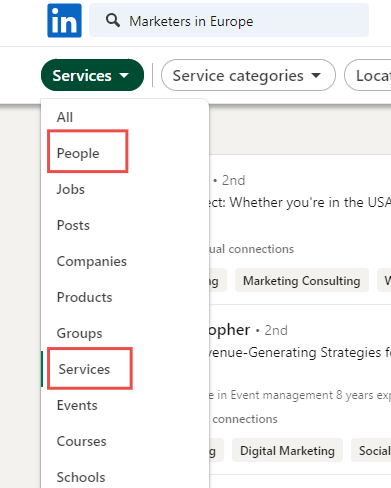
- And there you have it! You can now message individuals who fit the chosen service category, provided their profiles are open to receiving messages.

I agree, this is manual work, but hey, who said you need to do it all by yourself.
If you'd prefer to automate this process, you can use SalesRobot.
SalesRobot will:
✔️ Warm up your account to avoid detection by LinkedIn.
✔️ Safely bypass LinkedIn limits to enhance your LinkedIn outreach.
✔️ Send connection requests based on suggestions from LinkedIn's network activities.
✔️ Vary the number of invites each day and skip days to simulate human behavior.
✔️ Automate follow-ups after connection requests are accepted.
✔️ Craft hyper-personalized connection request messages to increase acceptance rates.
Pretty cool, right?
How to bypass LinkedIn search limit effectively
Many users wonder how to bypass LinkedIn search limit restrictions. While LinkedIn doesn't publish exact search limits, there are several strategies to work around them:
How to get around LinkedIn search limit:
- Use Boolean search operators to refine your queries and get more targeted results
- Leverage Sales Navigator's advanced search capabilities which have higher limits
- Break down broad searches into multiple specific searches
- Use the "Services" filter method mentioned above to access different pools of prospects
The LinkedIn search limit per day varies by account type, but spreading your searches throughout the day and using strategic filters can help you maximize your daily allowance without hitting restrictions.
Frequently Asked Questions
Does Premium or Sales Navigator give you a higher weekly connection limit?
Not directly. In 2026 the ~100 connection requests per week cap applies across Free, Premium, and Sales Navigator alike — paying more doesn't buy more invites. Higher volumes (150-200/week) are reported only for warmed accounts with strong acceptance rates and a high Social Selling Index (SSI).
What is the monthly limit for profile searches on LinkedIn in 2026?
LinkedIn doesn't publish an official monthly search or profile-view cap. In practice, standard accounts view around 150 profiles per day (roughly 4,500 a month), while Sales Navigator users can view up to 1,000 daily within the Sales Nav interface. Consistently exceeding daily limits triggers restrictions.
Conclusion
Hey, I understand that using automation tools to bypass LinkedIn limits might not seem like the best choice.
However, these tools are designed keeping LinkedIn's Terms and Conditions in mind.
At least, SalesRobot is.
Because of this, it might actually be more effective at automating LinkedIn's day-to-day activities like sending connection requests, following up, and messaging without triggering any suspicions.
It runs on LinkedIn's mobile app APIs from the cloud (no Chrome extension, works 24/7 even with your laptop closed) with dedicated residential IPs, cutting ban risk to near zero — and its AI Appointment Setter add-on replies to leads within minutes to book meetings for you.
As a result, it could actually be a more reliable solution for managing your LinkedIn activities and accelerate your lead gen.
Keep in mind that LinkedIn limits all users to a maximum of 30,000 first-degree connections, regardless of whether you have a free, Premium, or Sales Navigator account. Once you reach this limit, "Follow" becomes the default option on your profile.
You don't need to take my word for it, try it out free for 14-days commitment free!😉

Wow your leads by cloning yourself and sending personalized videos and voice notes to each lead on LinkedIn.
If you don't reply to leads within 5 mins, your chances of converting them fall by 50%. Our AI replies on your behalf instantly! (and yes, you can train it)

Don't shoot in the dark. Get detailed analytics on what's working
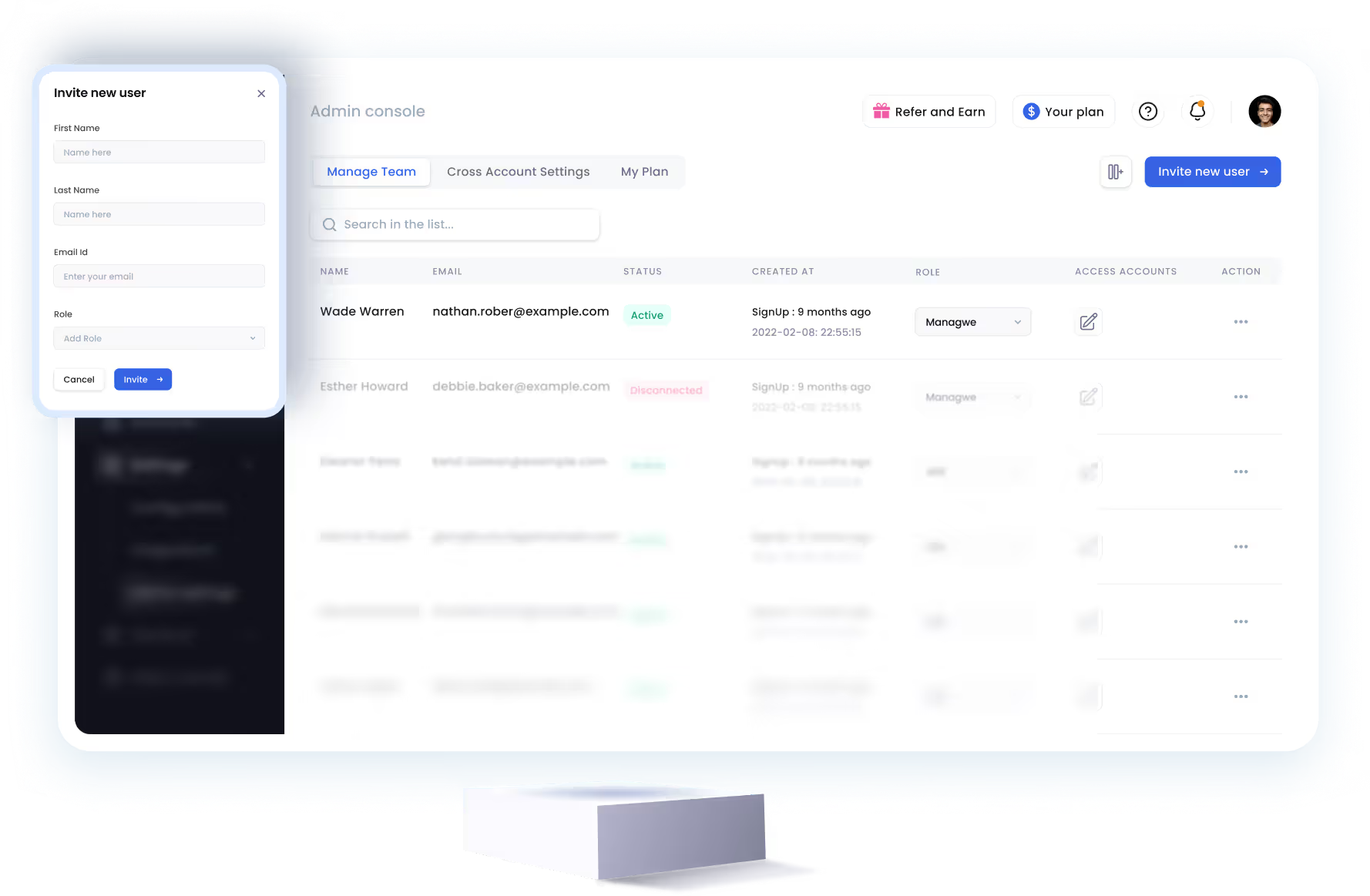
SalesRobot allows you to invite other team members, so that they can add their LinkedIn Account, run outreach campaigns and get amazing results just like you.
.avif)


Trusted by 4100+ innovative B2B sales teams and lead gen agencies

.avif)

.avif)




.avif)

Heading 1
Heading 2
Heading 3
Heading 4
Heading 5
Heading 6
Lorem ipsum dolor sit amet, consectetur adipiscing elit, sed do eiusmod tempor incididunt ut labore et dolore magna aliqua. Ut enim ad minim veniam, quis nostrud exercitation ullamco laboris nisi ut aliquip ex ea commodo consequat. Duis aute irure dolor in reprehenderit in voluptate velit esse cillum dolore eu fugiat nulla pariatur.
Block quote
Ordered list
- Item 1
- Item 2
- Item 3
Unordered list
- Item A
- Item B
- Item C
Bold text
Emphasis

Superscript
Subscript