.avif)
TL;DR:
LinkedIn thank you messages help you stand out in crowded inboxes and build meaningful professional relationships.
Use personalized templates for different scenarios (post-interview, new connections, recommendations) and send within 24-48 hours for maximum impact.
With LinkedIn direct messages now performing 101% better than cold emails, thank you messages are more valuable than ever.
This blog is for you if…
You want to send a "thank you" message to your connections on LinkedIn,
That is not left ignored/forgotten in under 2 seconds..
So, to help you with that, I've put together a list of thank-you message templates with examples that actually worked this year.
So you can use them if you've:
👊Just had an interview
👊Connected with someone new
👊Got a recruiter to thank
👊Received a generous recommendation
👊Hit 10,000 followers
Heck, I'll even throw in some templates on how to respond to thank you messages.
In style 😎
Enough talk now, let's go.
What is a LinkedIn thank you message?
A LinkedIn thank-you message is exactly what it sounds like:
A simple note of gratitude you send to someone on LinkedIn.
Whether it's for thanking someone for connecting, an interview, a recommendation, or just their time, it's a way to show appreciation to your connections.
Now, why bother sending one?
Thank you messages help you stand out in a crowded digital space. With LinkedIn's engagement rate averaging 5.20% in 2026 (an 8% jump year-over-year), meaningful connections are more important than ever.
The reality is that LinkedIn users are constantly flooded with content, notifications, and surface-level interactions. If you don't have an intentional touchpoint, your new connection has little reason to remember you, let alone continue the conversation.
It shows you're thoughtful and professional, two traits everyone wants in their network.
Plus, it's a chance to leave a positive impression, spark a conversation, or even open doors to new opportunities.
Timing matters here; sending within 24–48 hours keeps the interaction fresh in the other person's mind, making a response far more likely than a message sent days later
Time to fix that!
How to send a thank you message on LinkedIn?
So if you've never tried LinkedIn before,
And want to know how to send a message on LinkedIn, you can try any of these 4 easy ways:
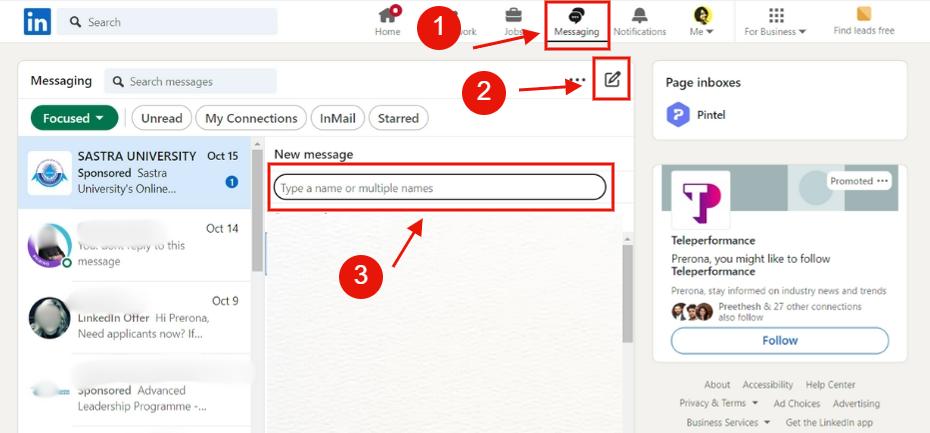
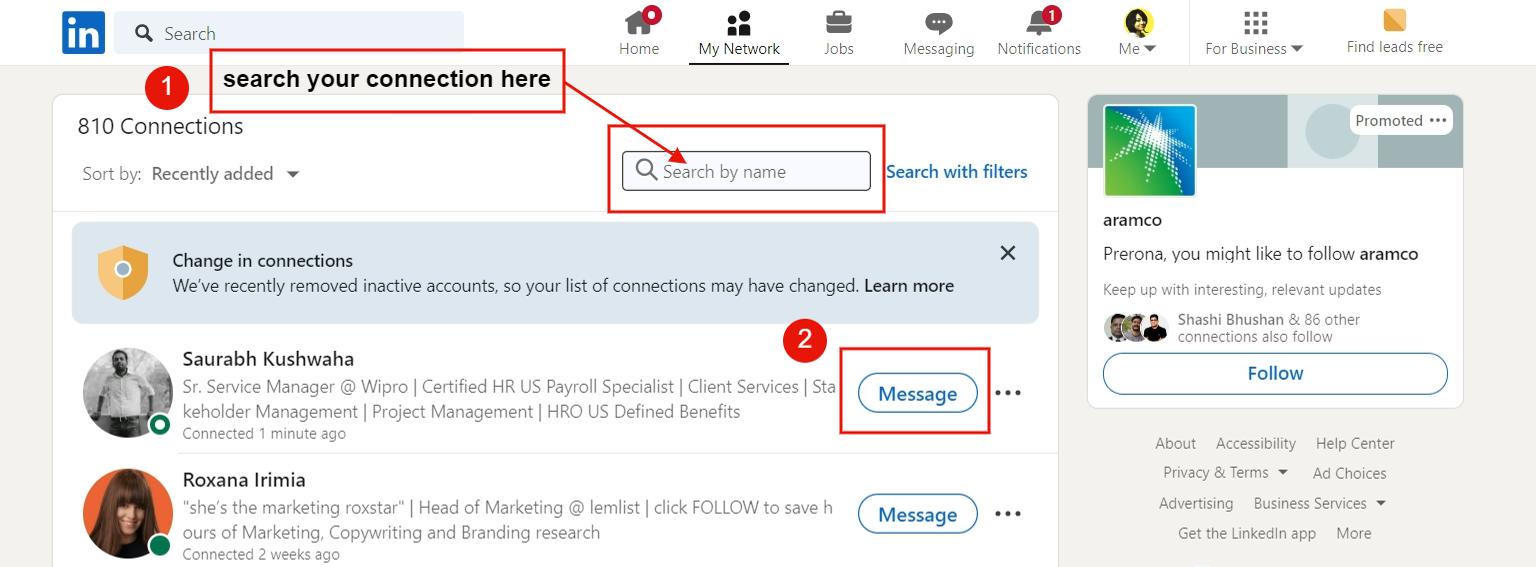
Easy!
Note that these methods work for direct connections. If you want to message someone you're not connected to, you'll need LinkedIn InMail, which is a premium feature that allows you to directly message LinkedIn members outside your network.
If you have signed up for a LinkedIn Premium, Sales Navigator, or Recruiter plan, it allows you to send a direct message to anyone on the platform, not just your connections.
Sorry to keep you waiting.
Let's talk about the templates now.
How to say thank you for connecting on LinkedIn?
Template
Example
LinkedIn message templates for job seekers: How to send a thank you message after an interview
Template
Example
How to send a thank you message for accepting an invitation on LinkedIn?
Template
Example
How to send a thank you message to a recruiter on LinkedIn?
Template
Example
How to write a thank you message for LinkedIn recommendations?
Template
Example
How to send a thank you message on LinkedIn for getting 10,000 followers?
Template
Example
So moving on to the next section -
How to reply to messages on LinkedIn
Now that you know how much effort goes into writing a thank you note, you'd probably want to take extra care while crafting a reply to them.
Here are 2 templates you can edit to show how grateful you are.
How to reply to a thank you message on LinkedIn?
Template
Example
How to reply to LinkedIn congrats message?
Template
Example
So, if any of these templates are able to get you a reply, I would love to know.😏
LinkedIn message subject line best practices
When sending InMail messages, your subject line can make or break your success.
Keep it concise, specific, and relevant, for example, "Thank you for the insightful presentation at [Event Name]" works far better than a generic line like "Thanks for connecting."
Begin with a genuine question or a shared interest.
Mention a mutual connection or something you noticed on their LinkedIn profile.
A simple line like, "I liked your post on sales outreach last week," works wonders.
Note that regular connection requests don't have a subject line field, you only get a 300-character note, so make those first few words count.
How to automate sending thank you messages on LinkedIn?
"Wait, I can do that?"
Of course you can.
All thanks to —
Here are the steps you need to follow:
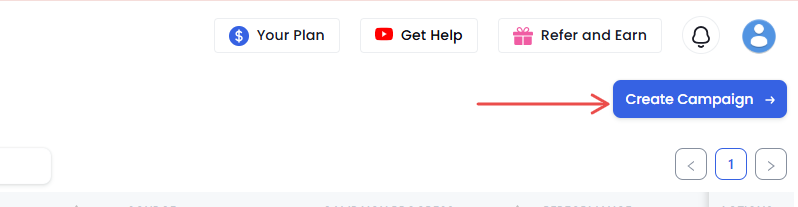
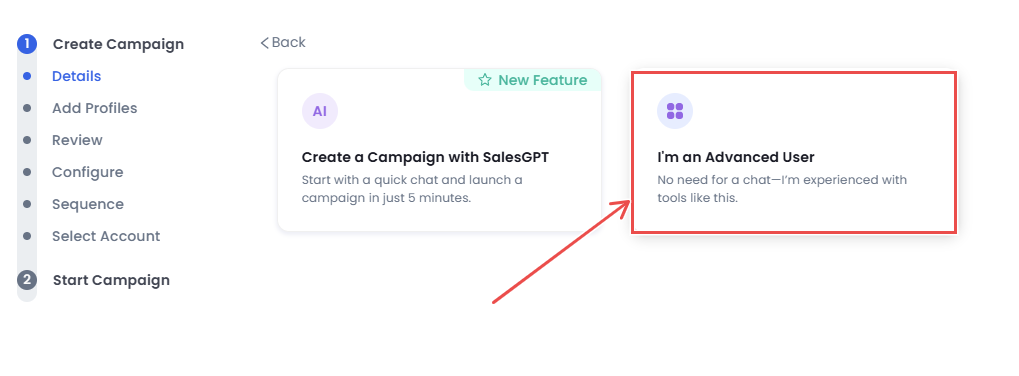
Like in this case – "create campaign with LinkedIn only"
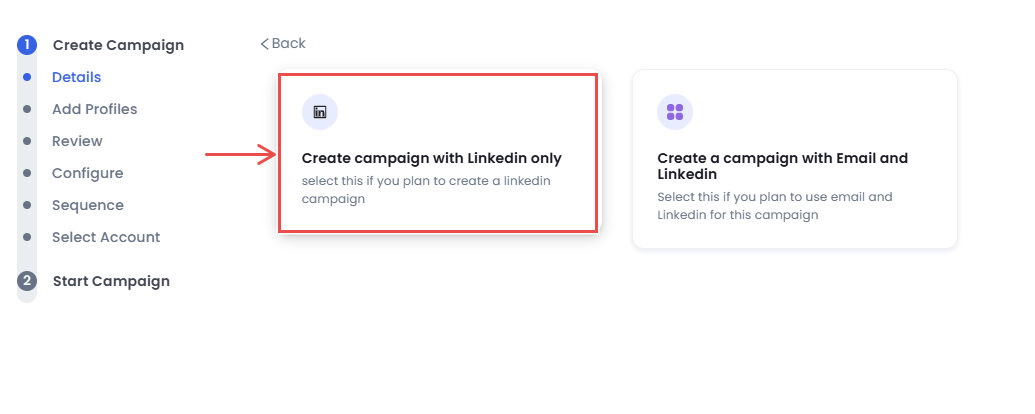
Click on "I'm Advanced User"
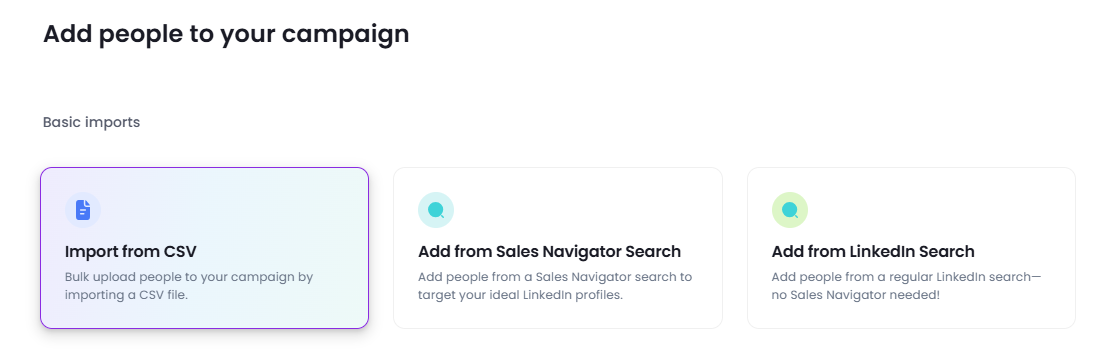
Choose one of the import options, lets say - Import from CSV in this case.
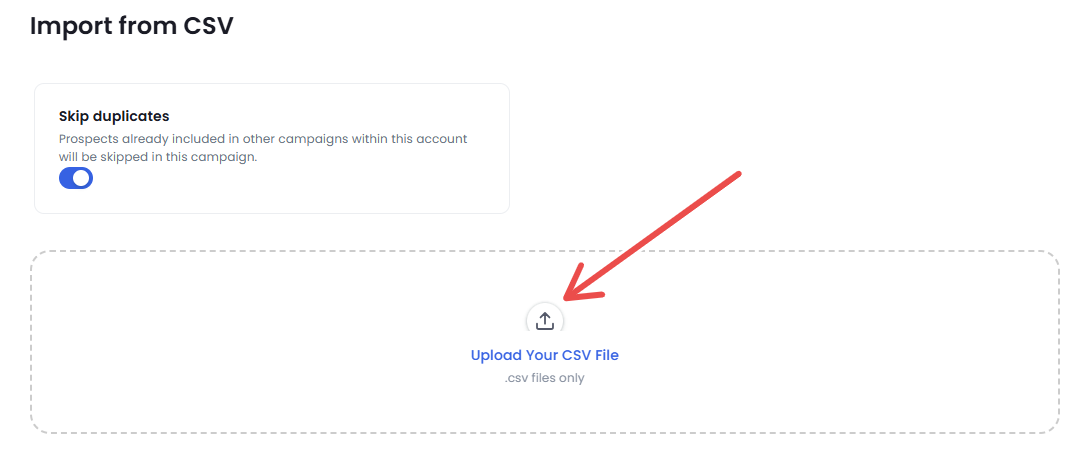
Upload you CSV file
When you click on save, you'll be able to see that all the columns from your CSV file have been imported into SalesRobot.
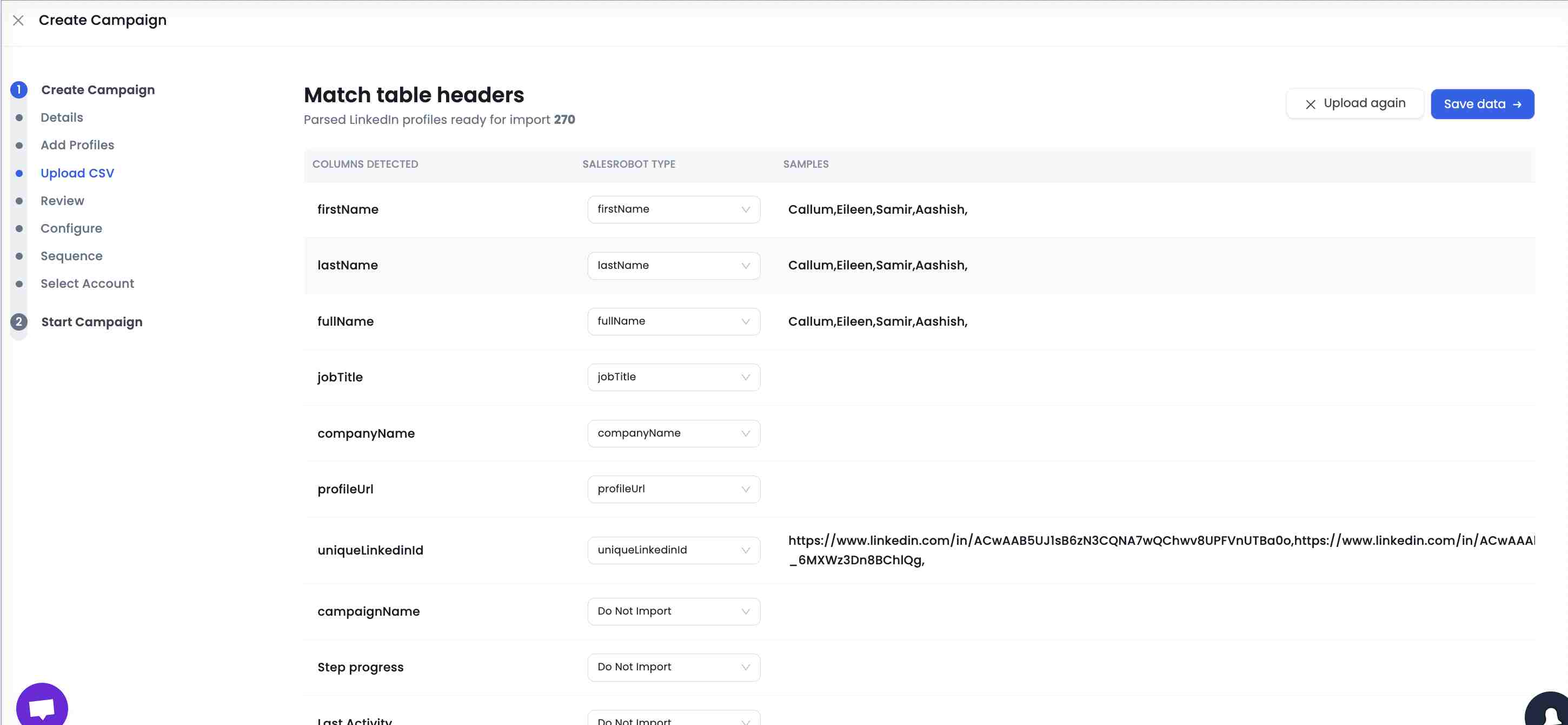
Review the imported lead list and verify if all the data are mapped correctly.
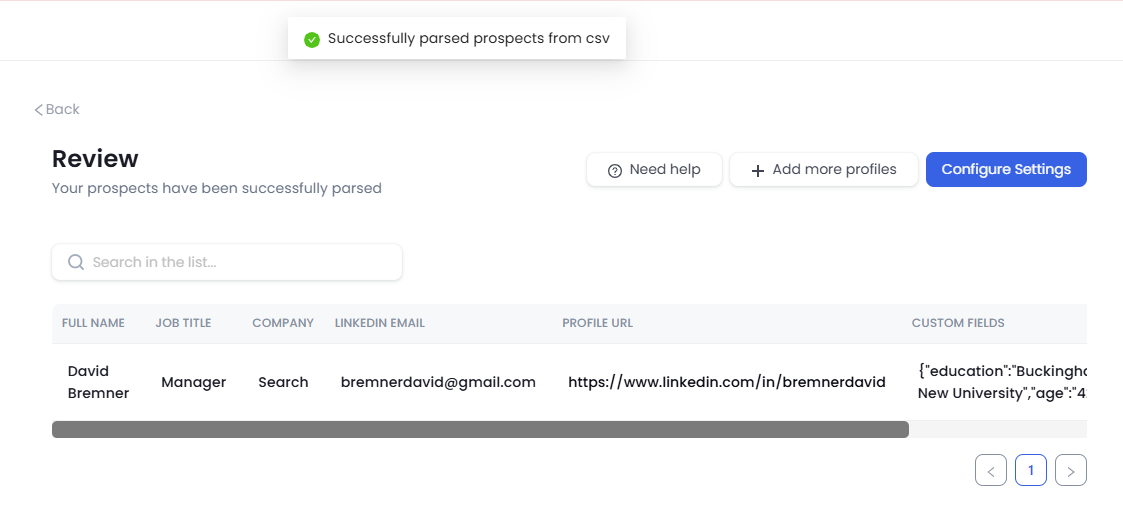
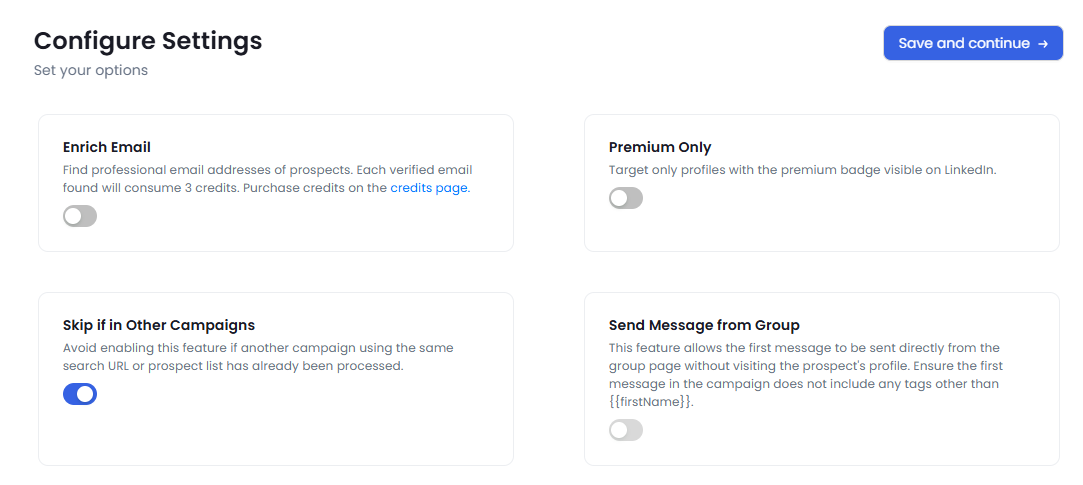
Configure relevant setting for your campaign, and continue for next steps.
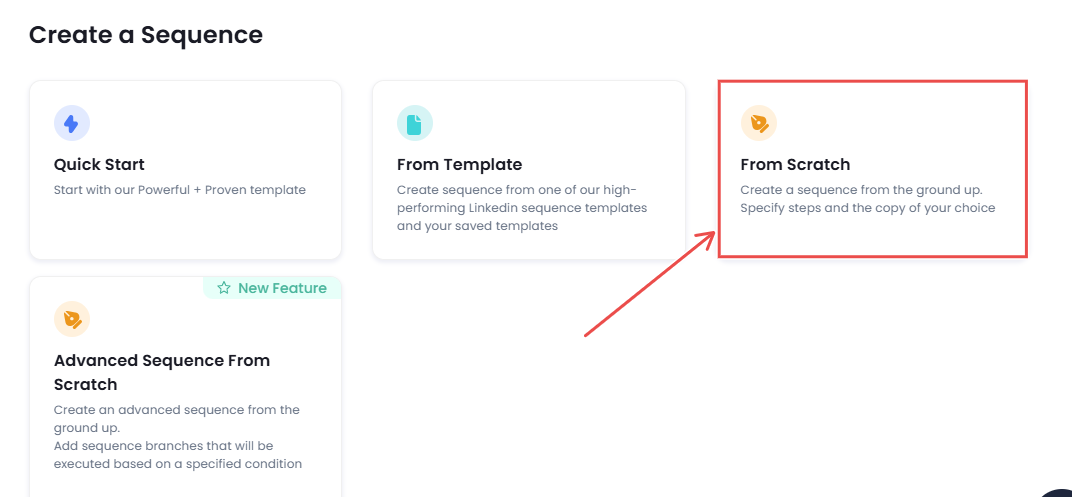
Select "From scratch" to create your Thank You message sequence.
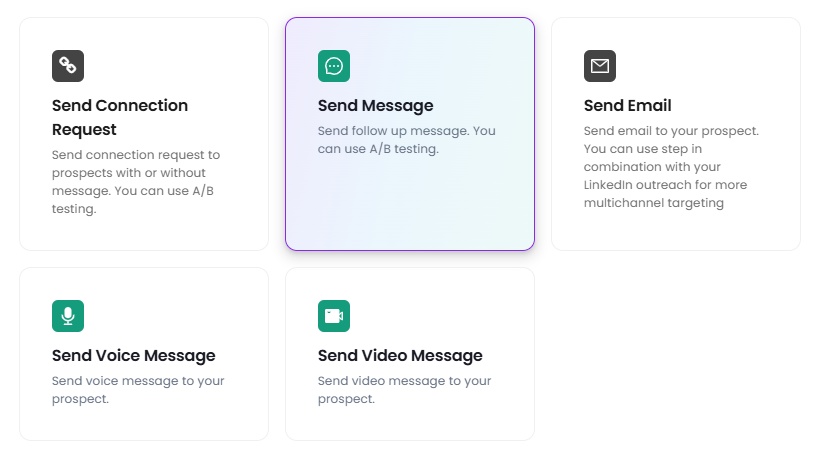
Select "Send Message" step
Write your Thank you message in the message body.
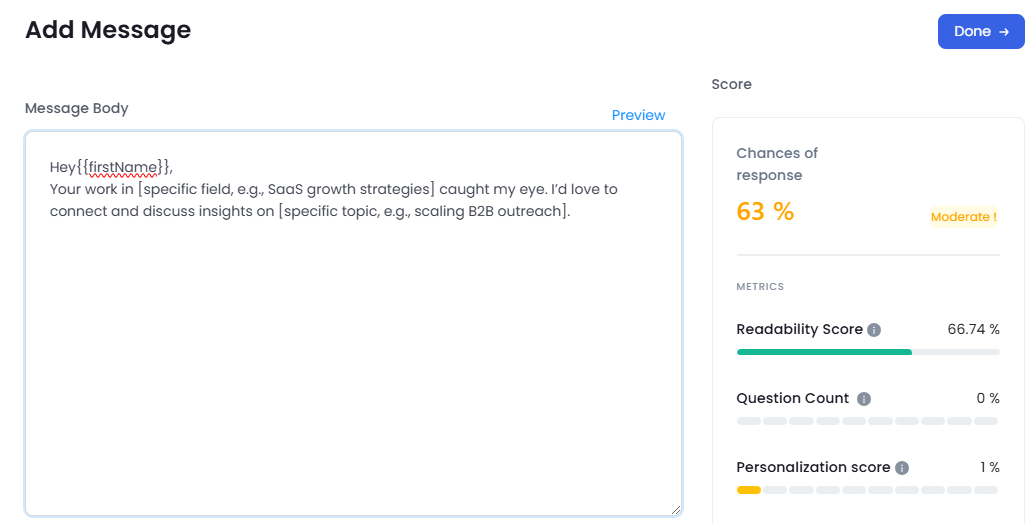
Click on "Start Campaign"
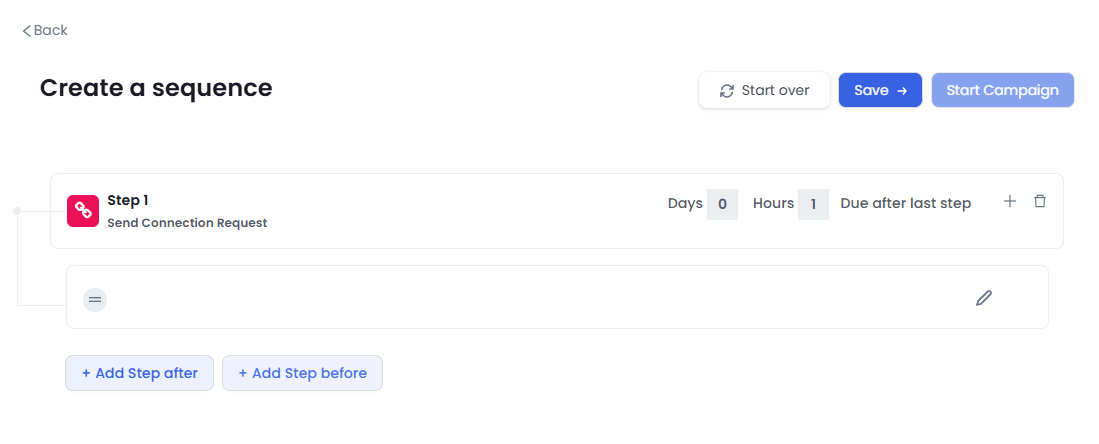
Now, SalesRobot will automatically send thank you messages on LinkedIn after fetching all the prospects from your CSV file.
You can also import your 1st degree connections and send all of them a "Thank You" message using SalesRobot.
Sign up to see all the things you can do with this tool.
And that's literally it!😎
Conclusion
Before I go, I wanted to say a few things.
See, as a business owner, you know how crucial LinkedIn networking is, right?
And I'm sure you're sending out loads of connection requests to grow your leads.
But there are 2 challenges you've probably already come across while doing this:
Here's what many professionals report: personalized connection requests tend to see higher response rates, though interestingly, some real-world data shows blank requests can achieve higher acceptance rates simply because they feel less sales-heavy.
Either way, most connection requests are either copy-pasted or submitted blank, which means adding any genuine personalization still puts you ahead of the crowd.
Major pain in the a**
I've been there.
That's why I believe automated LinkedIn communication tools can give you a serious edge.
And if you want it done right, SalesRobot is the way to go.
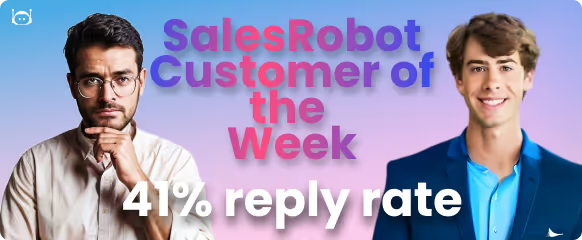
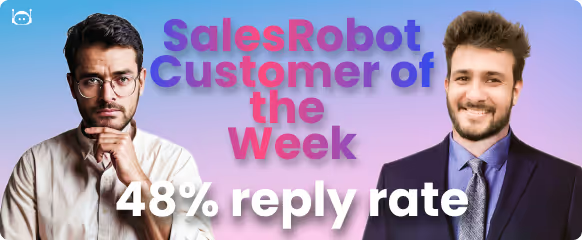
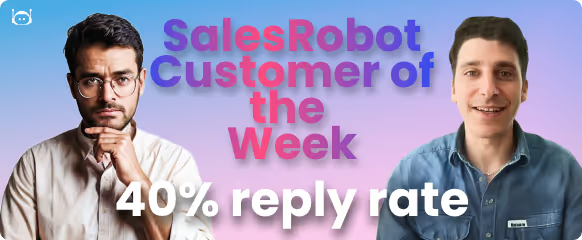
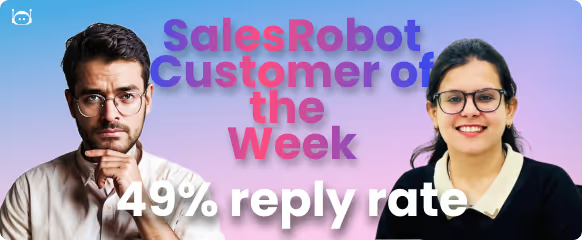
I mean just look at this hyper-personalized image it created with Hyperise:

With AI-driven campaigns, hyper-personalized messaging (just like this), AI voice notes (users report 40%+ reply rates), personalized video messages, AI variables, an AI inbox manager, an AI Appointment Setter that replies to leads within minutes to keep them warm until they book, and seamless CRM integration, you're covered.
It's also cloud-based and runs on LinkedIn's mobile-app APIs, so it works 24/7 with no Chrome extension and keeps ban risk near zero while staying within LinkedIn's usage limits,reducing the risk of your account getting flagged. as long as you're using it within reasonable message volumes.
That's just a glimpse of what SalesRobot can do.
If you want to chat about leveling up your LinkedIn messaging, I'm here.
Coffee's on me! ☕😁
Oh, before I forget, here's something for you:
14-day FREE trial to test drive our features.
No credit card, no phone number—just your email.
Ready to give it a go?
Frequently Asked Questions
Why is my LinkedIn link preview not working?
LinkedIn caches the first preview it generates for a URL, so previews often fail because the cache is stale or the page lacks Open Graph tags. Fix it by clearing LinkedIn's cache with the Post Inspector tool, ensuring the page has og:title and og:image tags, and re-pasting the link.
What do the LinkedIn message read symbol and check mark mean?
A small circular version of the recipient's profile photo appearing under your message means they've read it (read receipts are on). A filled check mark or 'Sent' label means the message was delivered but not yet opened. If you see nothing, the recipient likely has read receipts turned off.
How do I delete a LinkedIn message after 60 minutes?
You can't delete an individual message once 60 minutes have passed — LinkedIn makes it permanent. Your only option is to delete the entire conversation, which removes it from your inbox only (the recipient still keeps their copy and isn't notified). Within the 60-minute window you can also edit text messages.
Is it unprofessional to message on LinkedIn at night?
No, it's not unprofessional to send LinkedIn messages at night. LinkedIn is a global platform where professionals operate in different time zones. However, consider your recipient's location and schedule your messages for optimal engagement when possible.
When you delete a message on LinkedIn does the other person know?
It depends on when you delete it. Within 60 minutes of sending, deleting a message replaces it with a 'Deleted' badge that's visible to everyone in the conversation, so yes, they'll know. After 60 minutes, you can only delete the entire conversation, and that only removes it from your own inbox. The other person keeps their copy and gets no notification that you deleted anything.
How to delete LinkedIn message after 60 minutes?
You can't delete LinkedIn messages after 60 minutes. LinkedIn only allows message deletion within one hour of sending. After that timeframe, the message becomes permanent in the conversation thread.
If you mark a message as unread on LinkedIn will they know?
Marking a message as unread doesn't send the sender any notification, it only changes the view in your own inbox. However, if both you and the sender have read receipts enabled, they may have already seen that you read the message when you first opened it. Marking it unread afterward doesn't reverse that.

Wow your leads by cloning yourself and sending personalized videos and voice notes to each lead on LinkedIn.
If you don't reply to leads within 5 mins, your chances of converting them fall by 50%. Our AI replies on your behalf instantly! (and yes, you can train it)

Don't shoot in the dark. Get detailed analytics on what's working
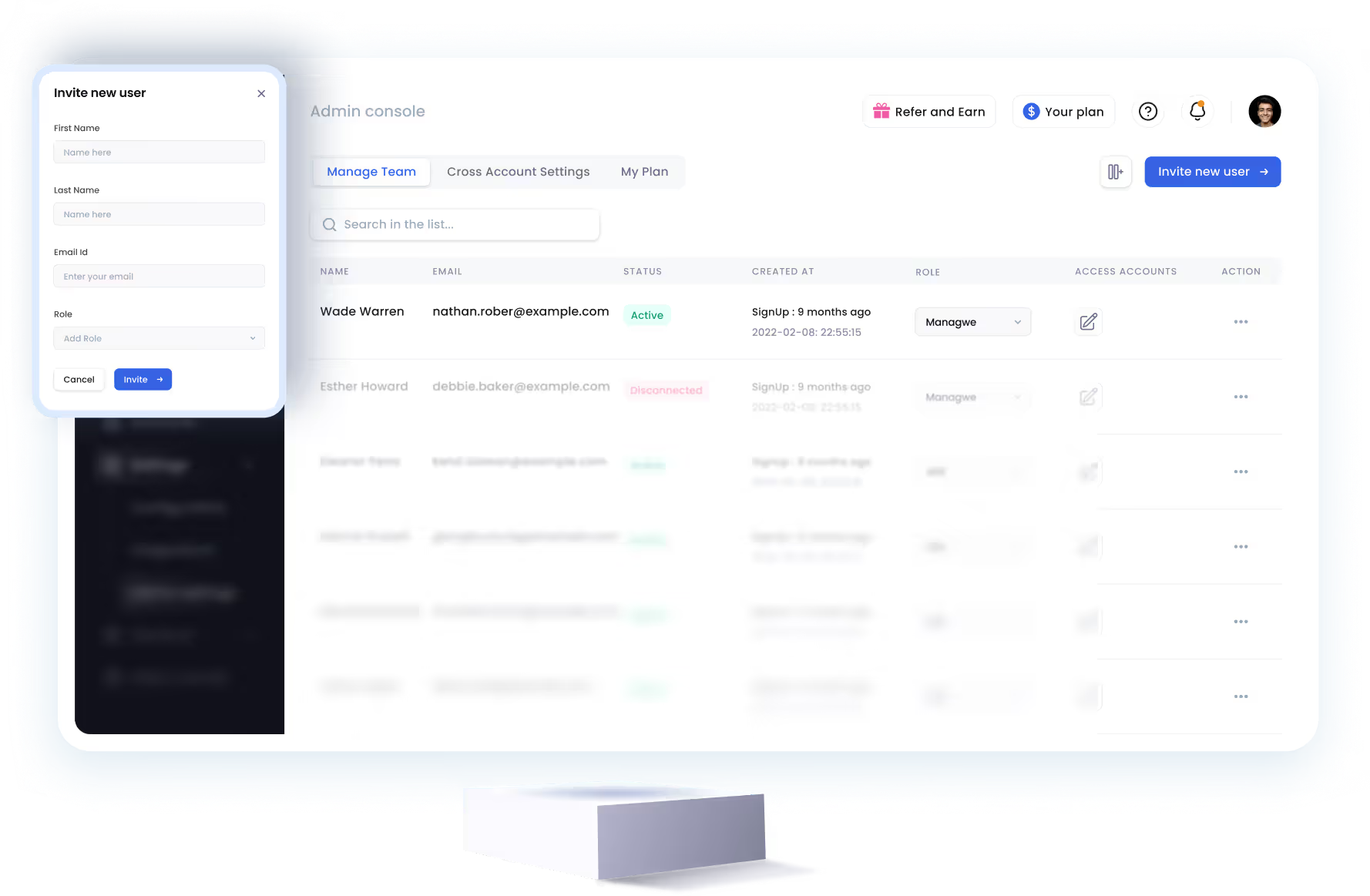
SalesRobot allows you to invite other team members, so that they can add their LinkedIn Account, run outreach campaigns and get amazing results just like you.
.avif)


Trusted by 4100+ innovative B2B sales teams and lead gen agencies

.avif)

.avif)




.avif)