TL;DR
- Warming up a LinkedIn account before outreach takes 3-4 weeks for accounts with some history and 6-8 weeks for brand new or long-dormant ones. There's no shortcut.
- LinkedIn's 2026 cap sits at roughly 100 connection requests per week on a rolling 7-day window for established accounts. New accounts are capped nearer 50-80 per week, and paying for Premium or Sales Navigator does not buy you more invites.
- Accounts that skip warm-up and immediately blast 50+ requests a day run a far higher restriction risk. LinkedIn removed more than 80 million fake accounts in 2025, so its systems are watching behavior closely.
- Follow the 4-Week LinkedIn Warm-Up Ladder: profile first, two weeks of human-like behavior, a slow connection-request ramp, then automation only in Week 4+.
- Choose manual warm-up if you're running one account and have time to babysit daily caps. Choose SalesRobot once you're ready to scale, because its Safe Mode enforces the same conservative limits automatically, and customers report zero account bans following its guidelines.
👉 Skip the daily reminders and fingerprint risk: SalesRobot runs your outreach inside safe mobile-API limits so your warmed-up account stays warm. Try free for 14 days.
Your LinkedIn Account Just Got Restricted, and You Never Saw It Coming
Picture this: you just spun up a fresh LinkedIn account for your new outbound push. You're fired up, so you fire off 60 connection requests on day one.
Day three, you log in to a gray banner: your account has been restricted.
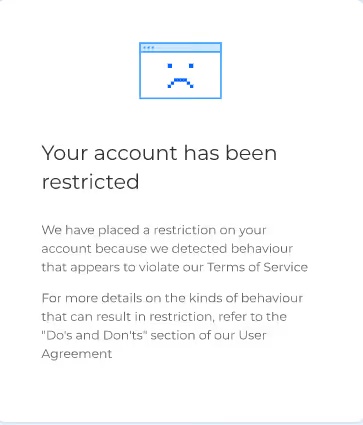
Now you're locked out of the one channel your pipeline depends on, waiting on an appeals form that may or may not work.
Here's the uncomfortable truth: LinkedIn removed more than 80 million fake accounts in 2025, with 99.7% caught proactively by automated systems before anyone reported them, per its own Community Report. Those systems don't just hunt bots. They flag behavior, and a brand-new account acting like a seasoned power-user is the loudest flag there is.
Accounts that skip warm-up and immediately send 50+ connection requests a day face a far higher risk of restriction. Most "just send fewer messages" advice misses the real mechanics: it's not only about volume, it's about profile completeness, behavioral trust, and when you introduce automation.
This guide gives you the exact fix: the 4-Week LinkedIn Warm-Up Ladder, step by step, with the 2026 limits that actually apply.
What LinkedIn's 2026 Connection Limits Actually Look Like (Before You Touch Anything)
As of 2026, LinkedIn caps connection requests at roughly 100 invites per week on a rolling 7-day window for established accounts. That cap is nearly identical across Free, Premium, and Sales Navigator, so paying more does not buy you more invites.
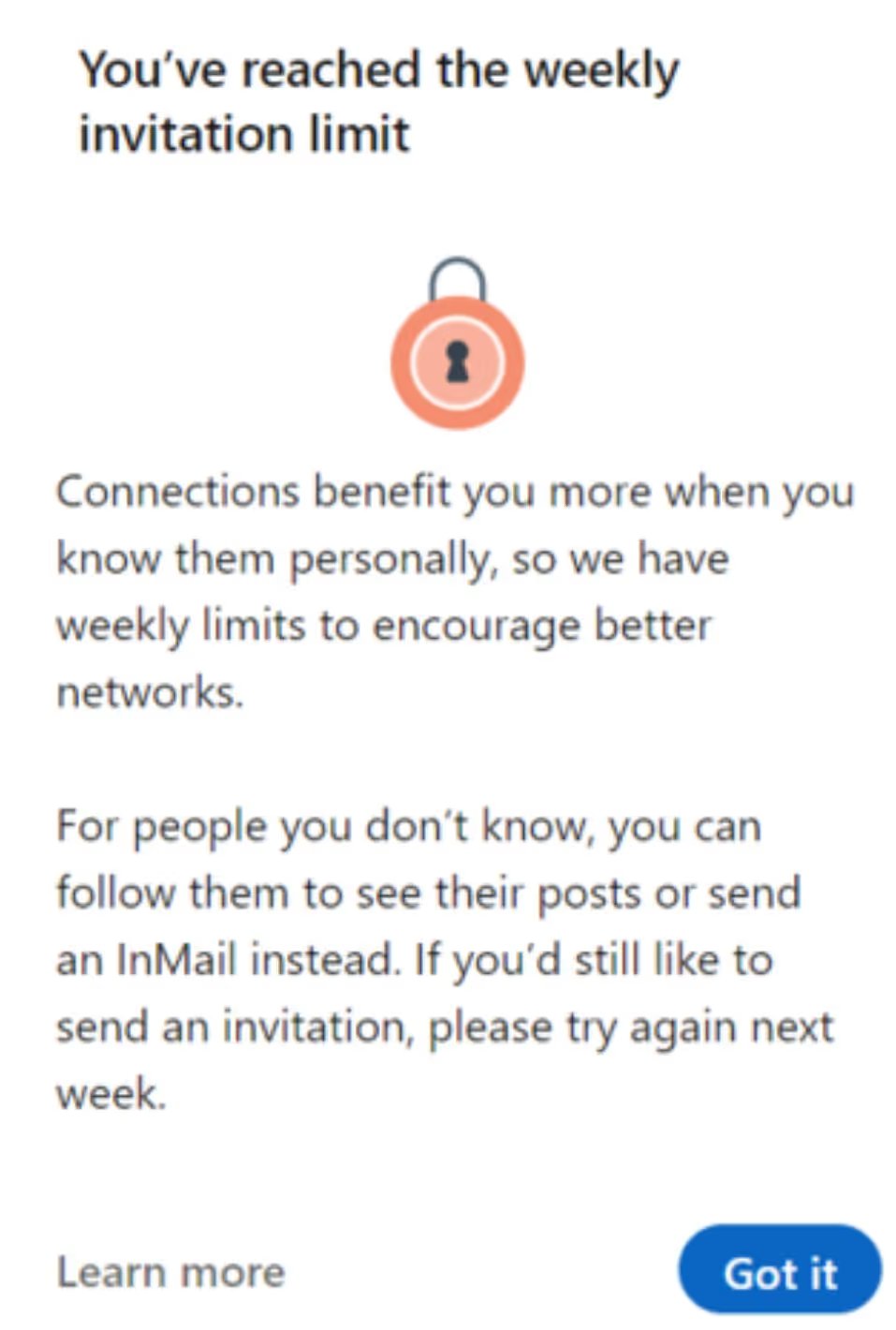
Two details trip people up constantly.
First, new accounts (under three months old) are capped nearer 50-80 connection requests per week, not the roughly 100 that established accounts get. LinkedIn trusts you less until you've earned it.
Second, the limit resets on a rolling 7-day window, not a fixed weekday. If you max out Monday, you don't get a clean slate next Monday morning. You get yesterday's requests expiring one day at a time. Treat the weekly cap as a daily cap, exceed it, and you land in a feature-restricted state lasting 1-3 weeks depending on account history.
Here's what safe volume actually looks like by account warmth:
Print this table. Every step below ladders up to these numbers.
The 4-Week LinkedIn Warm-Up Ladder (Named Framework Table)
This is the whole plan in one table. Follow it top to bottom and your account climbs from "suspicious newcomer" to "automation-ready" without tripping a single alarm.
The Phase Gate rule: never climb to the next week until you've cleared the gate. If your acceptance rate drops below 20% in Week 2, you stay in Week 2 until it recovers.
Three tracks adjust this ladder:
- Brand new account: follow the ladder exactly. Expect the full 6-8 weeks before you're running at peak volume.
- Dormant account (some history, inactive 6+ months): you keep your behavioral trust, so you can compress this to 3-4 weeks. Start at Week 2 after a few days of re-engagement.
- Previously restricted account: start slower than the ladder shows. Cut every number by 50% and extend each phase.
Step 1: Build a Real Profile (Day 1-3)
Complete every profile field before you send a single connection request. LinkedIn's algorithm judges profile completeness before it ever evaluates your behavior, and incomplete profiles get flagged faster.
This matters more than people think. A profile with a real photo can get up to 21x more views, which means higher acceptance rates when you eventually reach out.
Hit these in your first three days:
- A real professional headshot (no logos, no avatars).
- A headline that says what you do and for whom, not just your job title.
- An About section with the keywords your prospects actually search.
- A Featured section with something useful.
- Work history and education filled in completely.
For example, you could add a Featured section with a one-page lead magnet PDF, so a prospect who checks your profile after your request sees proof you're legitimate.
One more thing on credibility: below 500 connections, LinkedIn shows your exact count, a dead giveaway of a thin network. Once you pass 500, it displays "500+," a quiet trust signal that nudges cold acceptance rates up. You won't hit 500 in week one, but it's the target the whole ladder builds toward.
Step 2: Act Like a Human for the First Two Weeks (Days 4-14)
Send zero outbound connection requests in Week 1 and spend it engaging instead. LinkedIn's systems flag behavior patterns, not just raw volume, and nothing screams "bot" like an account that does nothing but fire invites on day one.
Your job in the first two weeks is to earn behavioral trust. That means acting like a human who actually uses LinkedIn.
Here's the daily routine:
- Like 5-8 posts in your feed.
- Leave 2-3 genuine comments (not "Great post!" but actual sentences).
- View 5-10 profiles of people in your target market.
- Accept any incoming connection requests.
- Post or re-share once every few days so your own profile has signs of life.
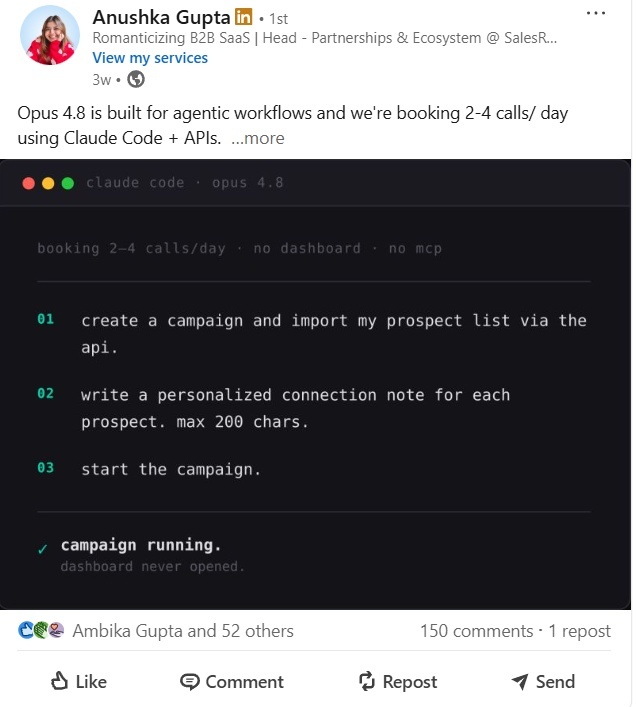
For example, you could spend 15 minutes each morning scrolling your feed and dropping a thoughtful comment on two posts from people you'll eventually want to reach. Those comments do double duty: they warm the algorithm and warm the prospect, because they'll recognize your name later.
This is the step most people skip, and it's exactly why their accounts get restricted. Two weeks of behaving like a real person is the foundation everything else stands on.
Step 3: Ramp Connection Requests Slowly (Weeks 2-4)
Start outbound requests at 5-10 per day and ramp by 5 per week. Never jump straight to the weekly cap. This is the ramp phase where you prove you can send invites without people ignoring or reporting them.
Watch one metric above all: your acceptance rate. Keep it above 20%. If it drops below that, LinkedIn reads your requests as unwanted, and you're one step from a warning. Call it the 20% Rule: if you fall under it, slow down and fix your targeting before adding volume.
Target warm prospects first. In order of likelihood to accept:
- People who've recently viewed your profile.
- People who commented on or liked your posts.
- Second-degree connections with shared connections.
- People in the same LinkedIn Groups or at the same events.
Personalize every single request in this phase. Warming leads up before the ask pushes acceptance and reply rates well above cold, generic blasts.
And remember the rolling 7-day window from earlier. If you're ramping from 10 to 15 per day, do the math across the week so you never cross the weekly ceiling mid-stride.
Step 4: Introduce Automation Safely (Week 4+)
Only turn on automation after you've cleared the Week 3 Phase Gate: a stable acceptance rate above 20% and no warnings. Automate too early, on an account that hasn't earned trust, and you undo three weeks of careful work.
Tool choice matters enormously here. Research shows around 23% of users who reach even moderate automation levels face restrictions, and most of those are running unsafe tools, not running too much volume.
So what does safe automation actually look like?
- Mobile API, not a browser extension. Browser-based tools (the kind that live in a Chrome tab) leave a desktop fingerprint LinkedIn can detect. Tools built on mobile API behave like the LinkedIn app.
- Randomized delays between actions, so your activity doesn't look robotic.
- Residential IP rather than a flagged data-center IP.
- Per-account daily caps that respect the ladder, not a blunt "send 100 now" setting.
If you're doing this manually, set calendar reminders for your daily caps, log every request in a spreadsheet, and manually stagger sends so you don't accidentally cross the rolling weekly window. It works. It's just tedious and easy to fumble.
The SalesRobot way: SalesRobot's Safe Mode enforces these limits for you automatically. It uses mobile API technology that mimics human behavior patterns, with randomized delays, human-like daily limits (up to 200 connection requests per week), and residential IP rotation.
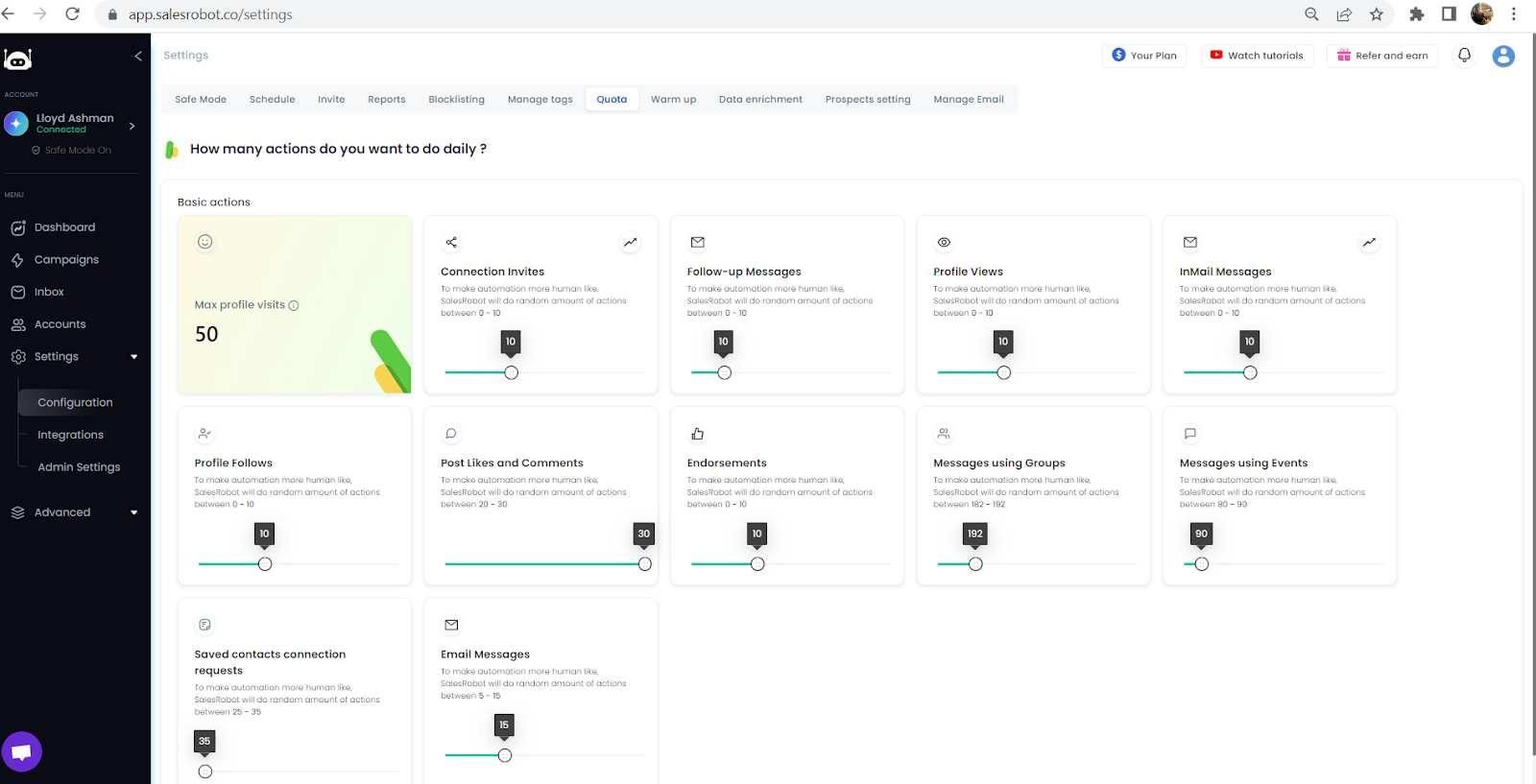
Customers report zero account bans when following its Safe Mode guidelines. Because it's cloud-based, it runs 24/7 without keeping your browser open, so there's no tab to leave running and no desktop fingerprint.
Tools like ReactIn, Expandi, and PhantomBuster also offer ramp-up features and adjustable limits. The differentiator is the underlying safety model and how much of the limit-tracking the tool handles for you.
How SalesRobot Keeps Your Account Safe Once You're Ready to Scale
Once your account is warmed and you want to scale past what you can manually track, the risk shifts from "am I sending too much?" to "is my tool protecting me?" Here's how SalesRobot addresses the three specific risks the warm-up ladder is built to avoid.

Risk: desktop fingerprinting from browser-extension tools. SalesRobot runs on mobile API technology with residential IP rotation, so your activity looks like the native LinkedIn app rather than a browser automating itself in the background. Instead of leaving a Chrome tab open all day (the classic way accounts get flagged), SalesRobot works entirely in the cloud, 24/7.
Risk: blowing past safe daily caps. SalesRobot's Safe Mode applies human-like daily limits with randomized delays, mirroring the exact conservative ramp the ladder teaches, up to 200 connection requests per week. In practice, the tool refuses to let you do the one thing that gets accounts restricted: sending too much, too fast. Customers report zero account bans following these guidelines.
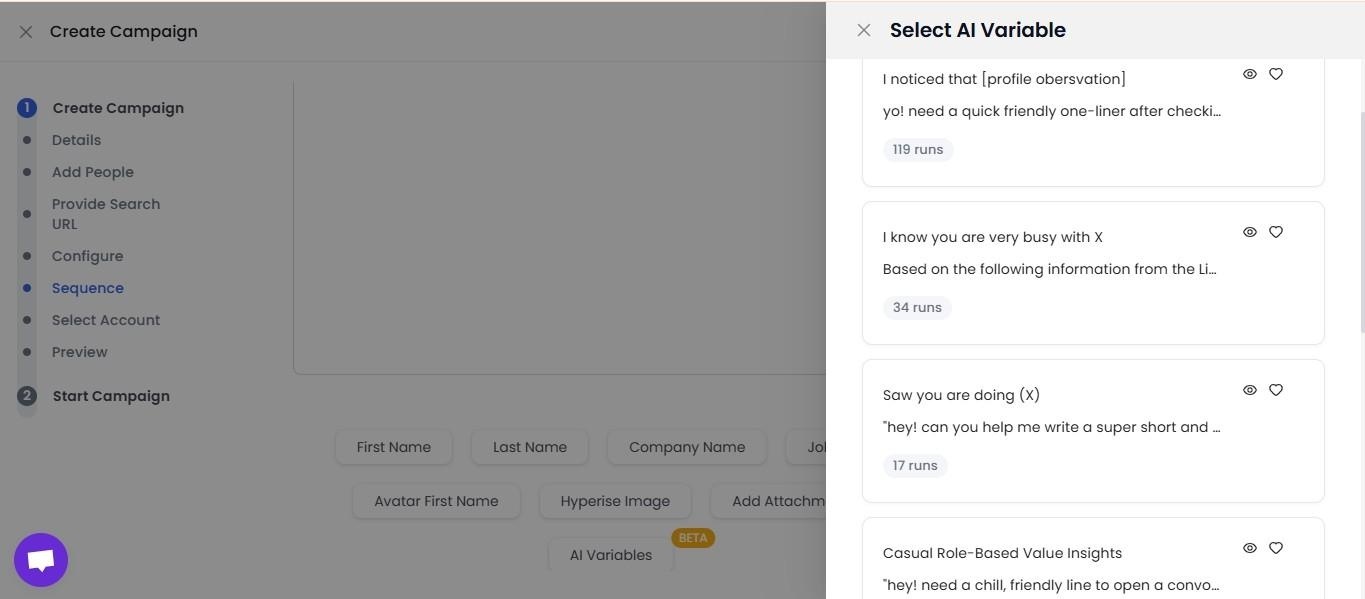
Risk: low acceptance rates from generic requests. SalesRobot's AI Variables feature pulls data from each prospect's LinkedIn profile (recent job changes, shared connections, company news) to personalize every request, which keeps you above the 20% Rule.
SalesRobot customers see a 51% connection acceptance rate and a 55% average reply rate, well above cold-blast benchmarks.
Two more things worth knowing once you're actually sending at scale.
It goes beyond text. SalesRobot lets you record your voice once and have the AI generate a personalized voice note for each lead, and record a single intro video that clones you so every prospect gets their own.

Both are on all paid plans (up to 50 a day), and users report 40%+ reply rates on voice campaigns, the kind of human texture a cold text request can't match.
It's drivable from an AI assistant. SalesRobot runs a live MCP server at mcp.salesrobot.co, so you can connect Claude (or any MCP-compatible assistant) and create campaigns, pull in a prospect list, read the inbox, and draft replies straight from a prompt. Setup takes about three minutes with your API key.
It's trusted by 4,100+ B2B sales teams, rated 4.8 on G2 from 57+ reviews, and starts at $59/month on the Basic plan (annual billing saves 35%). There's a 14-day free trial with no credit card required, so you can test it on a warmed account before committing.
If you're scaling across many accounts, the guide to scaling LinkedIn outreach covers how to run them safely from one place.
Common Mistakes That Get LinkedIn Accounts Restricted
Most restrictions come down to the same handful of avoidable errors. Audit yourself against this list.
- Starting outreach on day one of a new account. This is the single biggest cause, and it carries a far higher restriction risk. Week 1 is engagement-only, no exceptions.
- Using a browser-extension tool after the ramp. Desktop automation leaves a fingerprint LinkedIn detects. A mobile-API tool like SalesRobot behaves like the native app instead.
- Ignoring acceptance-rate drops. A falling acceptance rate is your earliest warning. Below 20%, slow down immediately, and don't wait for the gray banner.
- Treating the weekly cap as a daily cap. The roughly 100-per-week limit runs on a rolling 7-day window. Max it out in two days and you'll trip a restriction even though you "only did it once."
- Skipping personalization. Generic blasts get marked "I don't know this person," and enough of those reports push you toward a restriction. Personalize every request, every time.
Frequently Asked Questions
How long does it take to warm up a LinkedIn account?
Warming up a LinkedIn account takes 3 to 4 weeks for accounts with some history and 6 to 8 weeks for brand new or long-dormant accounts. The timeline depends on how much behavioral trust LinkedIn already associates with your profile. Rushing it is the fastest route to a restriction, so let each phase gate clear before advancing.
How many connection requests can I safely send on a new LinkedIn account?
On a brand-new account (under three months old), stay under 50-80 connection requests per week, which works out to roughly 5-10 per day in the early weeks. Established accounts can safely reach around 100 per week. Always keep your acceptance rate above 20%, and if it drops, reduce volume before continuing.
Does paying for LinkedIn Premium or Sales Navigator raise my connection limit?
No. The roughly 100-invites-per-week cap is nearly identical across Free, Premium, and Sales Navigator, so upgrading doesn't buy you more connection requests. What a paid plan does buy is better search, more InMail, and intent data. If you need more safe reach, the lever is a warmer account and tighter targeting, not a bigger subscription.
How do you warm up a LinkedIn account for automation?
Complete the manual ramp first: finish your profile, spend two weeks engaging organically, then slowly scale connection requests over weeks 2-4. Only introduce automation in Week 4+, after your acceptance rate is stable above 20%. Use a mobile-API tool with Safe Mode limits, like SalesRobot, rather than a browser extension, which risks detection.
What's the difference between warming up a new account vs. a dormant one?
A brand-new account has zero behavioral trust, so it needs the full 6-8 week ladder starting from engagement-only. A dormant account (inactive for six months or more) keeps its historical trust signals, so you can compress warm-up to 3-4 weeks: a few days of re-engagement, then jump to the ramp phase at reduced volume.
How long should I pause if my account receives a restriction warning?
Pause outbound activity for 1 to 3 weeks, depending on your account history, and longer if you've been restricted before. When you resume, cut all your limits by 50% and rebuild slowly. Continuing at the same pace after a warning almost guarantees a harder, longer restriction next time.
Your Account Is an Asset. Treat It Like One.
Warming up a LinkedIn account isn't busywork. It's protecting the single channel your pipeline runs on. The 4-Week Warm-Up Ladder gives you the exact sequence: profile first, two weeks of human behavior, a slow ramp, then automation once you've earned it.
The honest reality check: there's no shortcut. Even the best tool in the world can't skip the two weeks of behavioral trust-building. It can only keep you safe after you've done the groundwork.
That's where SalesRobot fits. Once your account is warmed, its Safe Mode and mobile-API architecture enforce the same conservative limits the ladder teaches, personalize every request with AI Variables to hold a 51% acceptance rate, and run 24/7 in the cloud with zero reported bans.
It starts at $59/month, with a 14-day free trial and no credit card required. The complete LinkedIn outreach system playbook shows how the sending side fits together once you're warmed.
Do the warm-up right, then let SalesRobot keep it that way. Try it free for 14 days.

Wow your leads by cloning yourself and sending personalized videos and voice notes to each lead on LinkedIn.
If you don't reply to leads within 5 mins, your chances of converting them fall by 50%. Our AI replies on your behalf instantly! (and yes, you can train it)

Don't shoot in the dark. Get detailed analytics on what's working
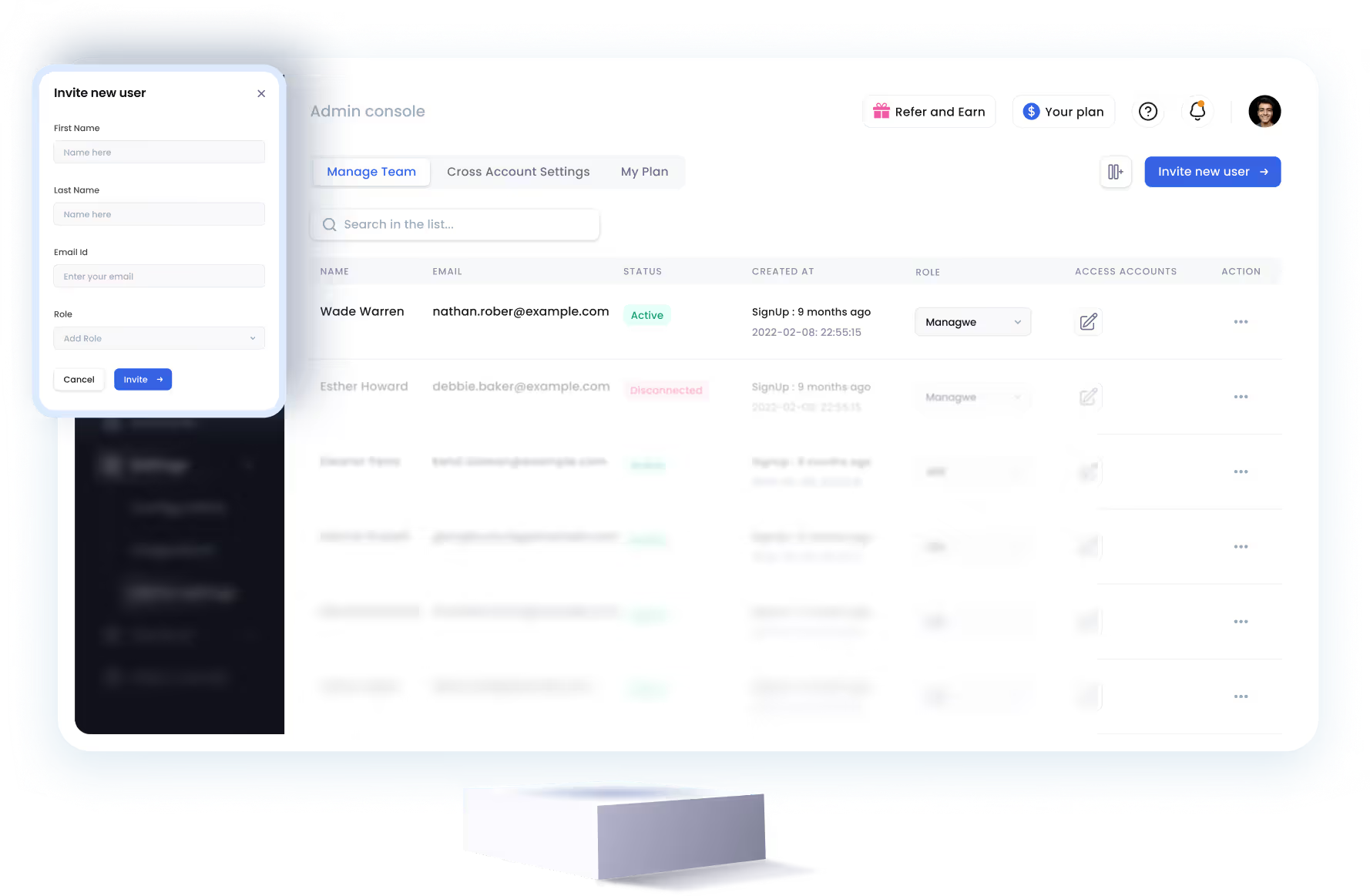
SalesRobot allows you to invite other team members, so that they can add their LinkedIn Account, run outreach campaigns and get amazing results just like you.



Trusted by 4100+ innovative B2B sales teams and lead gen agencies







Heading 1
Heading 2
Heading 3
Heading 4
Heading 5
Heading 6
Lorem ipsum dolor sit amet, consectetur adipiscing elit, sed do eiusmod tempor incididunt ut labore et dolore magna aliqua. Ut enim ad minim veniam, quis nostrud exercitation ullamco laboris nisi ut aliquip ex ea commodo consequat. Duis aute irure dolor in reprehenderit in voluptate velit esse cillum dolore eu fugiat nulla pariatur.
Block quote
Ordered list
- Item 1
- Item 2
- Item 3
Unordered list
- Item A
- Item B
- Item C
Bold text
Emphasis

Superscript
Subscript