.avif)
TL-DR:
You can message LinkedIn Premium users with open profiles for free without connection requests.
Find them manually by looking for Premium badges and "Free message" options, or use outreach tools like SalesRobot to scale your LinkedIn campaigns
Did you know you can message people on LinkedIn without sending them a connection request first?
I know, it's crazy!🤯
There's an 'open profile' option on LinkedIn that's available for premium users.
But the bad news is: LinkedIn doesn't have a filter to help you sort them out.
Neither does Sales Navigator..
So today, we're gonna talk about two different ways on how to find open profiles on LinkedIn- without using any filters!
Ready?
Let's begin!
What are open profiles on LinkedIn?
LinkedIn premium users get an option to make their profile public, aka, accessible to all, without having to send them a connection request first.
The good thing is: you can send them an InMail for free, without consuming any credits, without sending any connection requests.
It saves you the overall hassle of sending requests, waiting for them to get accepted, waiting for a reply, getting ghosted sometimes, and repeat.
And if you know the cost of InMail credits - you should already be excited about this.
If you don't, they cost approximately $10 *EACH*, depending on your geographic location.
Getting back to my point, LinkedIn has over 175 million premium users in 2026. Among them, many have open profiles enabled, though the exact proportion can no longer be reliably detected due to recent LinkedIn platform changes.
That's a huge market for you to generate leads.
Agreed?
But how do you identify these profiles, since there are 0 filters to help you do so..
How to turn on open profile on LinkedIn?
If you are a LinkedIn premium user and want to turn on the open profile option for your profile, here's how you do it:
⏩Click on the Me icon at the top of your LinkedIn homepage and select the 'View Profile' option.

⏩Now check out the 'Edit' option in the introduction section. Click on it.
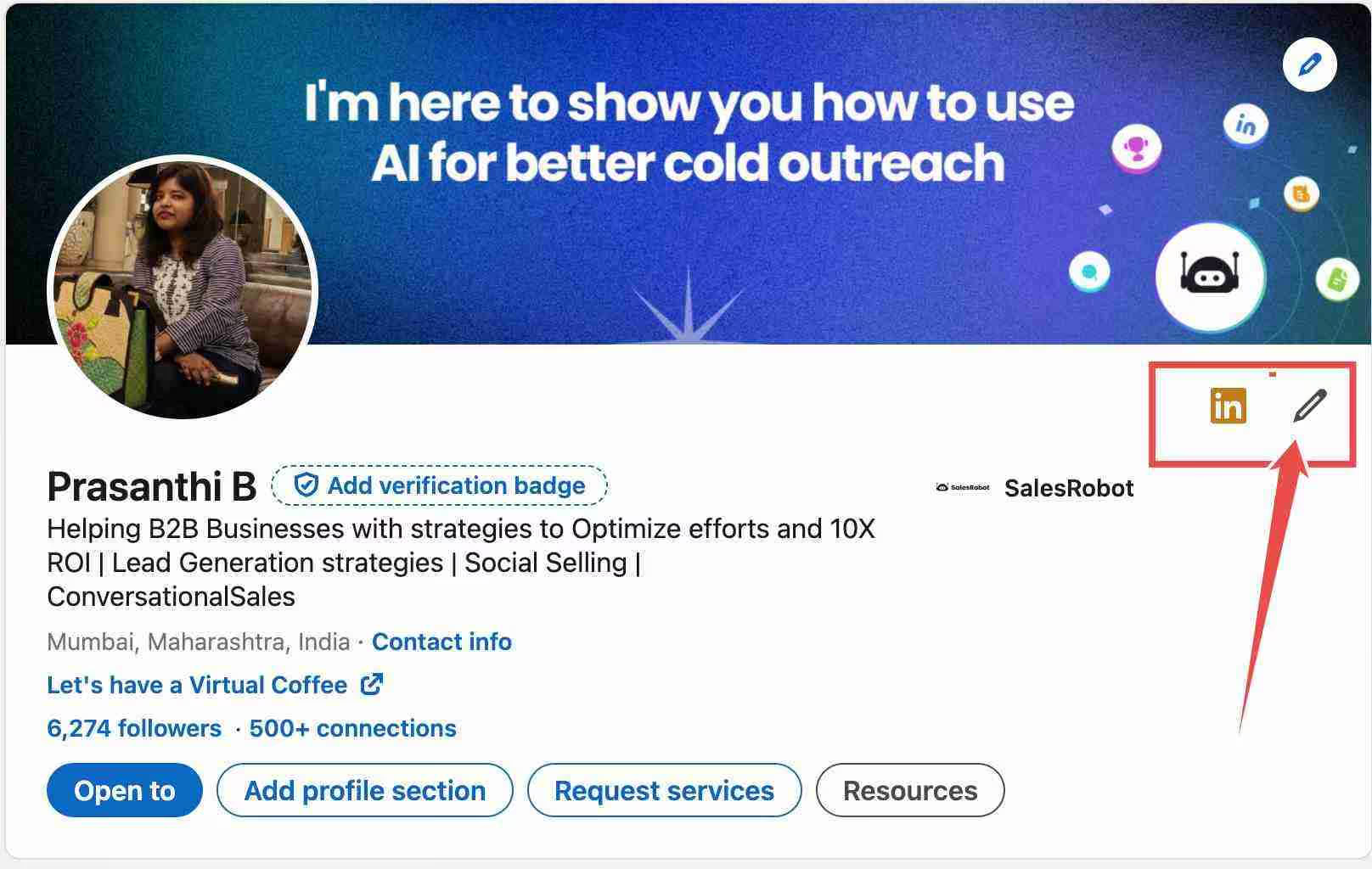
⏩Switch the toggle right under 'Open Profile' to allow anyone on LinkedIn to contact you directly for free.
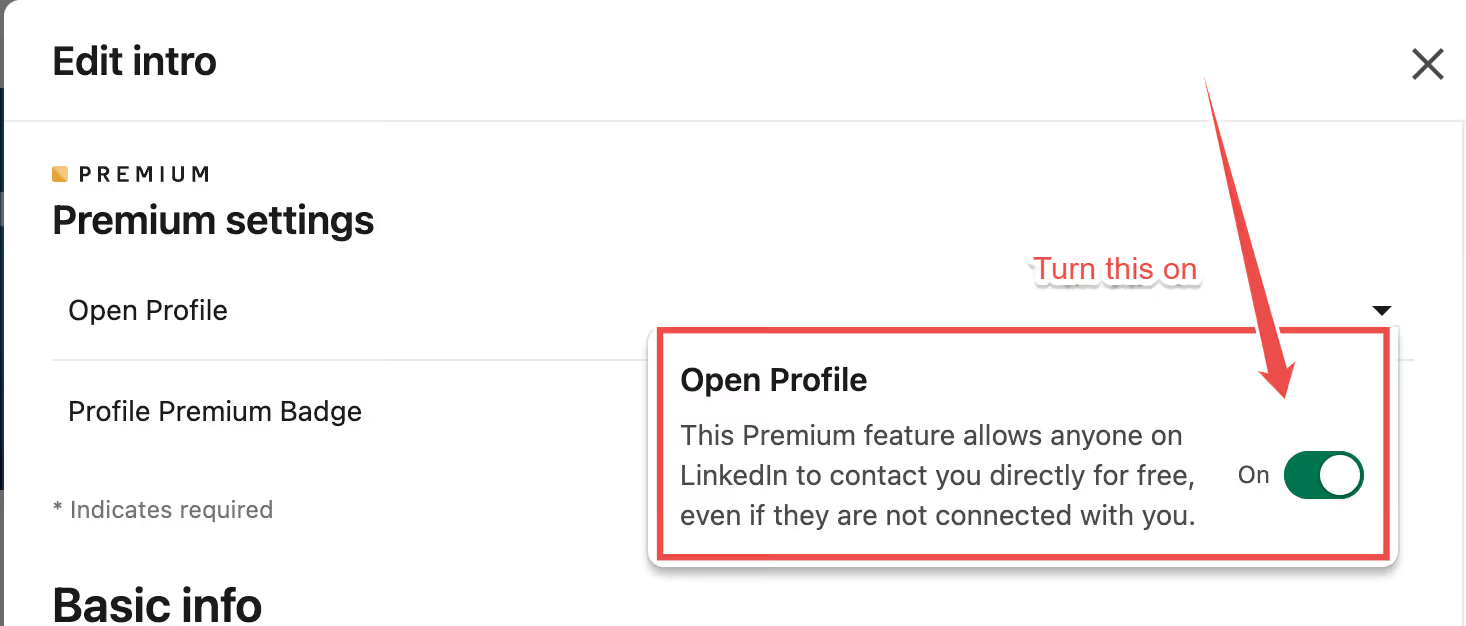
And you're all set.
Now anyone can check out your profile and message you for free!
The bigger question here is:
Should you turn it on?
If you want to grow your network and want people to easily be able to get in touch with you, then this is a great option for you.
But there's something you should consider before:
Turning it on means you will receive some irrelevant messages.
But keeping it off can prevent potential leads to get in touch with you easily.
Sure, they will find a way if they really want to, but it's just easier this way.
So, let's see how you can find these open profiles on LinkedIn.
How to find open profiles on LinkedIn - 2 Options
Whoever said that filters are the only way to find your target audience on LinkedIn- they aren't 🤷🏻
I mean, they do help, but they're not the only option you got.
Unfortunately, without them helping you out, you have two options:
- Manual searches.
- Automate using SalesRobot.
Let's talk about each of them in detail -
Option #1 - Manually
One way to identify open profiles on LinkedIn is to manually look for them.
You need to first go to LinkedIn and filter out a list of people you wanna get in touch with.
The next step is to identify premium accounts from that list.
Generally, premium accounts have a badge that's displayed like this:

It's easy to identify.
But then comes the hard part.
You have to open the profiles of each person and see if they have an open profile or not.
How?
Click on the 'Message' button if you see it on their profile, else, click on 'More' and see if it's there.

If this box opens up, and you see 'Free message' written, congrats, my friend, you've hit the jackpot!
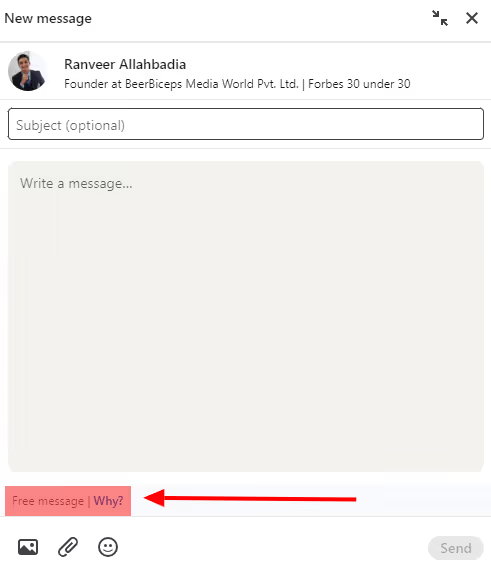
This means they have an open profile, and you CAN message them for free!
And if you don't, well..
But here's a point to be noted:
If your goal was to contact 5-10 people, this is a great option, actually.
It'll take some time to sort out and write messages for each, but we'll talk about it later.
If, however, your goal is to generate leads from LinkedIn and you're thinking of doing it in bulk (and automated), you're gonna spend your holidays doing exactly that!
So, you're much better off with option #2, which is also my personal favorite😉
Option #2 - Automate using SalesRobot
Yep, you can automate your entire LinkedIn outreach process, from finding your target audience to sending personalized messages and follow-ups
SalesRobot is a LinkedIn and Email automation tool that lets you create automated campaigns on LinkedIn that can -
✅Send automated connection requests and personalized messages to YOUR target audience,
✅Warm-up and follow-up with them, and
✅Track the important metrics and auto-pause the campaign when someone replies!
And 'tis just the tip of the iceberg.

It can write some awesome messages for your prospects on your behalf, and they'll never know you wrote them.
Want proof?
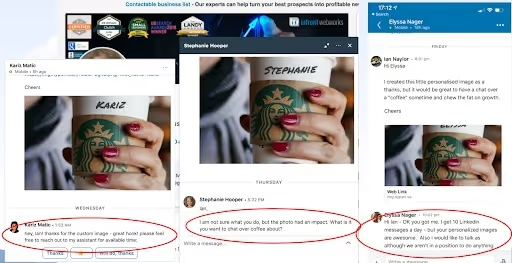
This is it!
It'll even take that extra step, and keep the conversation going until a meeting is booked. We have proof for that too!
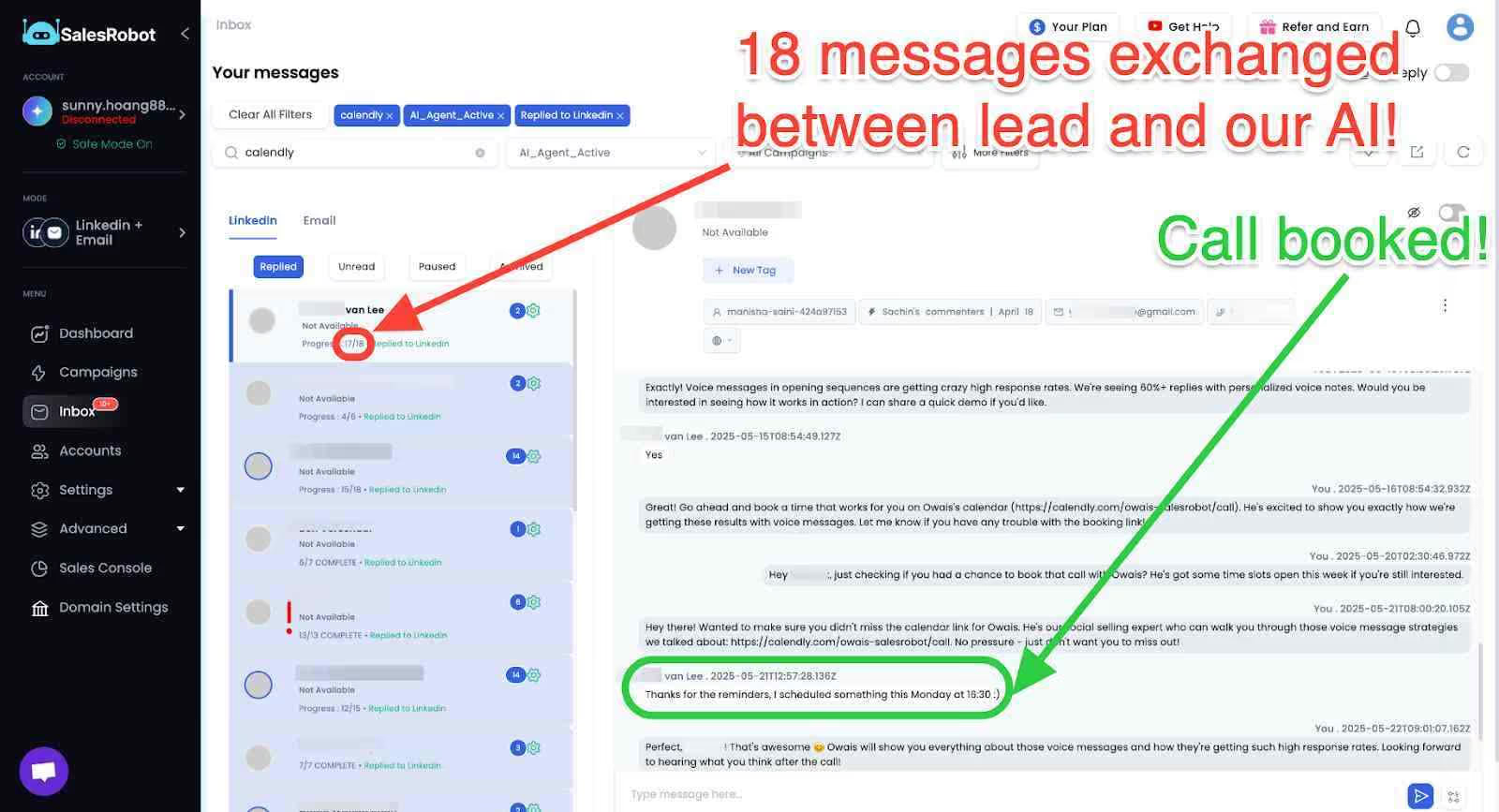
- Go to the SalesRobot page and sign up for a free trial (no credit card needed).
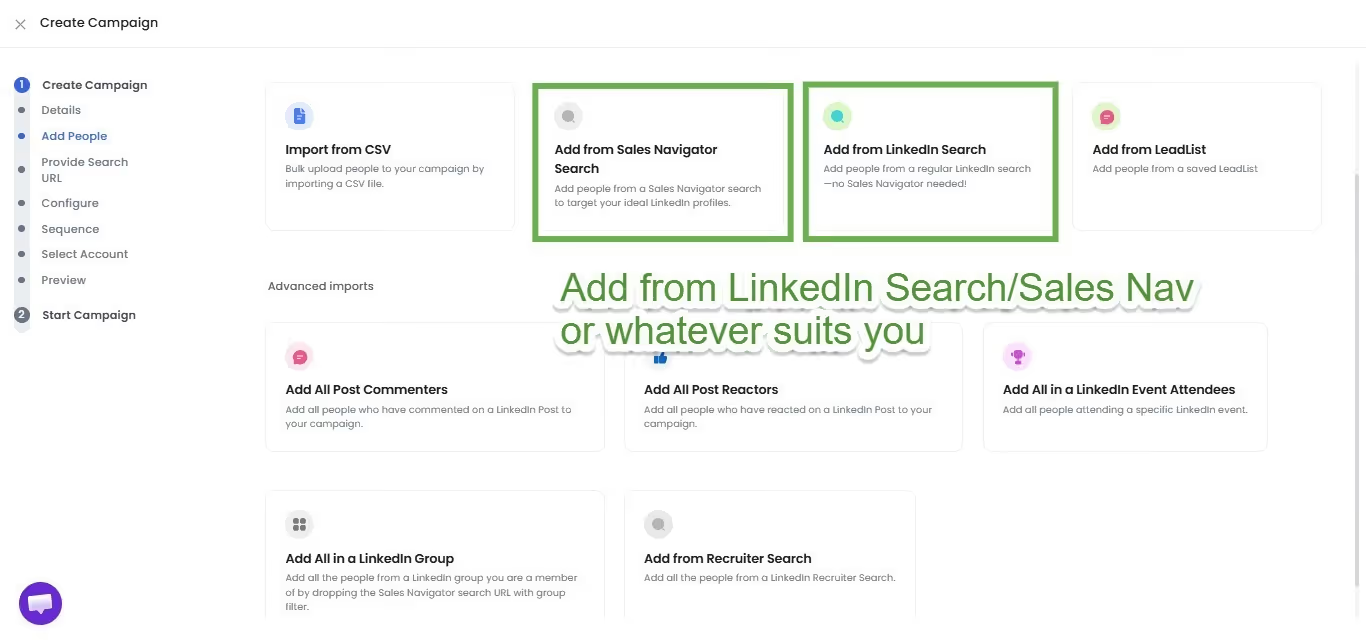
- Next, click 'Campaigns' from the left column and go to 'Create Campaign' from the top right corner.
- Click 'I'm an advanced user.'
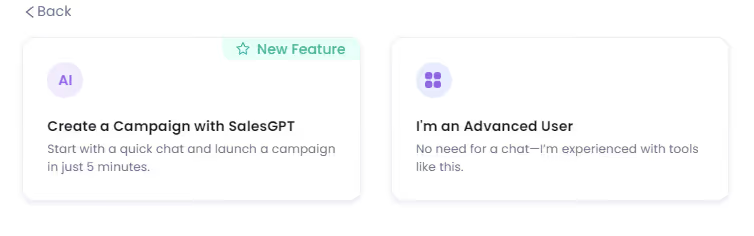
- Pick a name for your campaign, and then go back to LinkedIn to perform a LinkedIn search to identify your target audience.
It can be a regular LinkedIn search, Sales Nav search, group, hashtags, anything..
- Now, copy the search URL and paste it into SalesRobot, selecting the way you conducted your search.
6. When you get the option to set up your campaign, pick the 'From Scratch' option.
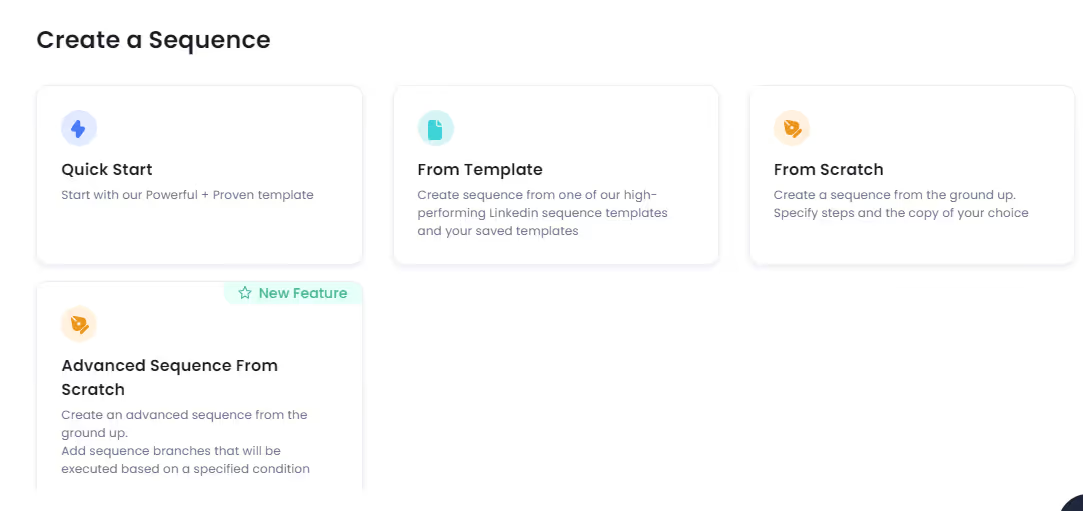
7. Now you can create your sequence. To add InMail steps, go to the 'Advanced steps' option.
Note: without open profile targeting, InMails sent will consume your credits as normal
You can add your choice of subject line and body copy for InMails here.
8. Now that you're done, hit 'Done' and you're good to go!
You can sit back and chill and focus on closing the deals SalesRobot sends your way!
Now that you know how Option #2 works, let's talk about why InMail outreach is still worth doing.
Why use LinkedIn InMails for B2B lead generation?
InMail lets you reach prospects directly without needing a connection first.
So why bother with it instead of just sending connection requests in bulk?
That way, you'll be able to get in touch with more people anyway..
But what you don't realize is: there's a very basic problem with it.
LinkedIn doesn't allow you to message your 2nd and 3rd-degree connections unless you send them a personalized connection request.
And when they do accept your request, it's very easy for your messages to get lost in their inbox.
If they don't know you, they have no reason to accept your connection request except for expanding their network.
It might take some (maybe a lot of) time too.
Sending InMails offers a solution to these problems, and is even more cost-effective when the recipient has an open profile enabled, since those InMails are free
It doesn't matter if you're connected or not, you can send them a message.
Note: free InMails only apply when the recipient has an open profile enabled. Otherwise, standard credit costs apply.
InMails are also visible in the recipient's inbox and email if their email notifications are on.
More LinkedIn profiles for you to explore
Beyond open profiles, LinkedIn constantly suggests "more profiles for you" based on your activity and connections.
These recommendations appear when you visit LinkedIn profiles and can be a goldmine for finding potential leads.
The platform analyzes your viewing patterns, current connections, and industry to suggest similar profiles you might want to connect with.
Frequently Asked Questions
Here are answers to common questions about LinkedIn profiles and open profile features:
Will someone know if I view their LinkedIn profile without logging in?
Yes, LinkedIn can track profile views even when you're not logged in through various tracking methods. If you want to browse profiles anonymously, consider using LinkedIn's anonymous viewing option when logged in.
How many profile searches on LinkedIn per month are allowed?
LinkedIn limits basic users to around 100 profile searches per month, while Premium users get significantly more searches. The monthly limit for profile searches on LinkedIn varies by subscription type, with Sales Navigator offering the highest limits.
How can I find a LinkedIn profile from email?
You can find LinkedIn profiles from email addresses by using LinkedIn's search function or connecting your email contacts to LinkedIn. Some third-party tools also help match email addresses to LinkedIn profiles.
Conclusion
So, what are you waiting for?
Now that you know how to find open profiles manually and how to scale your LinkedIn outreach with SalesRobot, you've got a solid roadmap to generating quality leads from LinkedIn.
For scaling your outreach, SalesRobot handles connection requests, personalized messages, follow-ups, and InMail sequences, all from a cloud-based infrastructure that keeps your account safe. .
There's more to it, but you'll have to try and explore it to see how it's different from other automation tools 😉
It's free for 14-days- no strings attached.
Happy networking!

Wow your leads by cloning yourself and sending personalized videos and voice notes to each lead on LinkedIn.
If you don't reply to leads within 5 mins, your chances of converting them fall by 50%. Our AI replies on your behalf instantly! (and yes, you can train it)

Don't shoot in the dark. Get detailed analytics on what's working
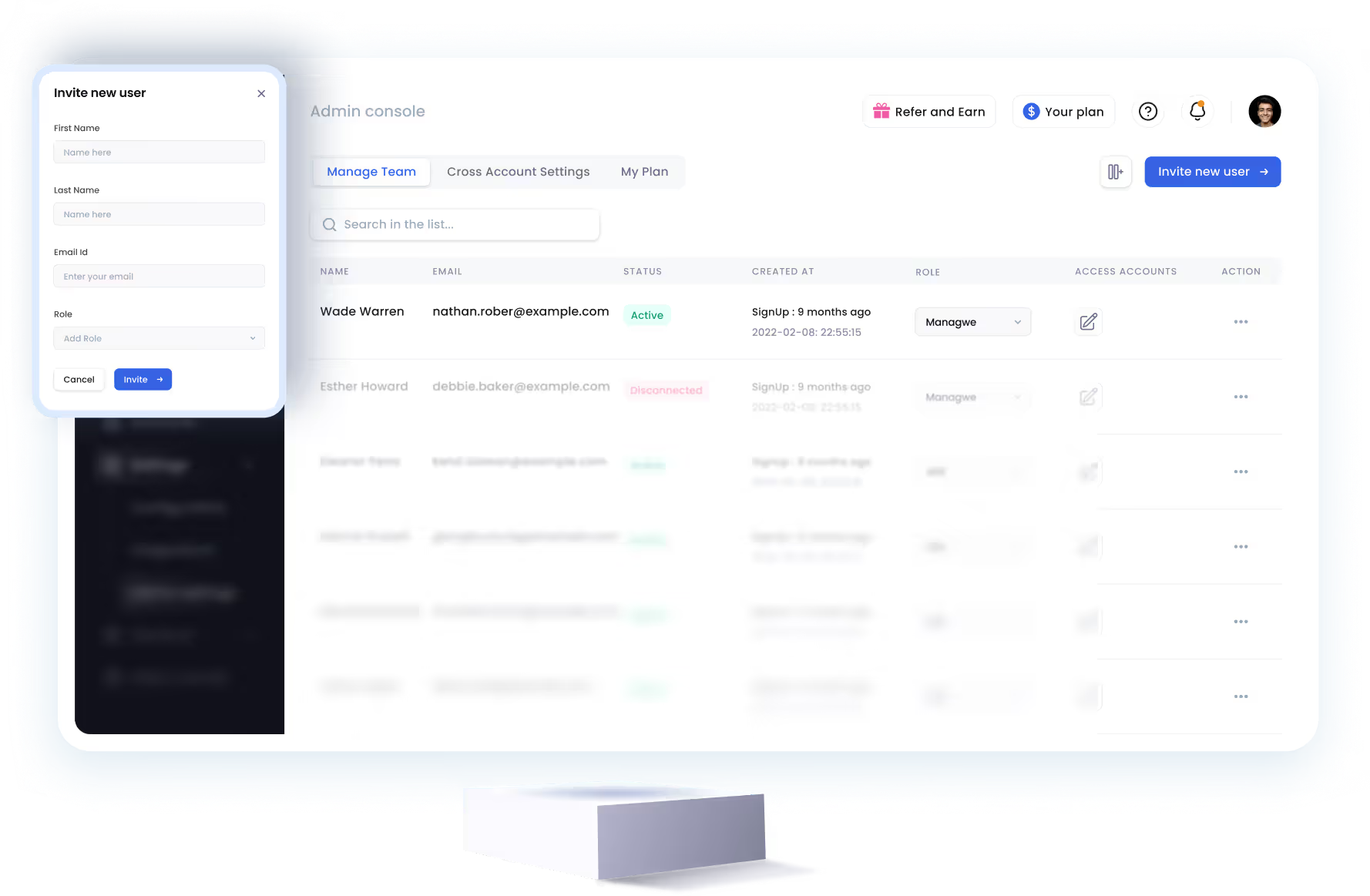
SalesRobot allows you to invite other team members, so that they can add their LinkedIn Account, run outreach campaigns and get amazing results just like you.
.avif)


Trusted by 4100+ innovative B2B sales teams and lead gen agencies

.avif)

.avif)




.avif)


Heading 1
Heading 2
Heading 3
Heading 4
Heading 5
Heading 6
Lorem ipsum dolor sit amet, consectetur adipiscing elit, sed do eiusmod tempor incididunt ut labore et dolore magna aliqua. Ut enim ad minim veniam, quis nostrud exercitation ullamco laboris nisi ut aliquip ex ea commodo consequat. Duis aute irure dolor in reprehenderit in voluptate velit esse cillum dolore eu fugiat nulla pariatur.
Block quote
Ordered list
- Item 1
- Item 2
- Item 3
Unordered list
- Item A
- Item B
- Item C
Bold text
Emphasis

Superscript
Subscript